Dashboard Overview
How to navigate, understand, and make the most of your dashboard for insights
Your dashboard is where you track how AI models talk about your brand. This guide walks you through where everything is, so you always know which website you're viewing and where to find what you need.
How Your Account Is Organized
Everything in Promptmonitor is organized into three levels.
Most of what you see belongs to one website. Your prompts, scores, and competitors all belong to the website you've selected. Switch website, and the whole dashboard switches with it.
The Sidebar
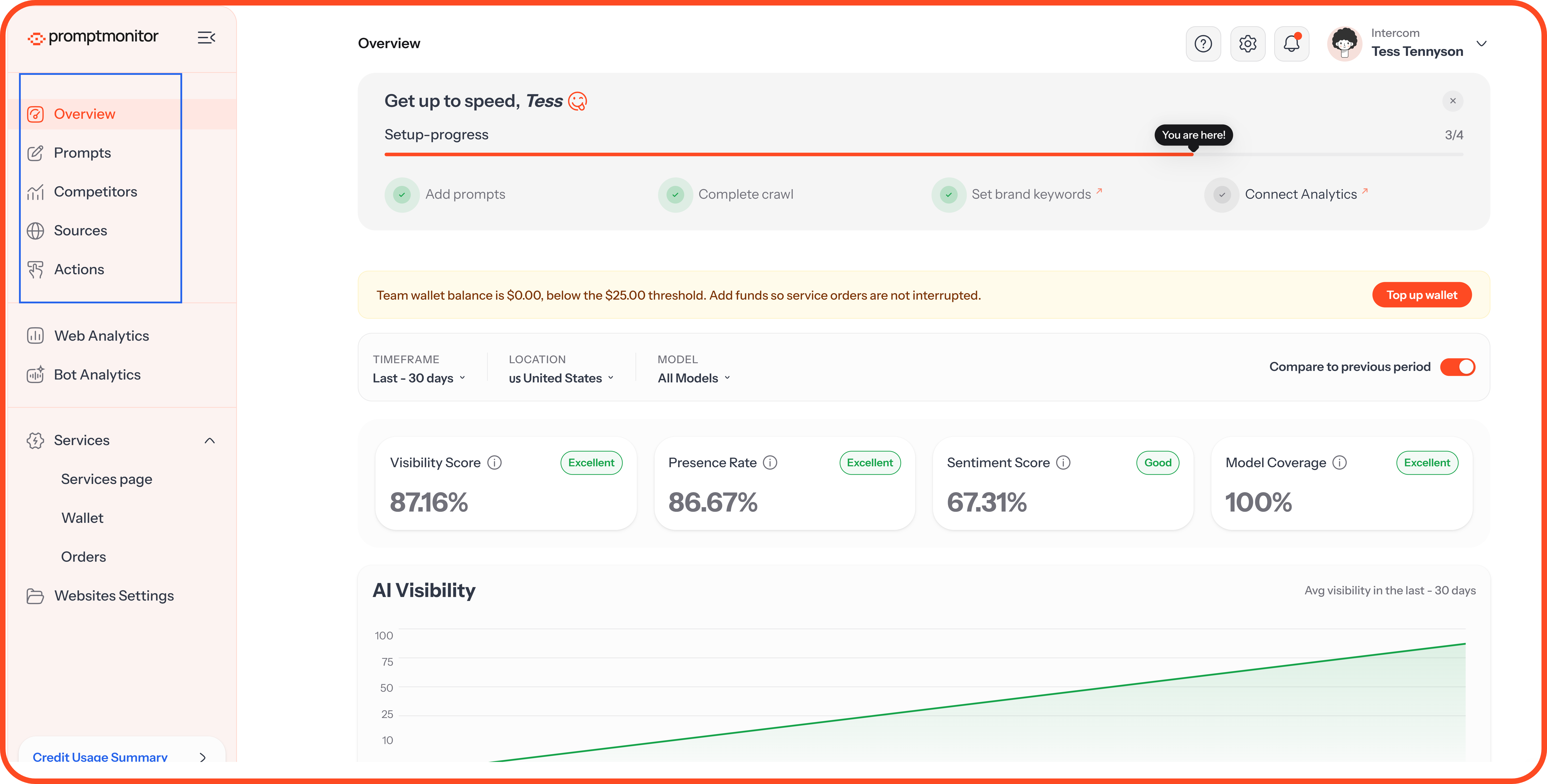
The sidebar on the left takes you to every part of the dashboard.
Website Pages
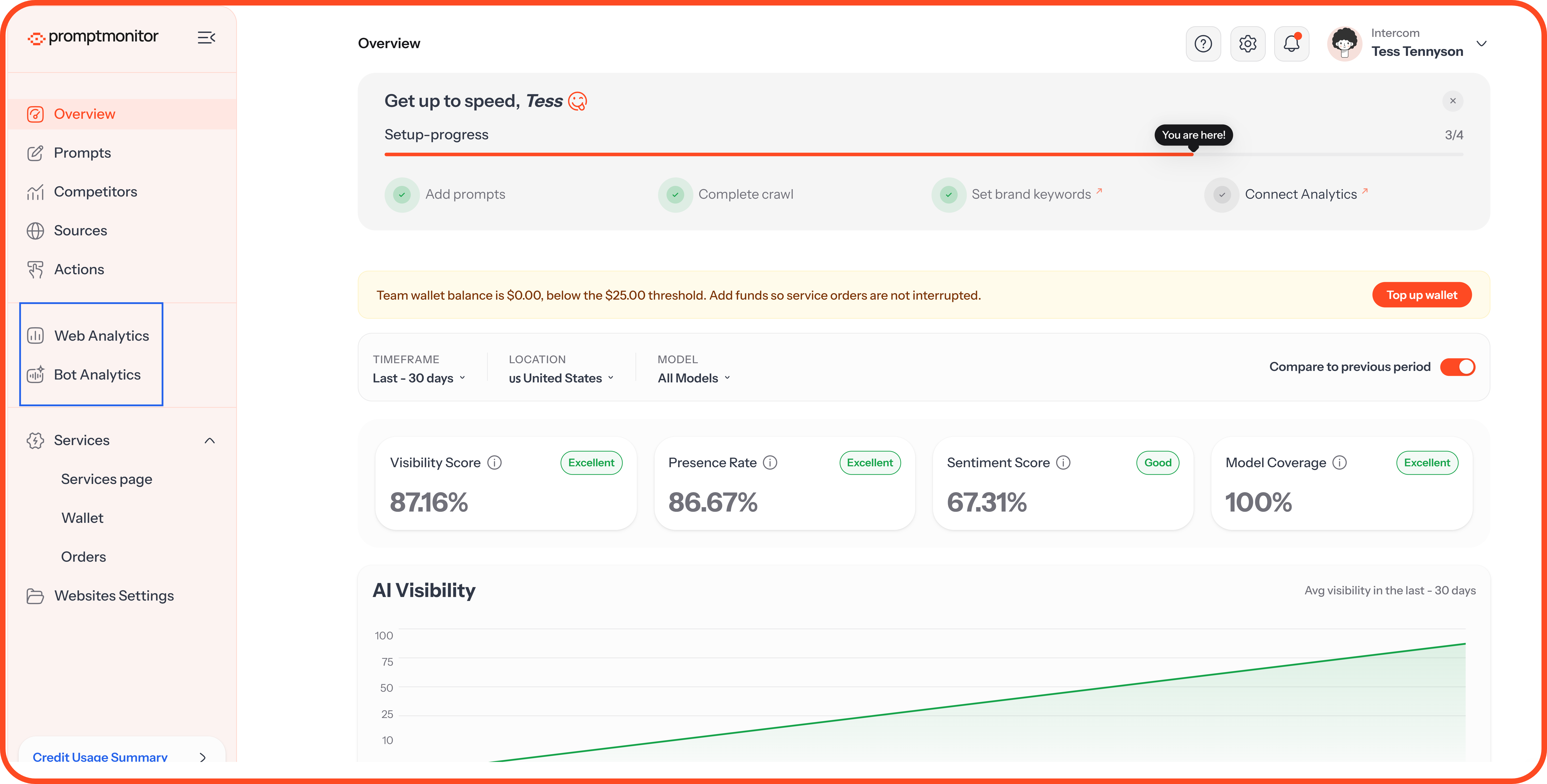
Website Analytics
Web Analytics: Human visitors to your website.
Bot Analytics: Visits from AI crawlers such as GPTBot and ClaudeBot.
Both are available on Growth and Pro.
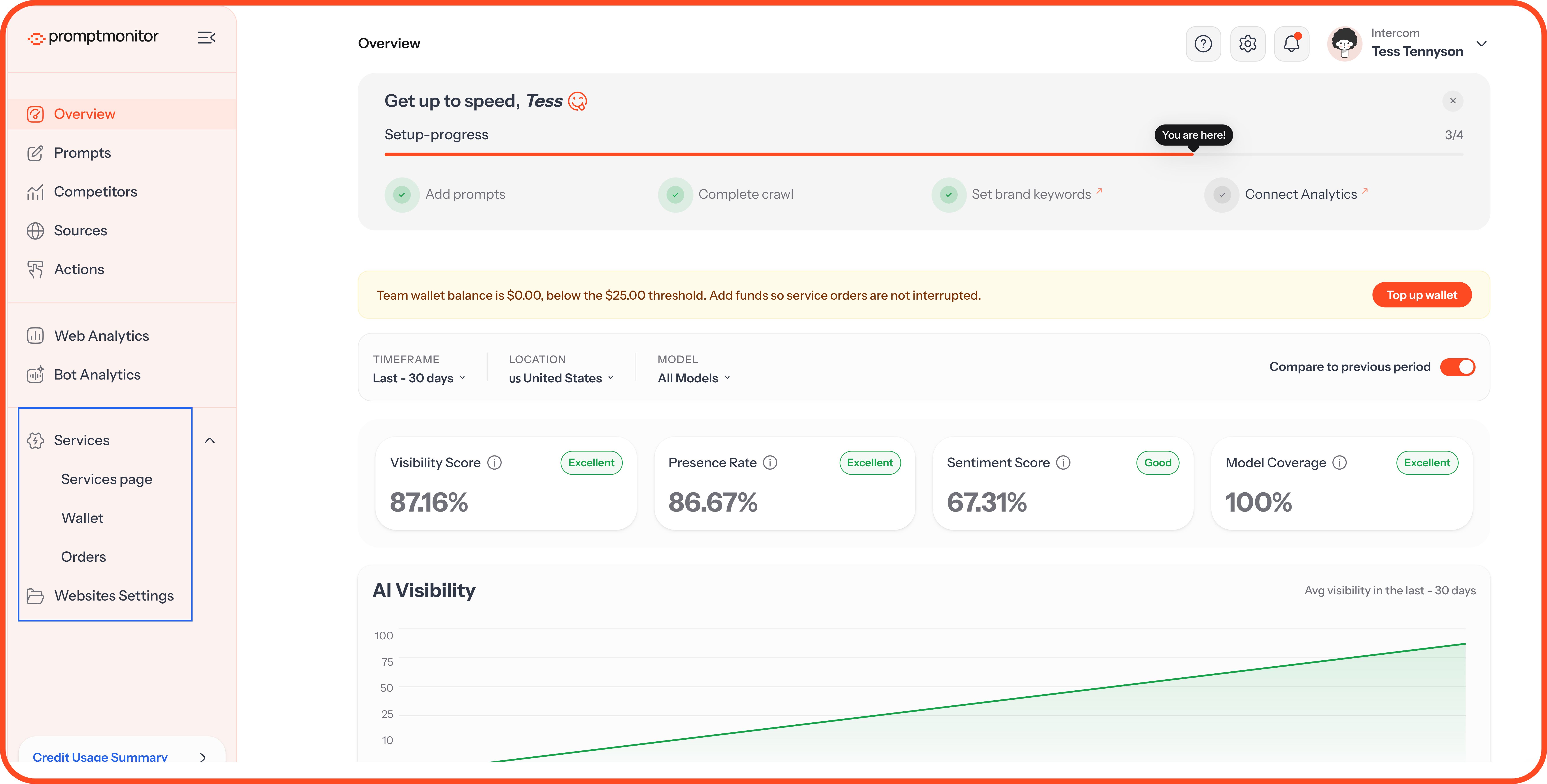
Services and Settings
Services: Opens three pages. Services page lets you order done-for-you services, Wallet shows your team's balance, and Orders tracks what you've bought.
Websites Settings: Brand details, detection keywords, markets, monitoring, analytics setup and integrations, plus adding or deleting a website.
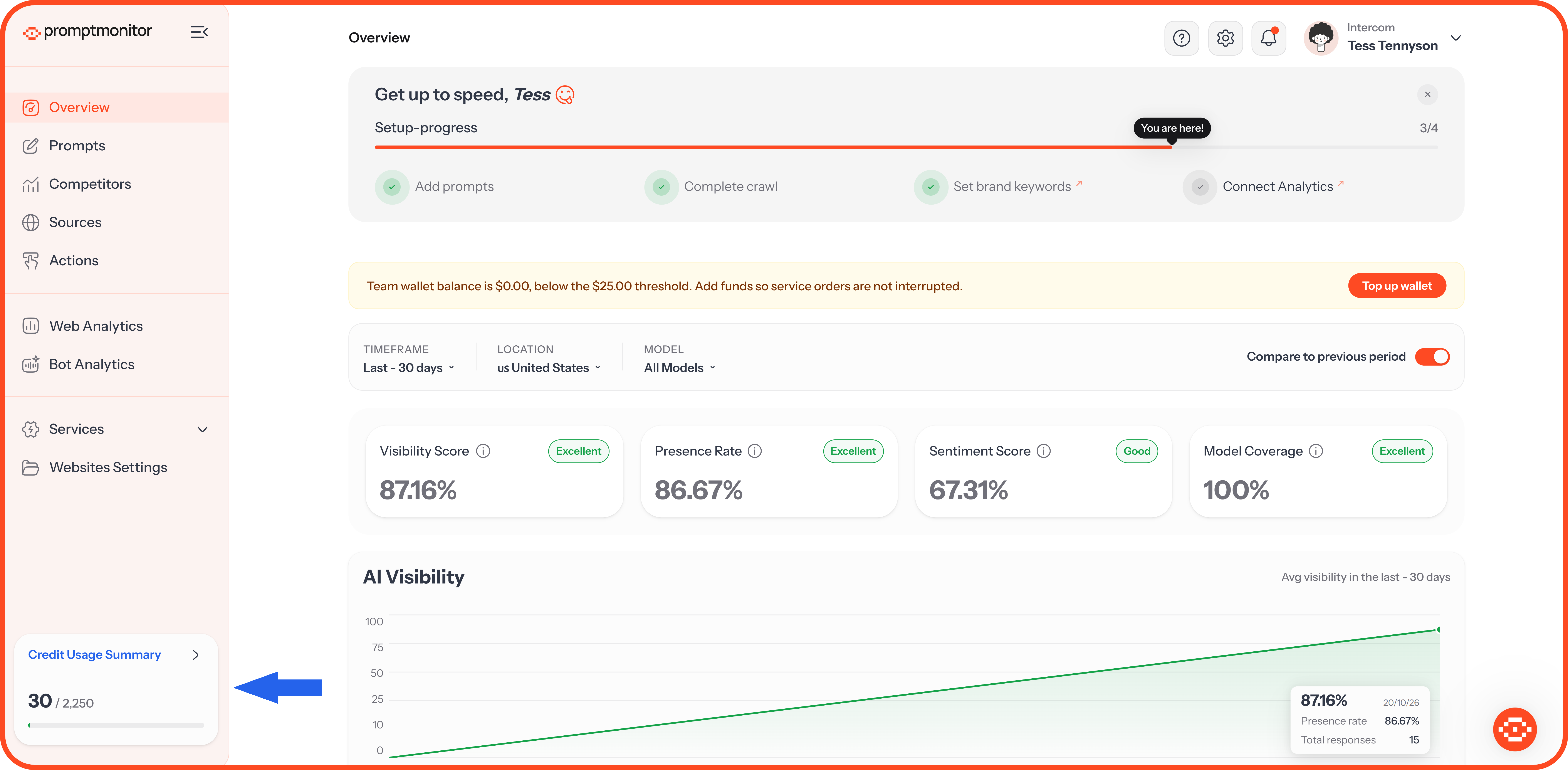
Credit Usage Summary
At the bottom of the sidebar, you'll see how many AI answers you've used this billing period out of your plan's total. Click it for the full breakdown, with View plan and Add more credits.
To make more room for your data, click the icon at the top of the sidebar to collapse it.
The Top Bar
Switch or Add a Website
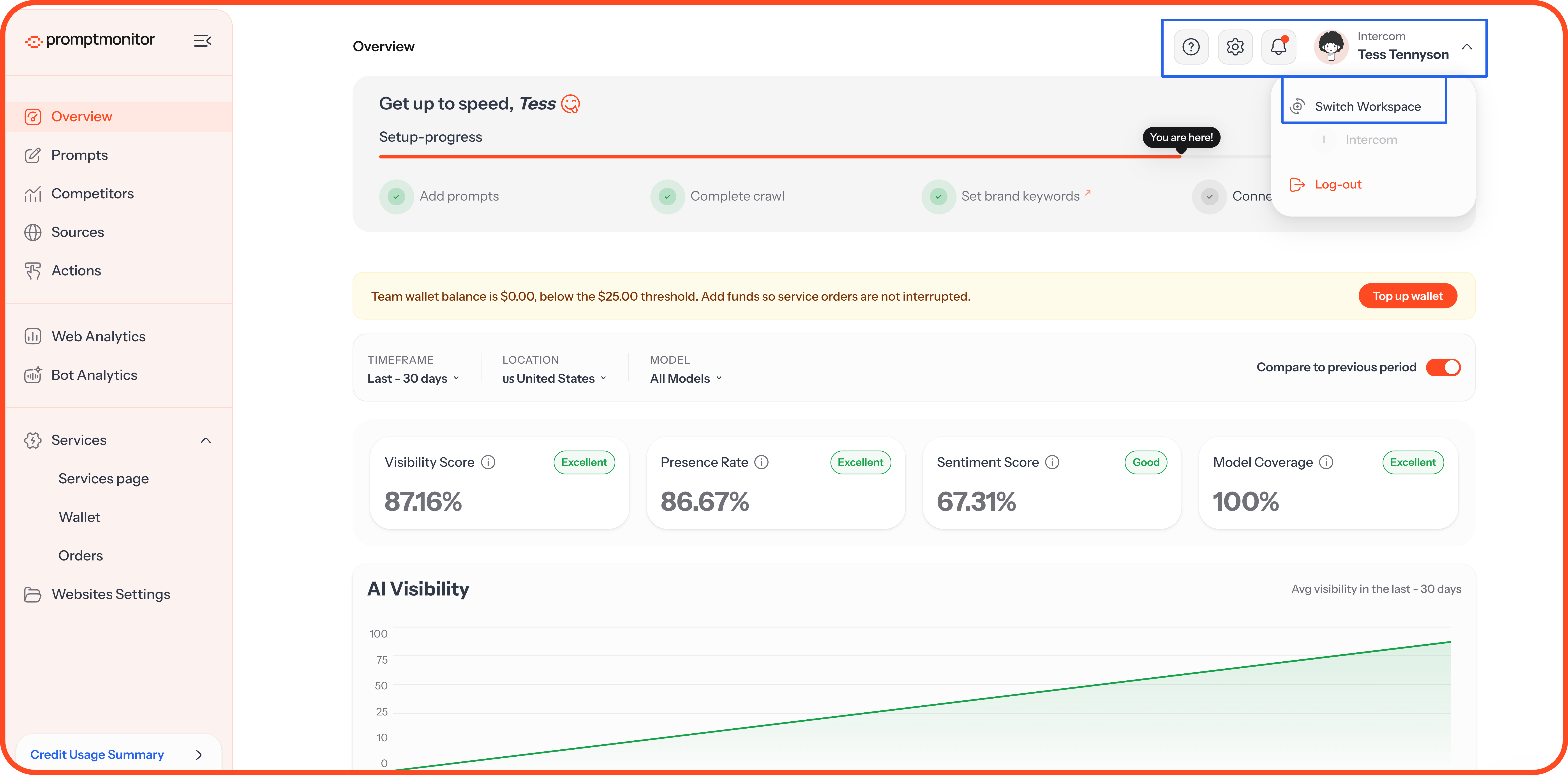
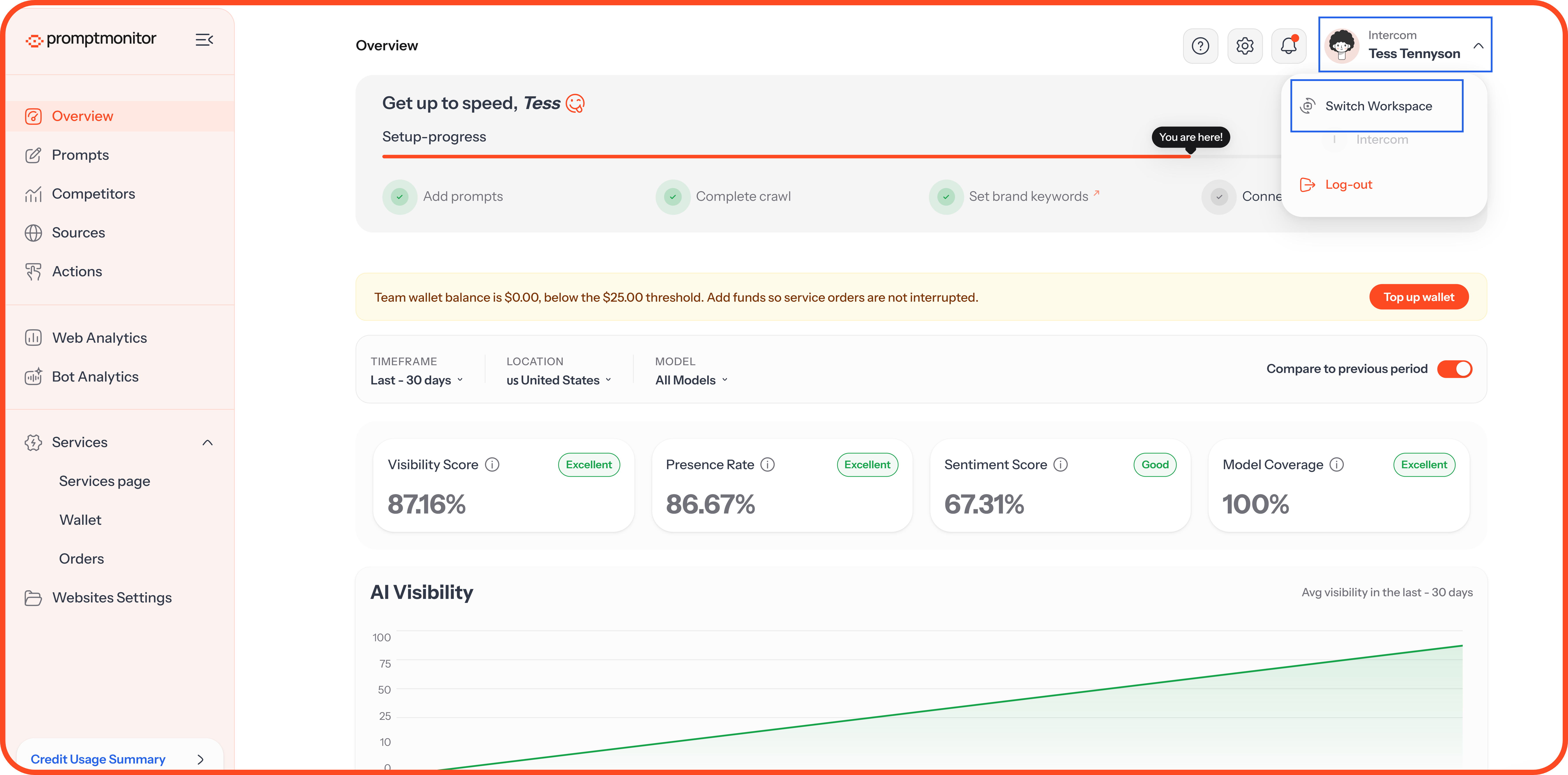
Switch website: Click your name at the top right and choose Switch Workspace.
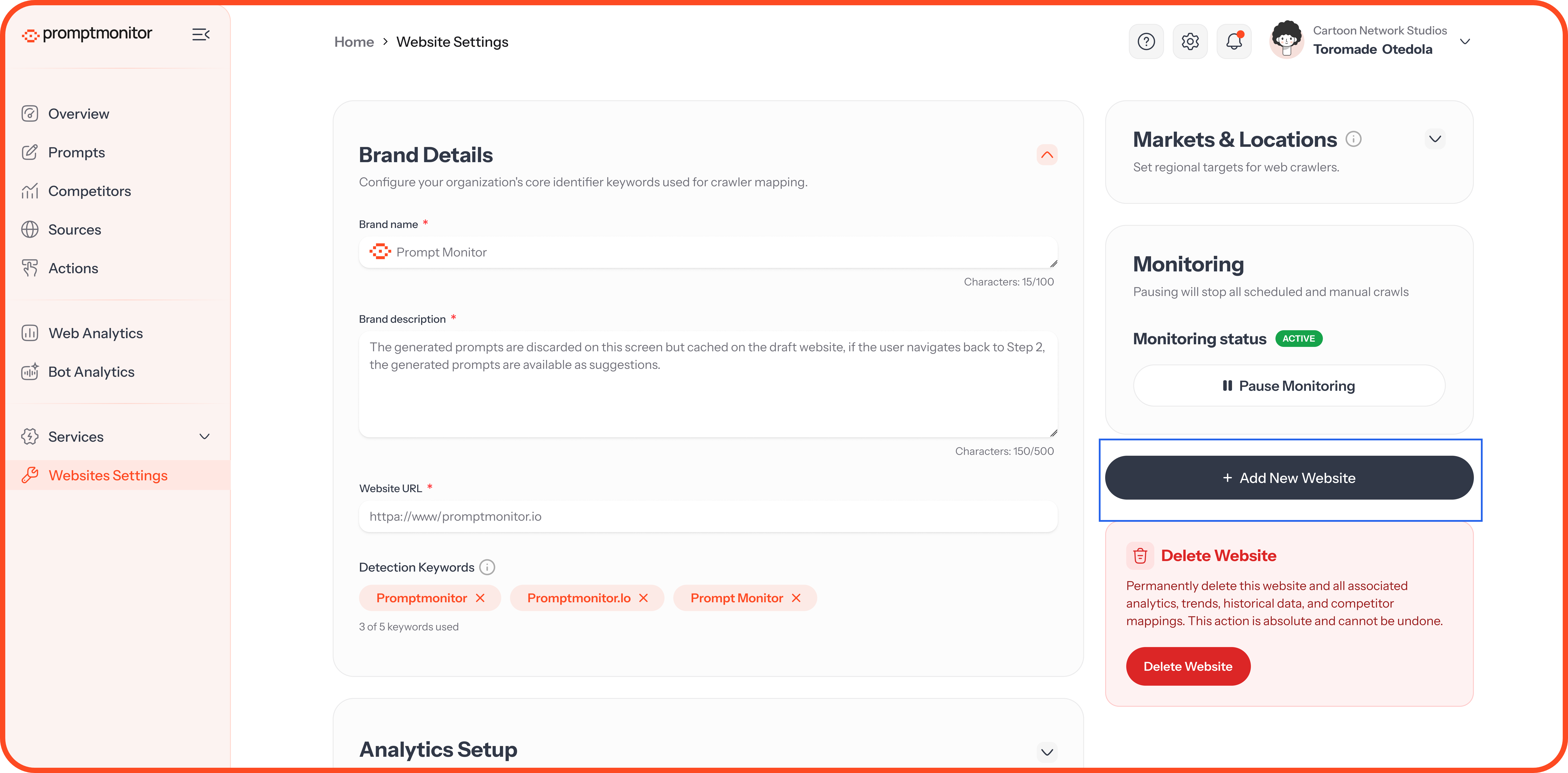
Add a website: Go to Websites Settings and click Add New Website. This starts the same setup steps you followed for your first website.
The number of websites you can track depends on your plan.
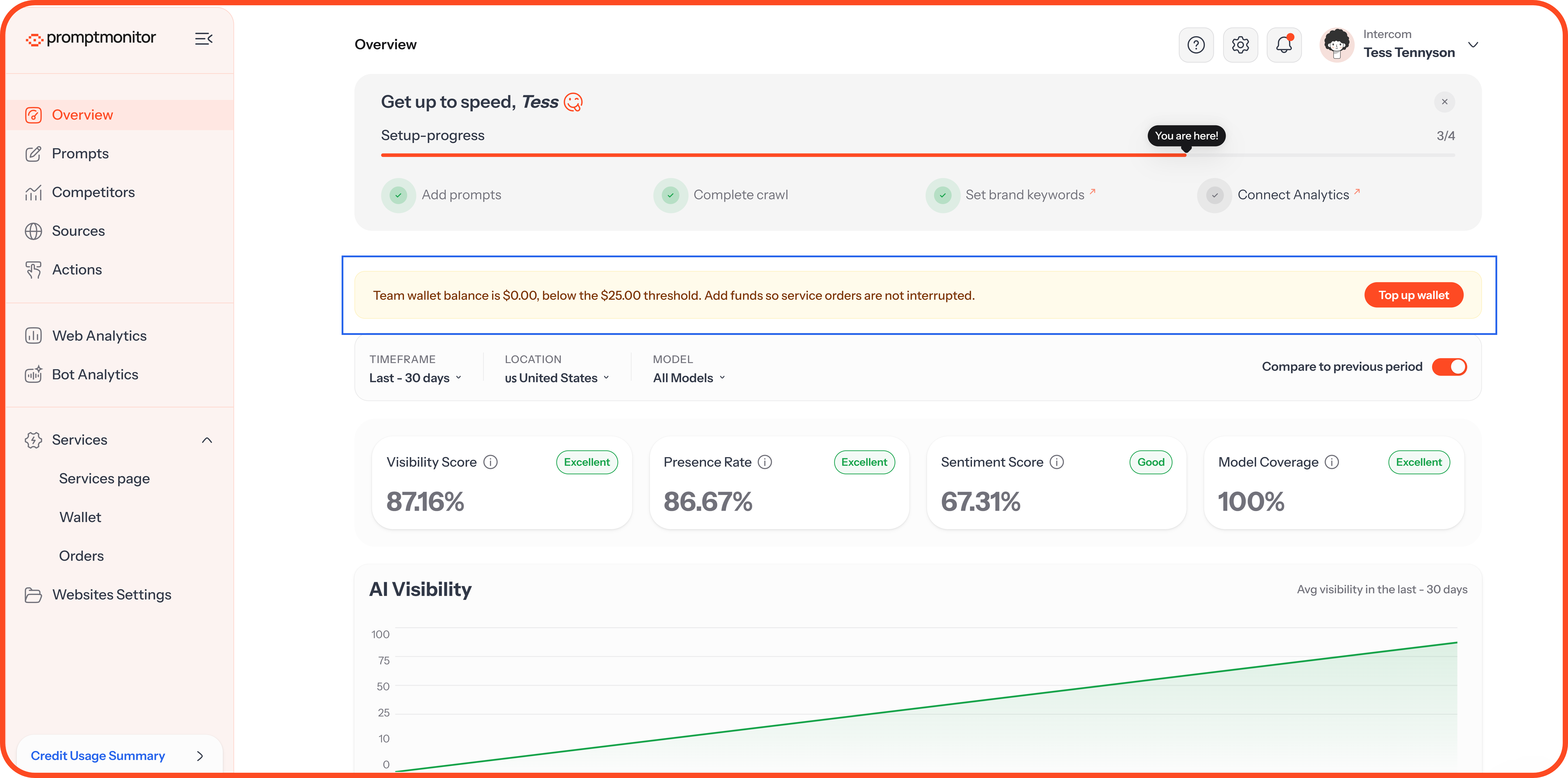
Banners You Might See
Key Terms
FAQs
Why did my data change when I clicked another website?
Each website has its own prompts, scores, and competitors. The dashboard always shows data for the website you've selected.
Where do I change my plan?
Click the gear icon, choose Team Settings, then open the Billing tab. Only team admins can change the plan.
Where do I invite my team?
Click the gear icon, choose Team Settings, then open the Team tab and click Invite Member. Only team admins can invite people.
💬 Can't find something? Click the ? icon at the top of your dashboard and choose Contact us.
Was this helpful?
Still need help? Ask the team