Credits, Plans, and Usage
How credits work, what each plan includes, and what happens when you run low.
Every time we check one of your prompts with an AI model, it uses a credit. This guide explains how credits work, what each plan includes, and what happens when you run low.
What a Credit Is
1 credit = 1 AI answer. Each time one AI model answers one of your prompts in one location, that's one AI answer, and it uses one credit.
Your plan gives your team a set number of credits for each billing period, shared across all your websites. They reset when your plan renews.
How Credits Are Used
Each crawl uses one credit for every combination of prompt, location, and AI model.
Scheduled crawls and the ones you run yourself use credits the same way.
Some things don't use credits. Deactivated prompts aren't crawled. Retries are free, and answers that still fail are refunded. Your weekly Actions recommendations and each prompt's AI Summary are free too.
Check Your Usage
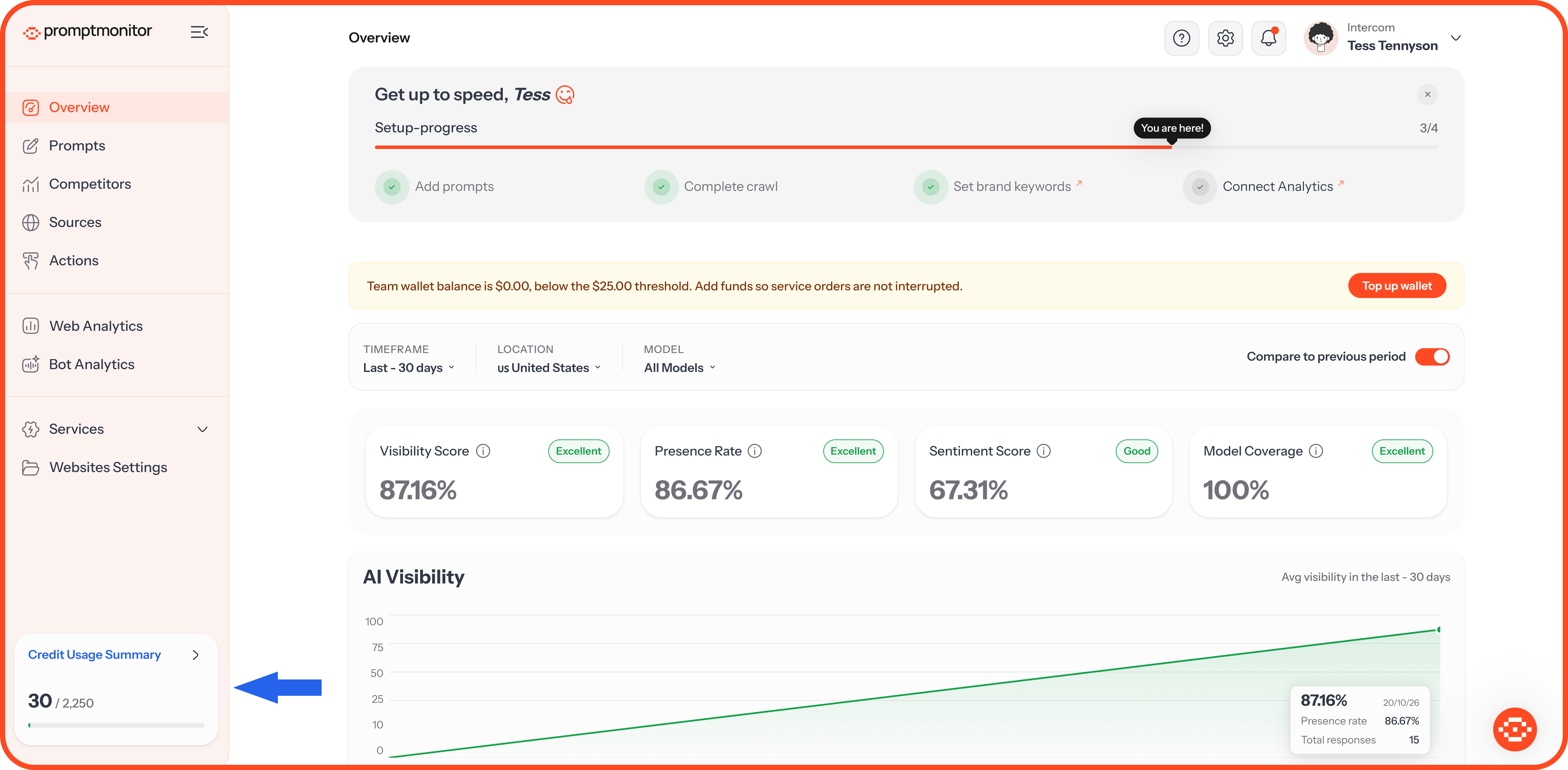
Sidebar: The Credit Usage Summary at the bottom of the sidebar shows how many credits you've used out of your plan's total.
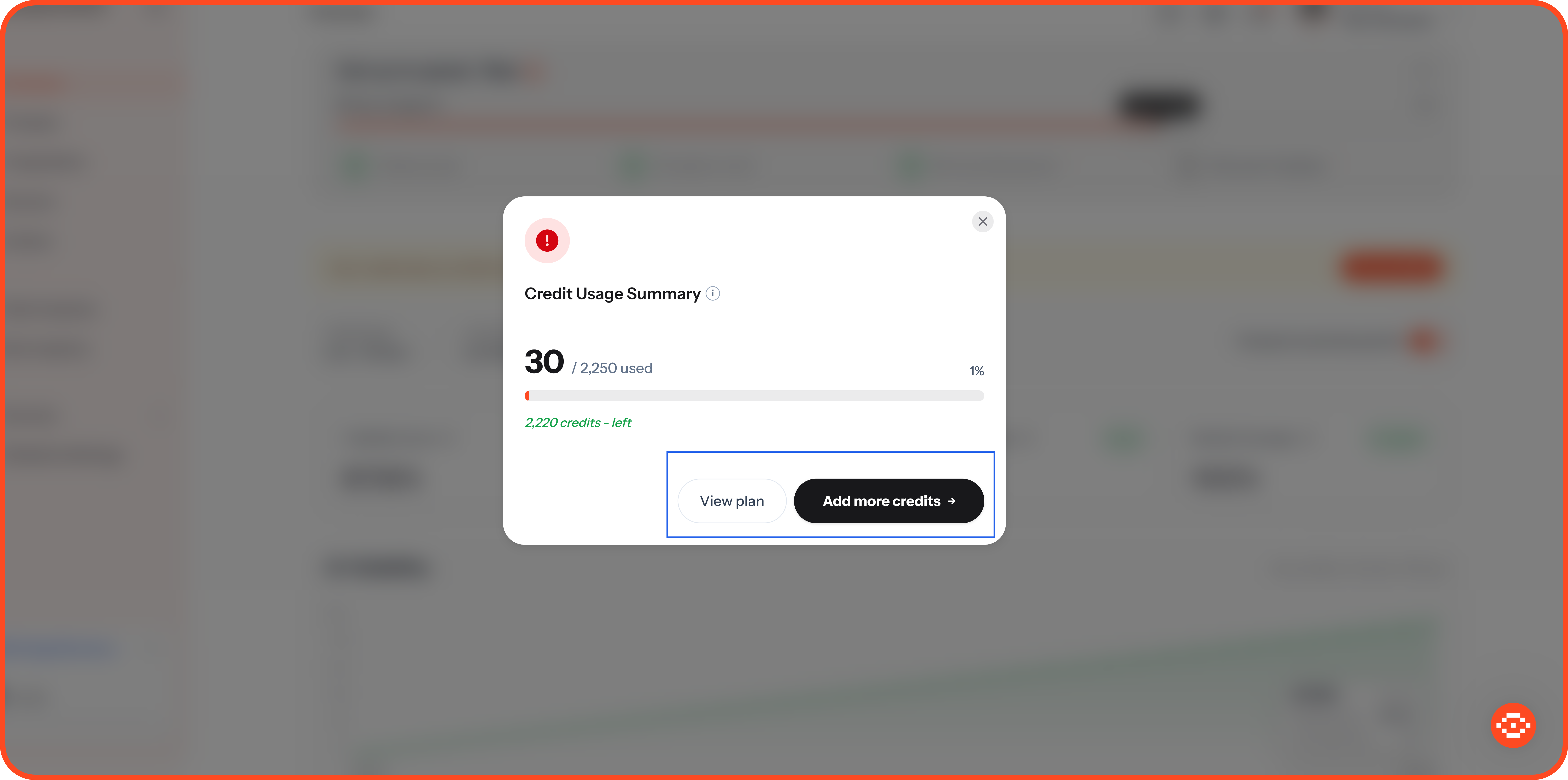
Usage pop-up: Click Credit Usage Summary to see credits used and credits left, with View plan and Add more credits.
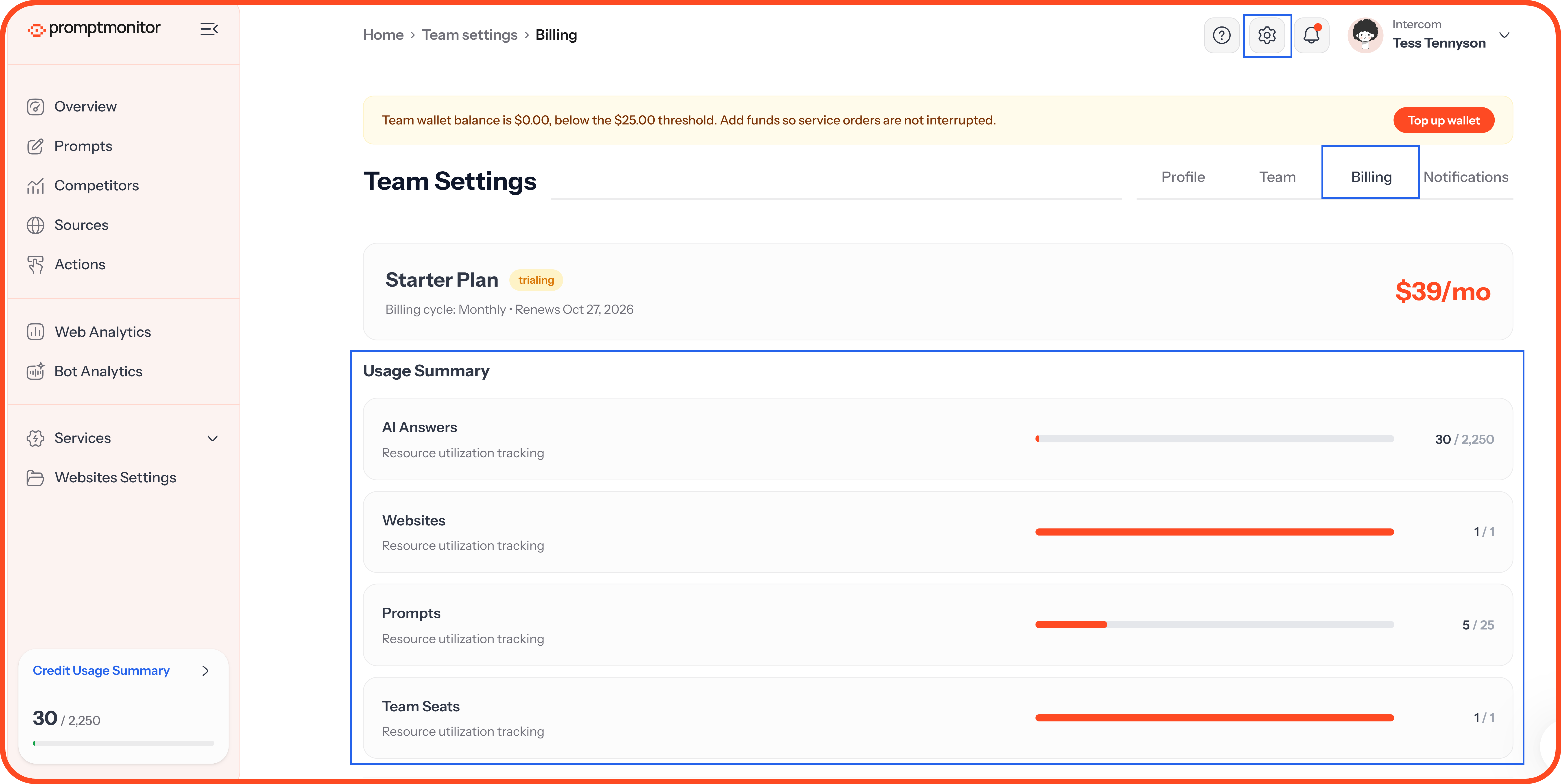
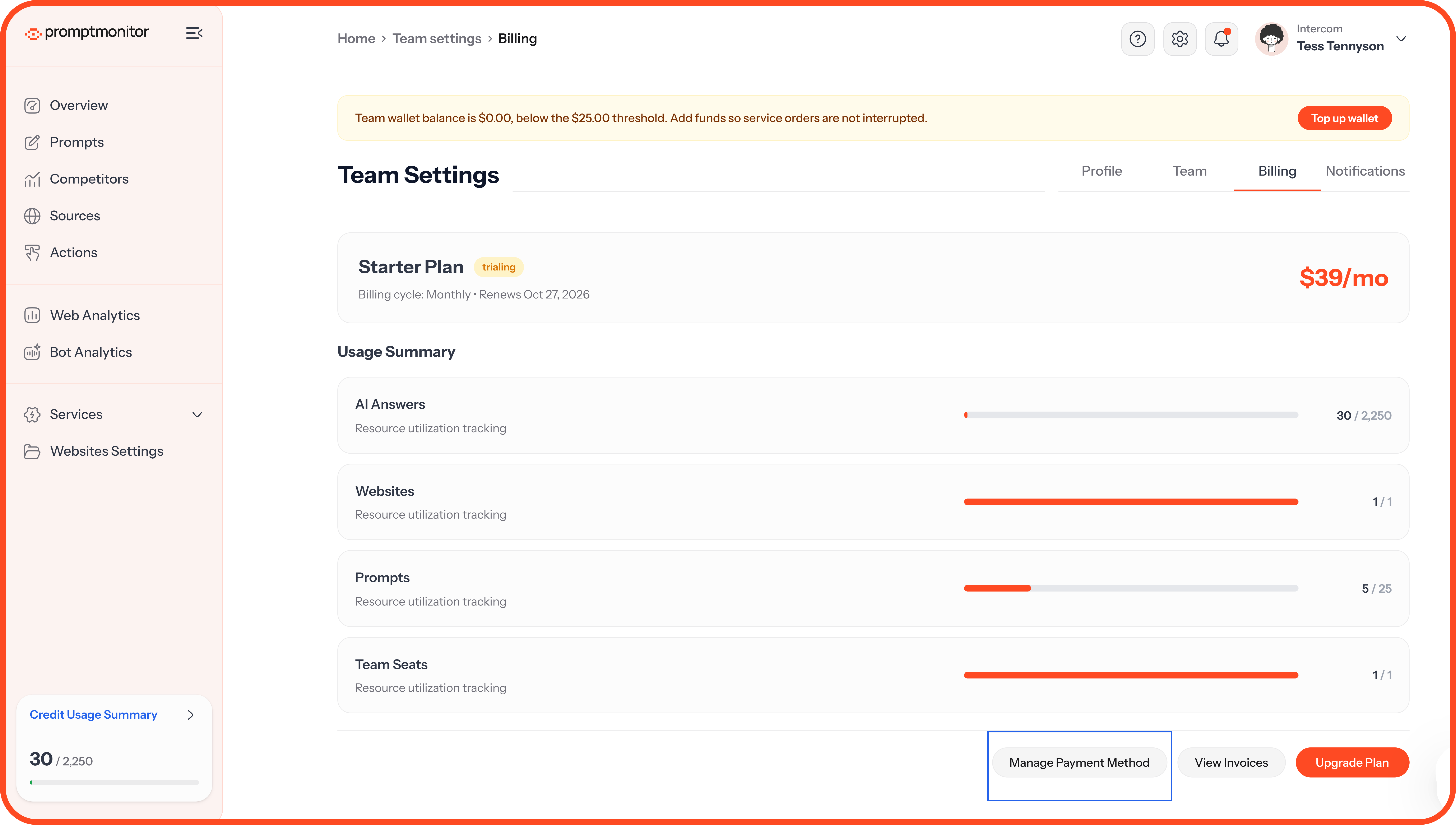
Billing tab: Go to Team Settings, then Billing, for the full summary: AI answers, websites, prompts, and team seats against your plan's limits.
When You Run Low
To keep crawling, click Add more credits in the Credit Usage Summary, or upgrade your plan.
Make Your Credits Go Further
Deactivate prompts you no longer need
Remove locations you don't sell in
Turn off Crawl immediately when you add prompts, and let them wait for the next scheduled crawl
Avoid running manual crawls when a scheduled one is due
Plans
Prompt and website limits apply across your whole team, and both active and deactivated prompts count toward them.
Pay yearly and save about 15%. Need more than 5 websites, single sign-on, or API access? Our Enterprise plan is built around your team. Book a demo from our pricing page.
Your Free Trial
Every new account starts with a 7-day free trial on the plan you choose. You add a card at the end of setup, and we charge it on day 8 unless you cancel before then.
Change Your Plan
Team admins can change the plan. Go to Team Settings, then Billing, and click Upgrade Plan.
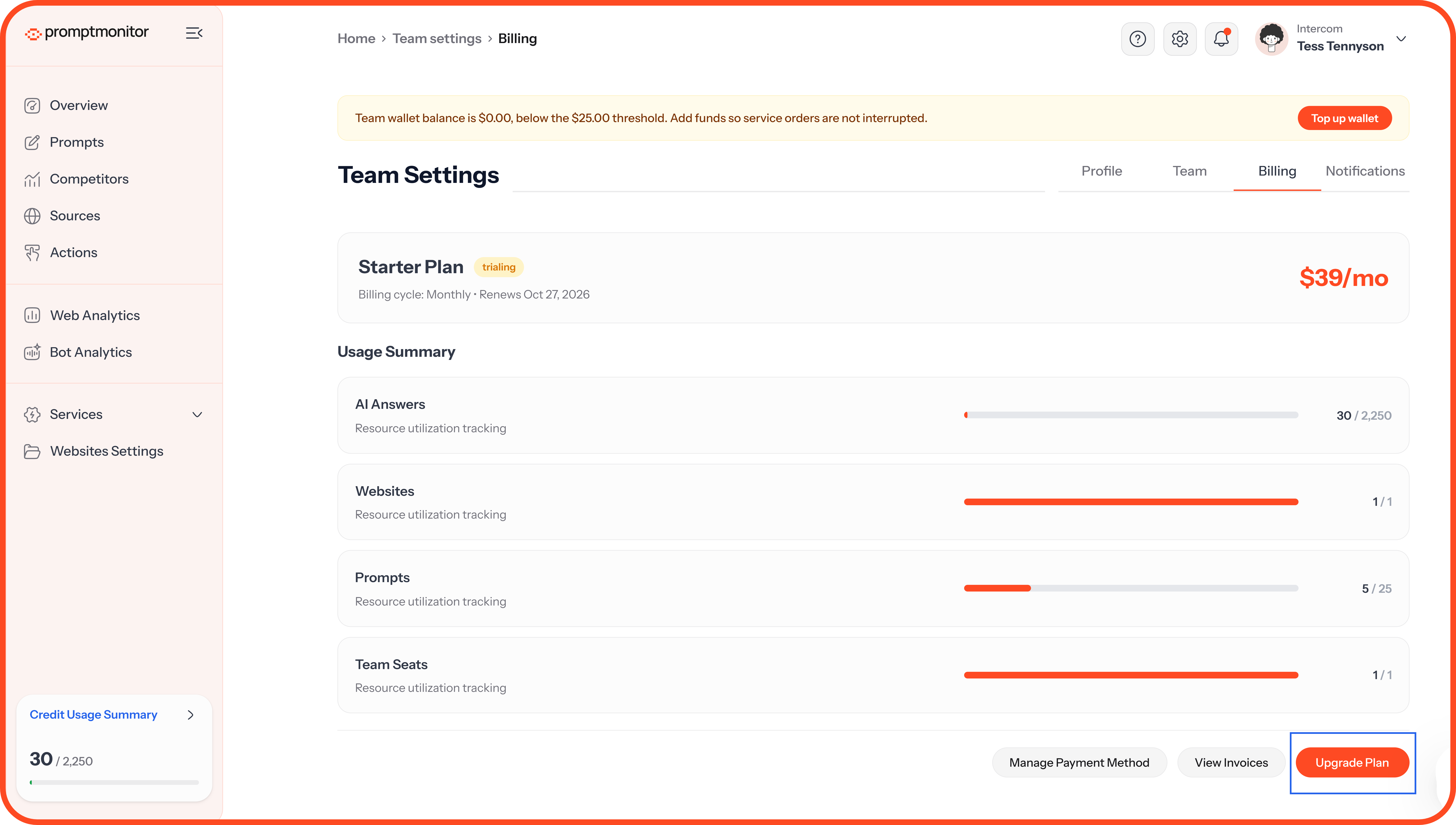
Upgrades take effect straight away. You pay the difference for the rest of your billing period.
Downgrades take effect at the end of your billing period. Until then, you keep everything on your current plan.
Use Manage Payment Method to update your card, and View Invoices to download past invoices.
If your trial ends or your subscription stops, your account becomes read-only. You can still see all your data, but crawls stop and you can't add or change prompts, websites or team members until you subscribe again.
FAQs
When do my credits reset?
When your plan renews, at the start of each billing period. Unused credits don't roll over.
Why did one crawl use so many credits?
Each crawl uses one credit per prompt, per location, per AI model. Adding a second location to every prompt doubles what each crawl uses.
Do failed crawls use credits?
A crawl uses credits when it runs. When we retry one that failed, the retry is free.
What happens to my data if I downgrade?
Your data stays. If you're over a limit on the new plan, such as prompts or websites, we keep what you have, but you can't add more until you're within the limit.
💬 Questions about your plan or billing? Click the ? icon at the top of your dashboard and choose Contact us.
Was this helpful?
Still need help? Ask the team