Websites Settings
Set up your brand details, detection keywords, and markets, then manage monitoring, analytics, integrations, and websites.
Websites Settings is where you tell us who you are, where you sell, and how we should track you. The details here decide how accurately we spot your brand in AI answers, so they're worth getting right.
Open it from Websites Settings in the sidebar. Every setting applies to the website you have selected.
Brand Details
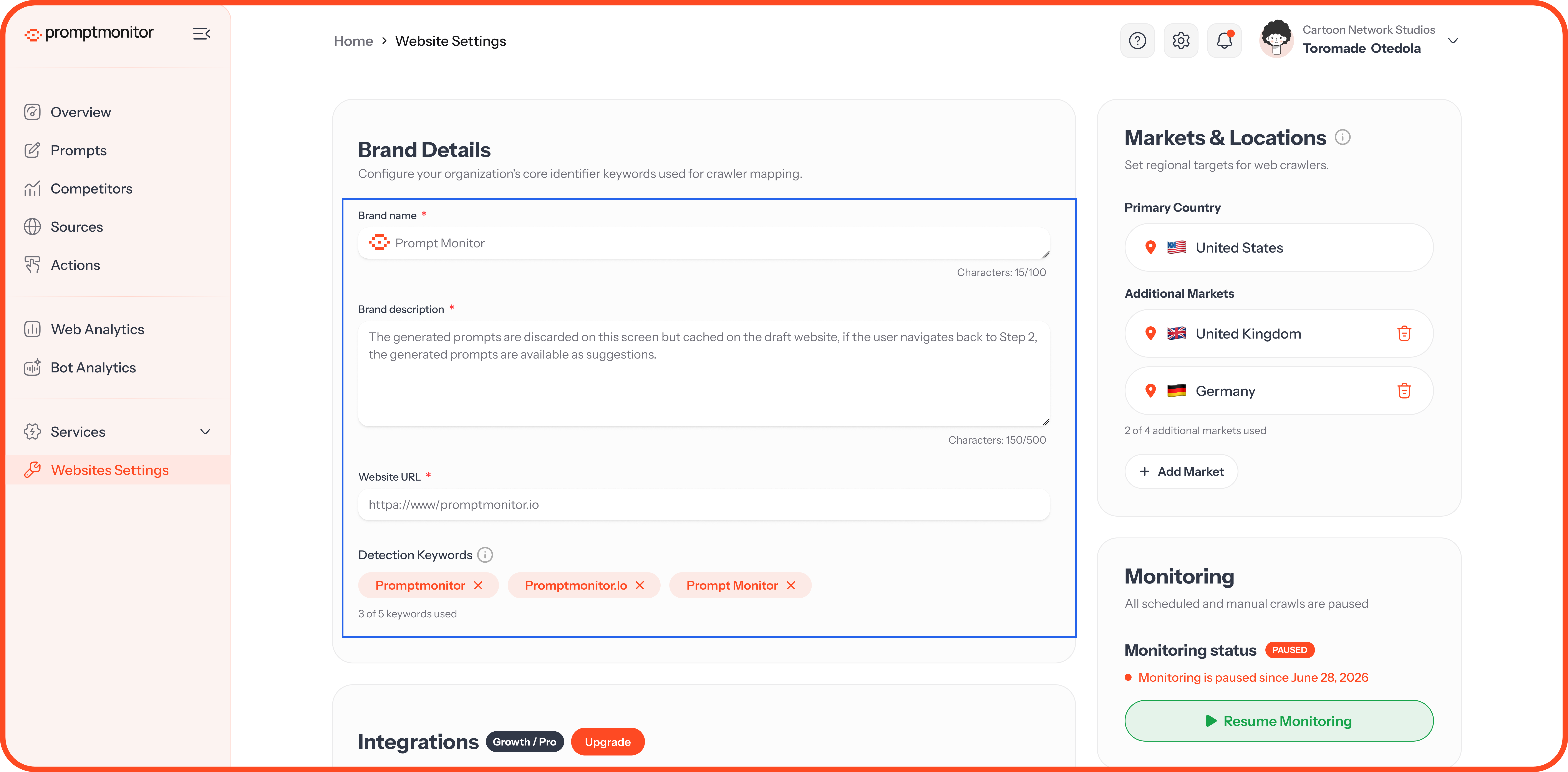
Click Save Changes when you're done.
Choose Your Detection Keywords
We use your detection keywords to find your brand in AI answers. If AI mentions you by a name that isn't on your list, we won't count it.
Good keywords include:
Your brand name with and without spaces, such as "Promptmonitor" and "Prompt Monitor"
Your domain, such as "promptmonitor.io"
Short forms or nicknames customers use
Avoid generic words. A keyword like "monitor" or "Dubai" would match answers that have nothing to do with you and inflate your scores.
Markets and Locations
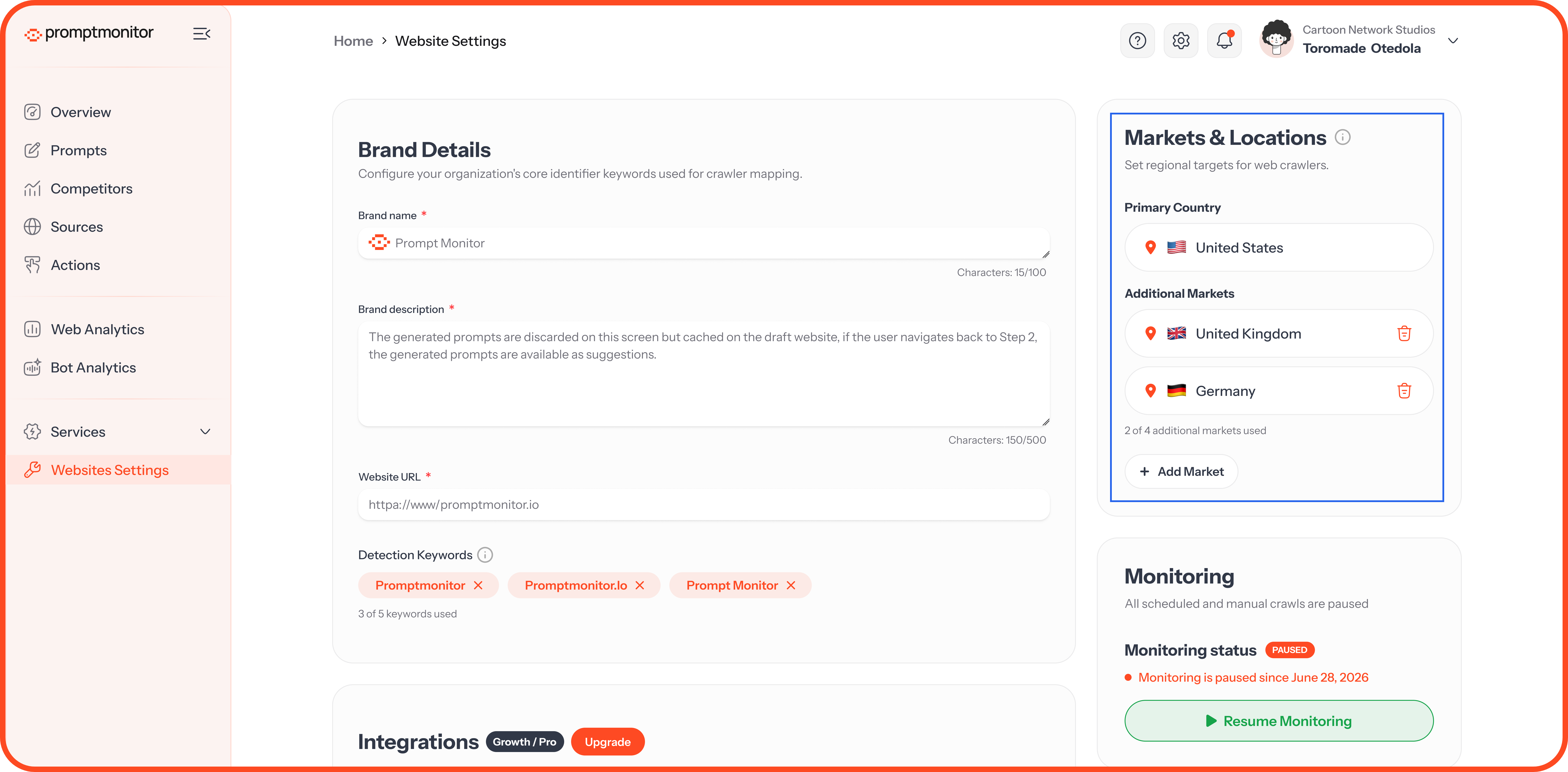
Set the countries where you want us to check AI answers: one primary country, plus up to 4 more.
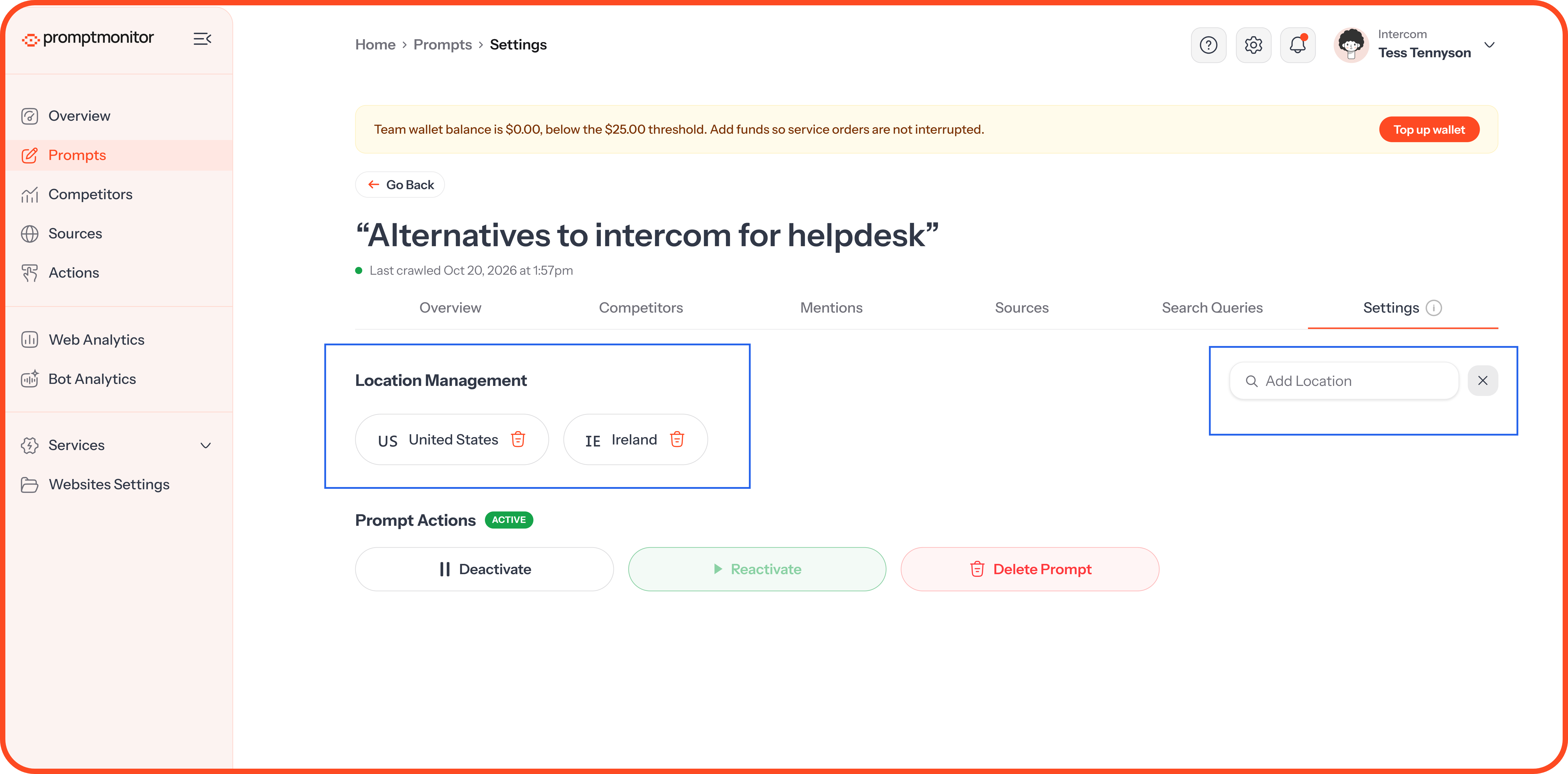
To change the locations for one prompt, open the prompt and go to its Settings tab.
Monitoring
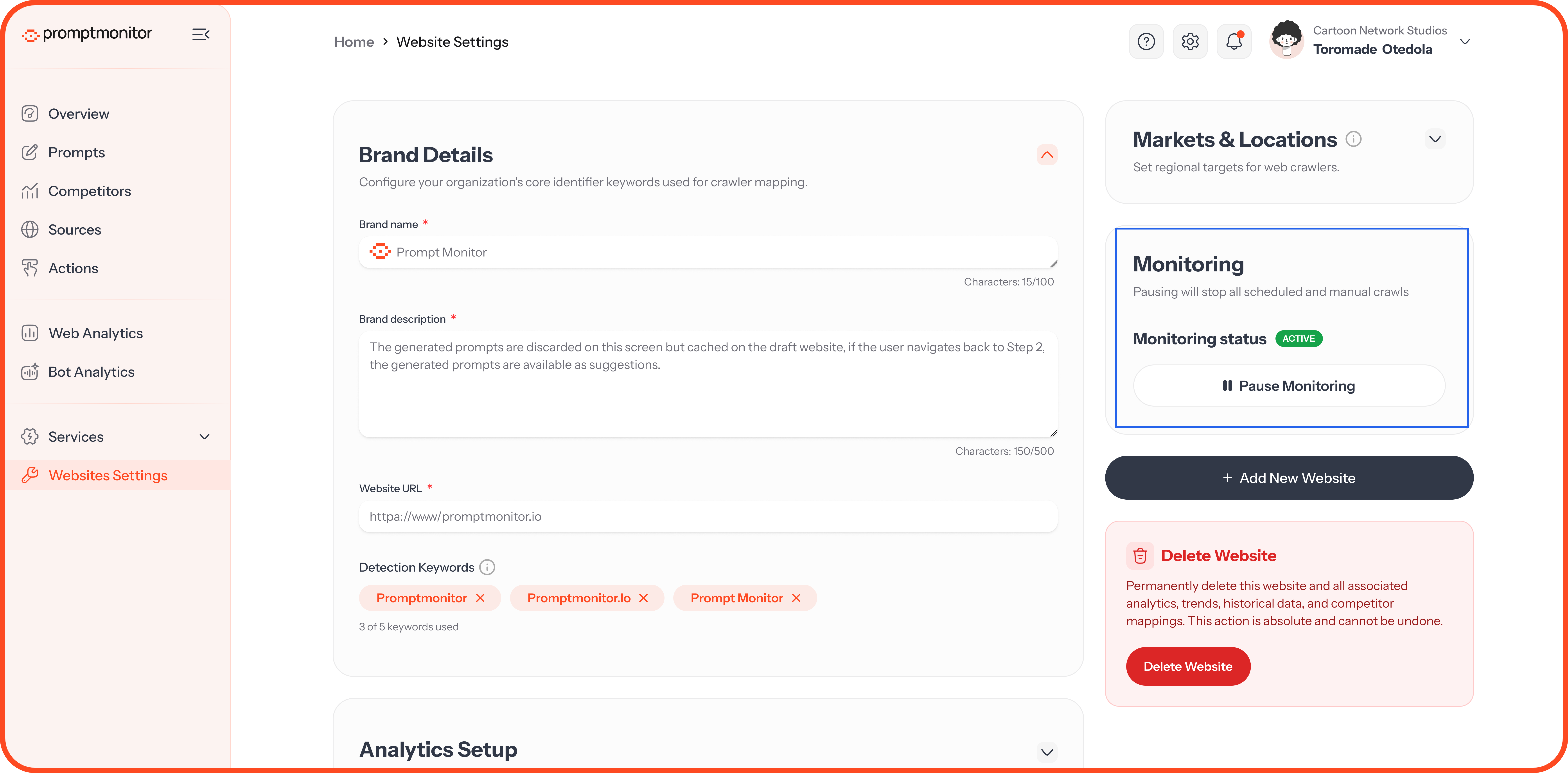
Pause Monitoring stops every scheduled and manual crawl for this website. Your data stays, and you can resume at any time. While monitoring is paused, no credits are used for this website.
The status shows Active while we're tracking, and Paused while we're not.
Analytics Setup
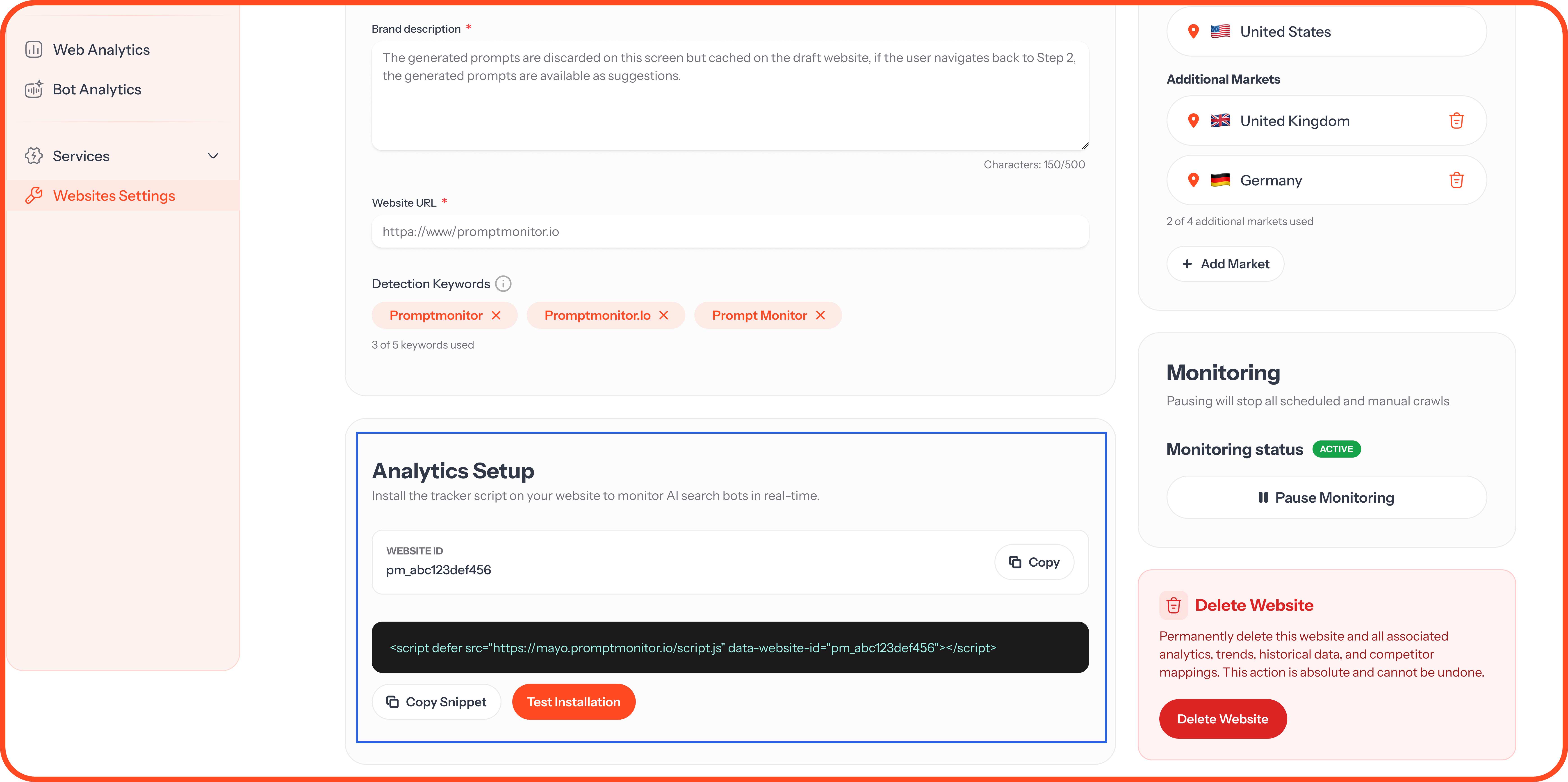
Install our tracking script on your website to see human visitors in Web Analytics and AI crawler visits in Bot Analytics. This is available on Growth and Pro. For step-by-step setup, read Web Analytics and Bot Analytics.
Integrations
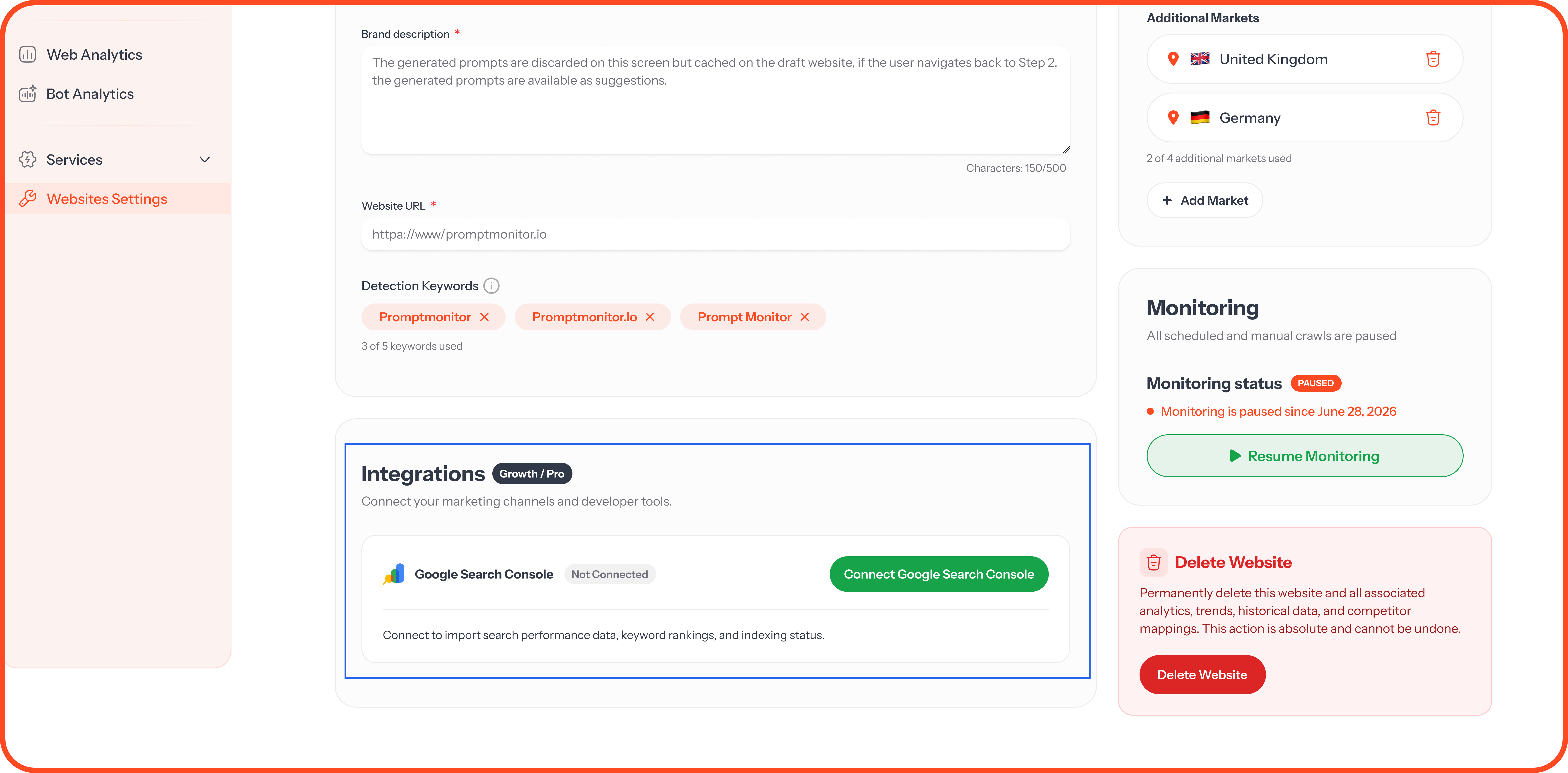
Connect your marketing tools, such as Google Search Console, to see your search data next to your AI visibility. This is available on Growth and Pro. For step-by-step setup, read Connect Google Search Console.
Add a Website
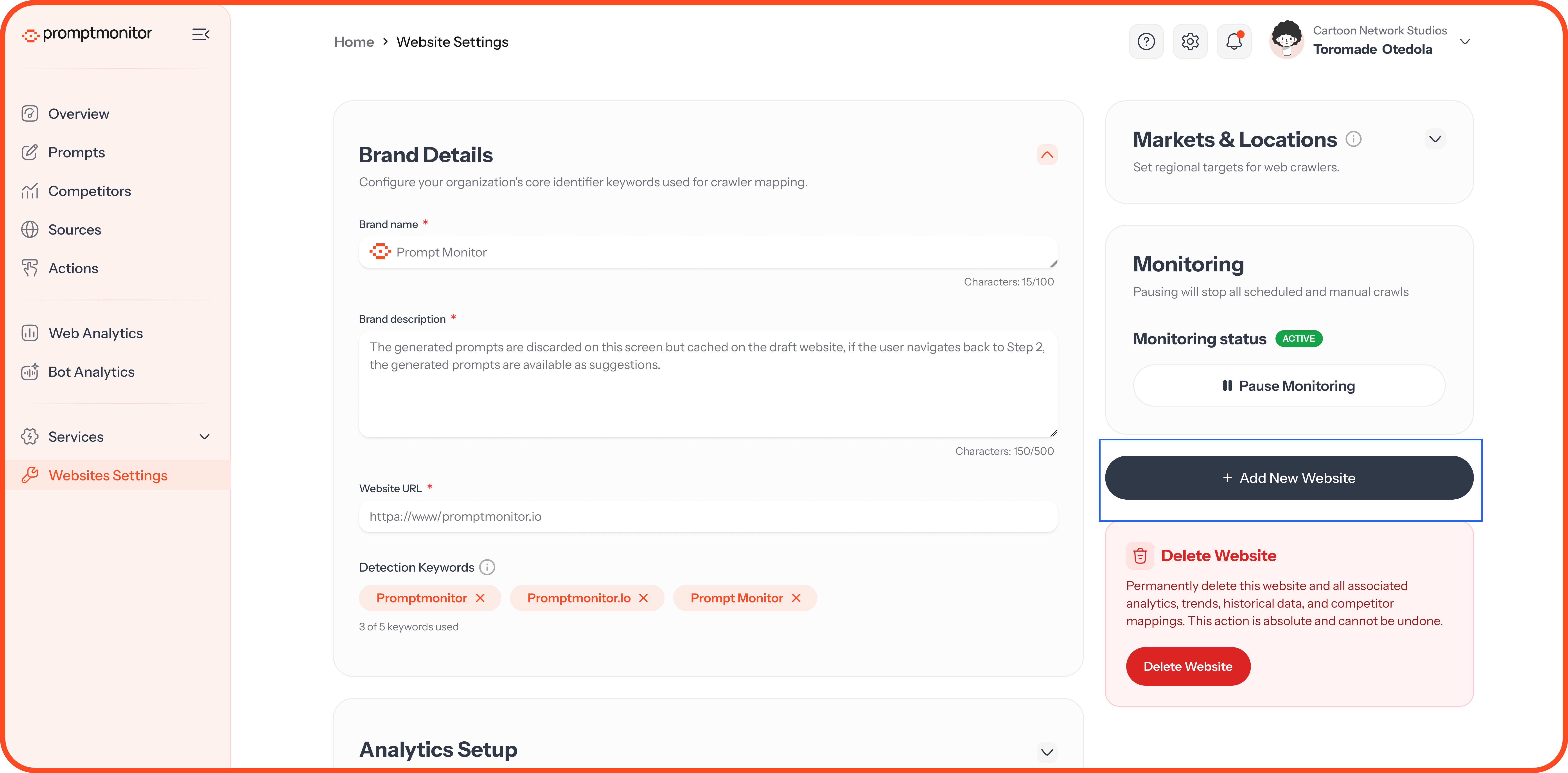
Click Add New Website to track another brand. You'll go through the same setup steps as your first website. The number of websites you can track depends on your plan: 1 on Starter, 2 on Growth, and 5 on Pro.
Delete a Website
Delete Website permanently removes the website and all its data: prompts, analytics, trends, history, and competitors. Only team admins can delete a website.
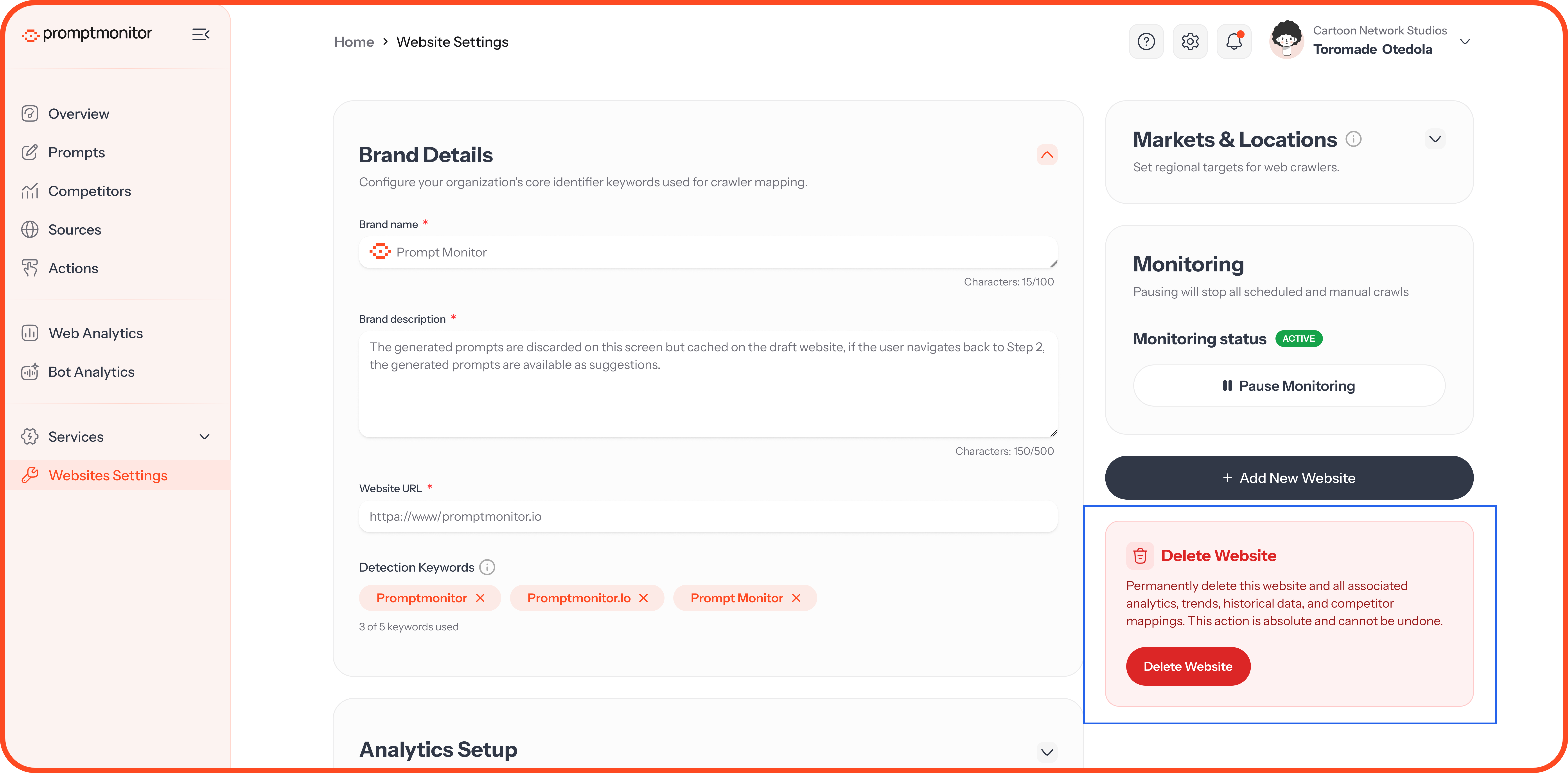
Deleting a website can't be undone. If you only want to stop tracking for now, use Pause Monitoring instead.
FAQs
Will changing my detection keywords update my old data?
New keywords apply to future crawls. Past results stay as they were recorded.
Why can't I see Analytics Setup or Integrations?
Both are available on Growth and Pro. On Starter, they appear locked.
Who can delete a website?
Only team admins can delete a website.
💬 Need help with your settings? Click the ? icon at the top of your dashboard and choose Contact us.
Was this helpful?
Still need help? Ask the team