Actions: Your Weekly To-Do List for AI Visibility
Weekly, ranked recommendations based on your latest data, plus a shared board to track your team's progress.
The Actions page turns your Promptmonitor data into next steps. Every week, we review your latest crawl data and turn it into a short, ranked list of tasks. You can add your own tasks too, so your whole team works from one board.
How Recommendations Are Created
After every crawl, we look for changes worth acting on, such as:
Your visibility dropped or jumped with room to grow on a prompt
A competitor overtook you on a prompt you used to lead
A new competitor appeared with strong visibility
An article that AI models cite mentions competitors but not you
A competitor dominates a prompt where you've never gained traction
AI models describe your brand negatively
Every Saturday, we turn these signals into up to 10 recommendations, each with what to do, why it matters, and how much work it takes. If nothing meaningful changed, you won't get new ones.
Note: Recommendations don't use your credits.
New websites get their first recommendations at the first weekly run after their crawl data is analyzed. Until then, the page shows "Your first actions are on the way," and you can add your own tasks while you wait.
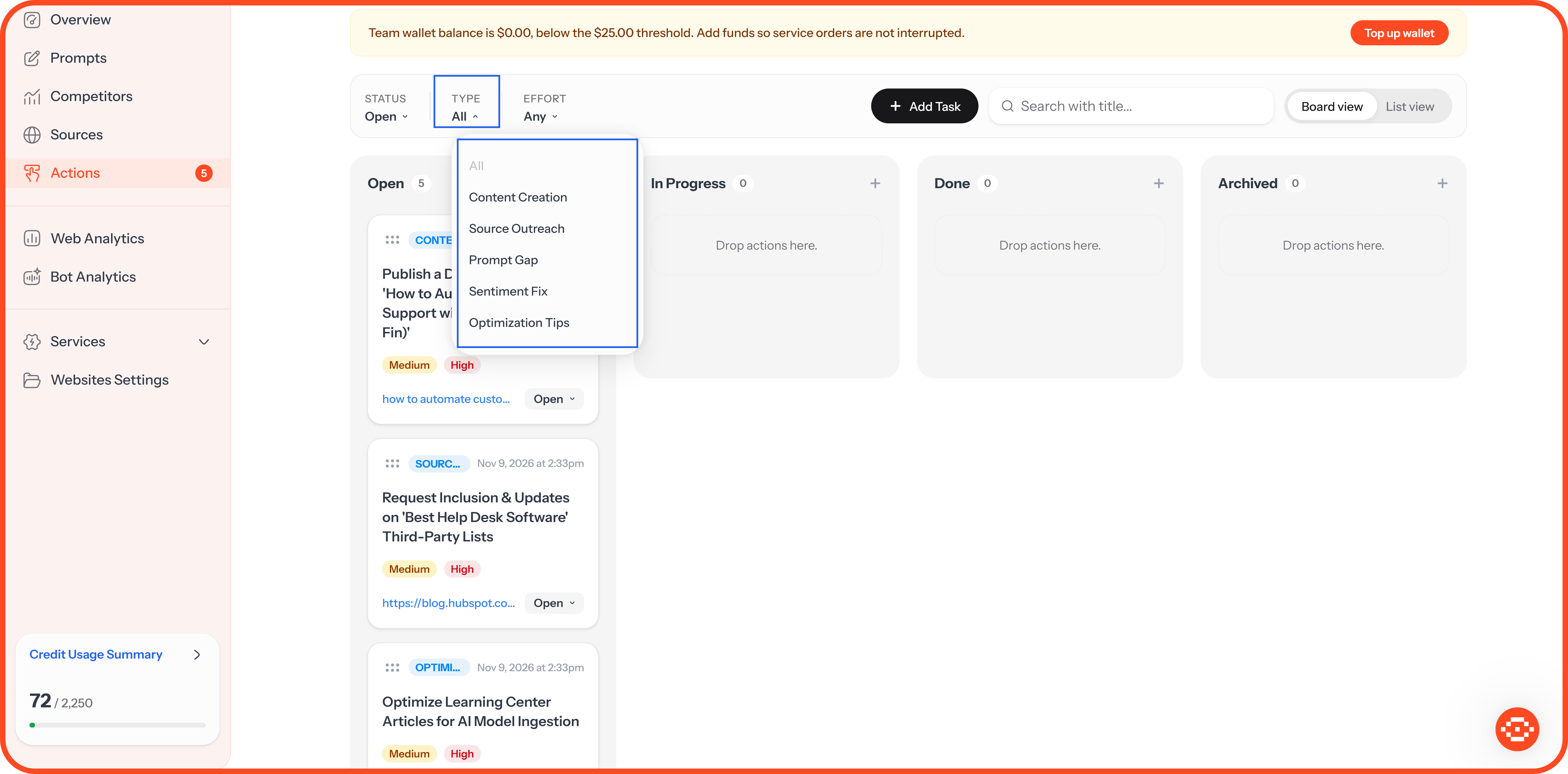
Action Types
Effort and Impact
Every action shows an effort badge and an impact badge.
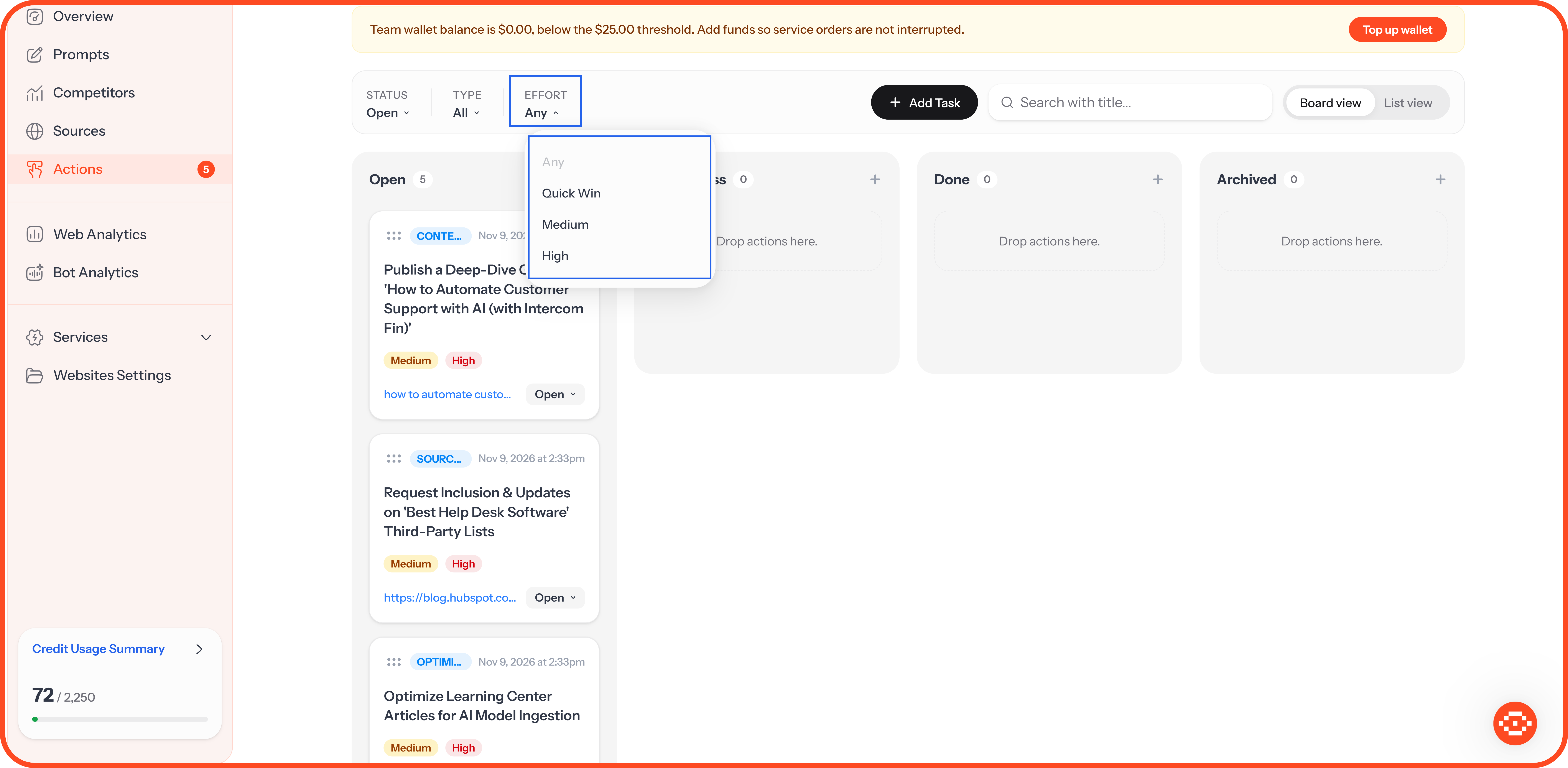
Effort
How much work the action takes.
Impact (High, Medium, or Low) shows how much the action could move your visibility. High-impact quick wins appear first.
Working With Actions
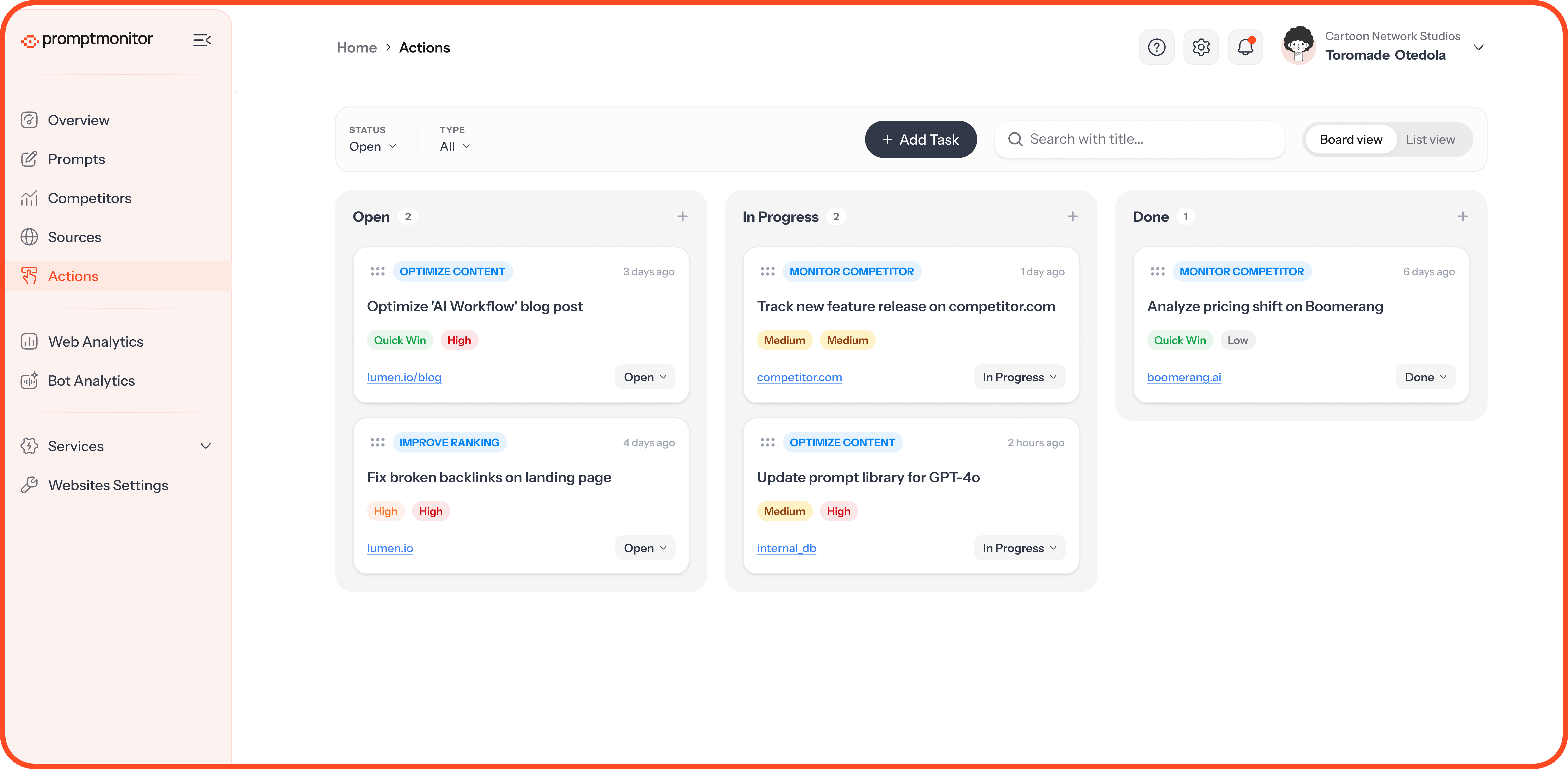
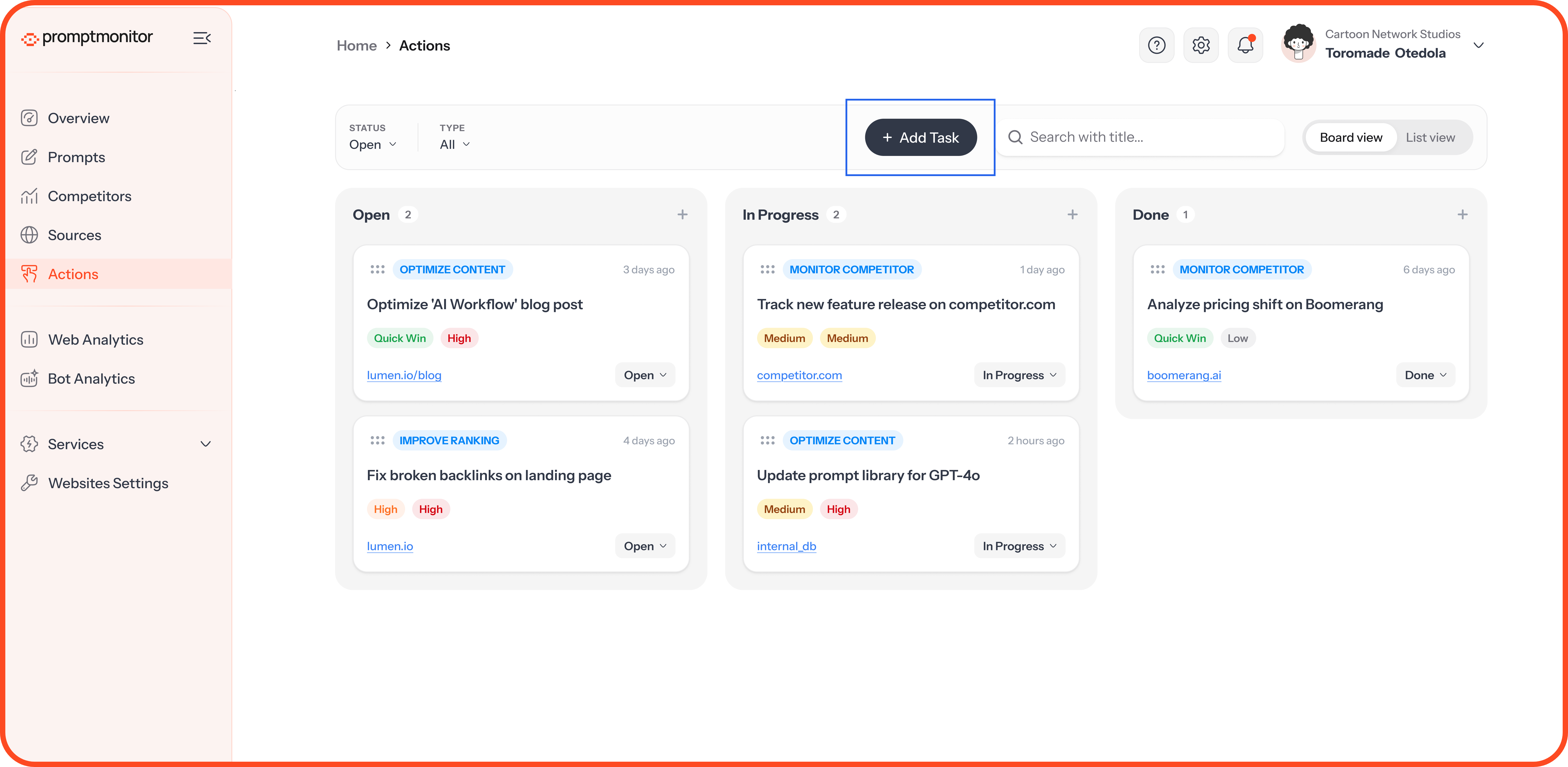
Each card shows the action's type, title, creation date, badges, and status. Click a card or row to see the full recommendation, prompt, source, or competitor it's linked to, and buttons to change its status or archive it.
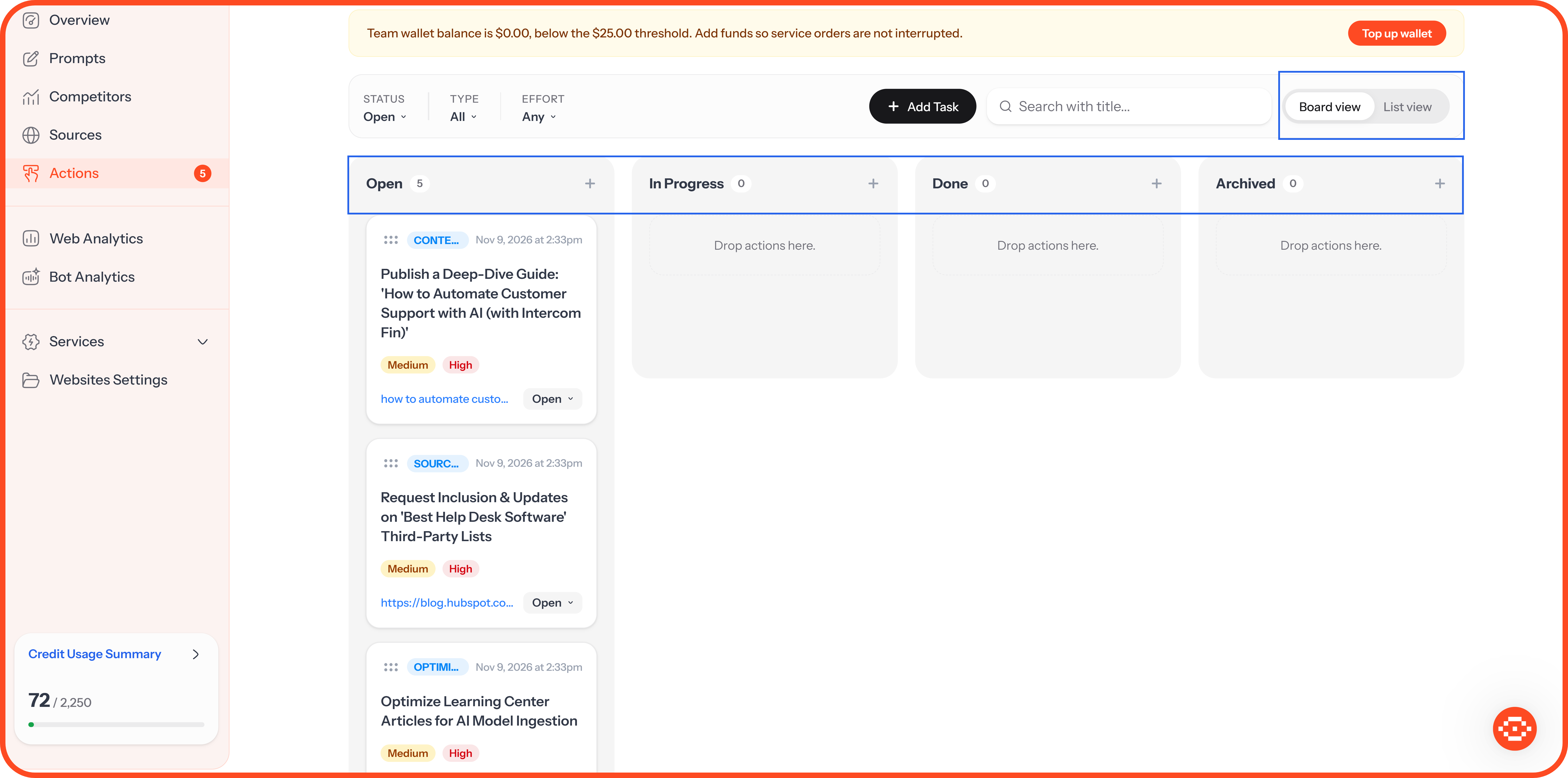
Use the toggle at the top right to switch views:
Board view groups actions into Open, In Progress, Done, and Archived columns. Drag cards between columns or use the menu on each card.
List view shows actions in a table. Change status from the menu in each row.
Anyone on your team can change an action's status.
To find an action, search by title or filter by Status (Open by default), Type, or Effort.
Adding Your Own Tasks
Click Add Task at the top of the page.
Choose a Type, enter a Title and Description, and set the Effort and Impact. All fields are required.
Click Save Task. It's added with the status Open.
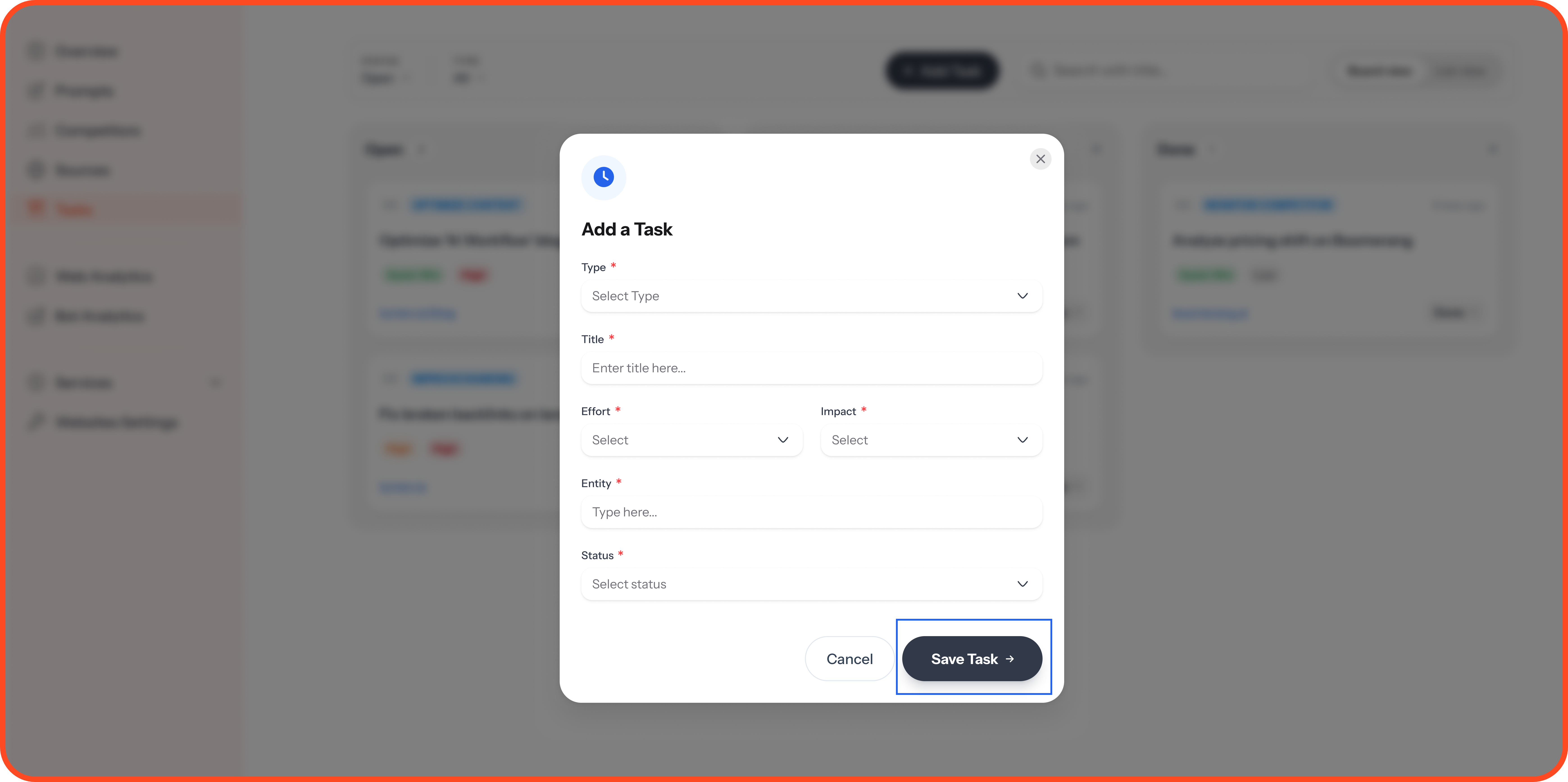
Saved tasks can't be edited or deleted, so check them first. Tasks aren't linked to a prompt, source, or competitor, so mention any that matter in the description. To remove a task, archive it.
Checking Results
AI models refresh their answers gradually, so results appear across several crawls. Open the linked prompt and watch its visibility score and mentions over the following weeks.
If your trial has ended or your subscription is inactive, you can still view actions, but you can’t update them or add tasks. To reactivate, go to Team Settings, then Billing.
FAQs
Why didn't I get any new actions this week?
New recommendations come from changes in your crawl data. If your visibility, competitors, sources, and sentiment stayed about the same, there was nothing new to recommend. Your open actions are still there to work on.
Why did I get fewer than 10 actions?
Ten is a limit, not a target. We only recommend what's worth your time, so a week can bring two actions or none.
Do actions use my credits?
No. Generating recommendations doesn't touch your credit balance.
Can I edit or delete a task I added?
No. Once you save a task, it can't be edited or deleted. If a task is no longer relevant, please archive it.
Who on my team can update actions?
Everyone on your team can change an action's status and add tasks.
Will completing an action guarantee that AI models mention my brand?
No. AI models decide what to include in their answers. Each action improves the signals they rely on, such as the content they find and the sources they cite, which makes a mention more likely over time.
💬 Still have a question? Click the ? icon at the top of your dashboard and choose Contact us.
Was this helpful?
Still need help? Ask the team