Reading a Prompt's Report
See how AI models answer one question: who they name, what they say about you, the sources they cite, and the searches they run.
Every prompt has its own report. It shows how AI models answer that one question, which brands they name, the sources they cite, and the exact words they use about you.
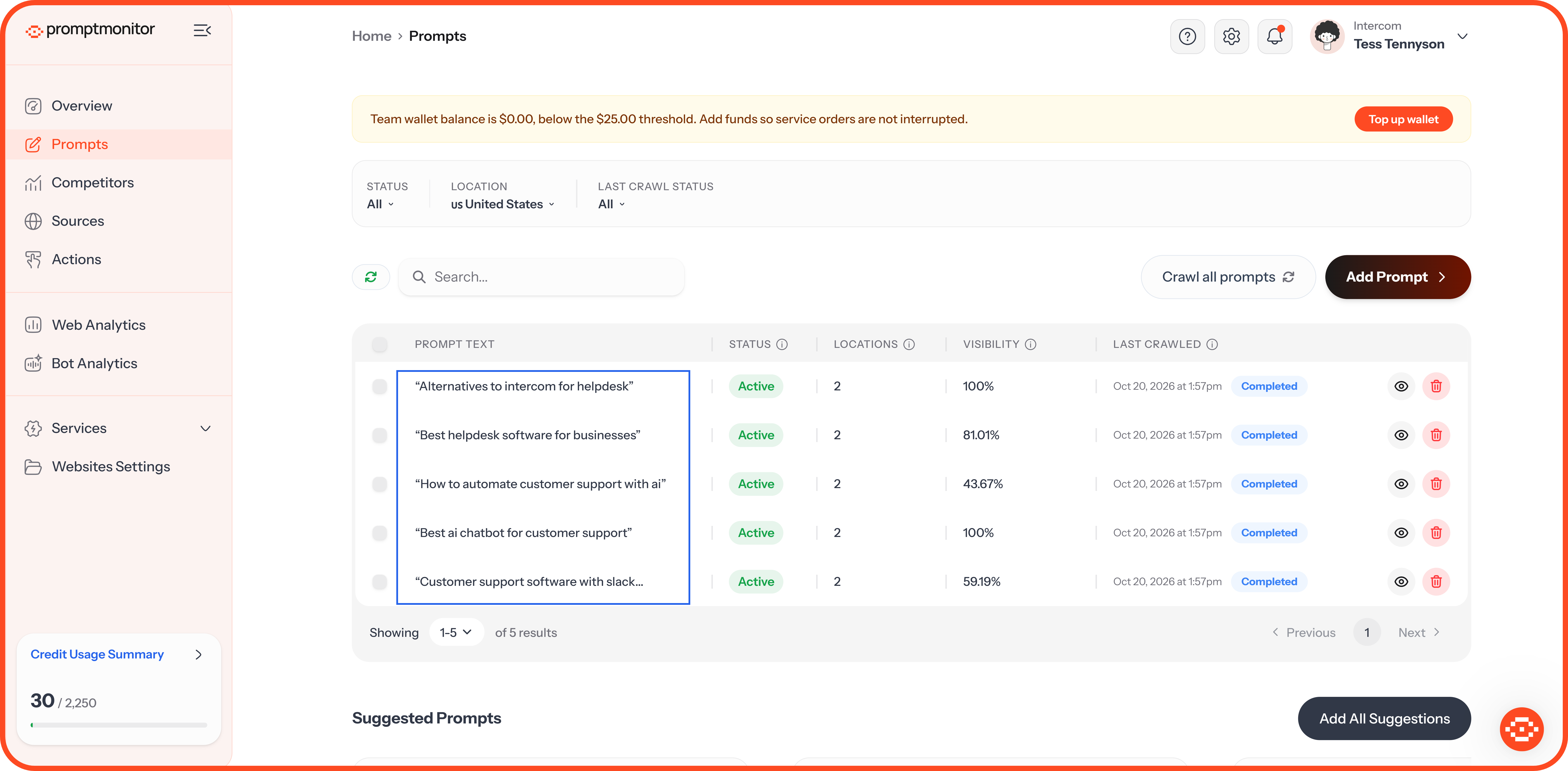
To open it, go to Prompts and click the prompt's text.
What's at the Top
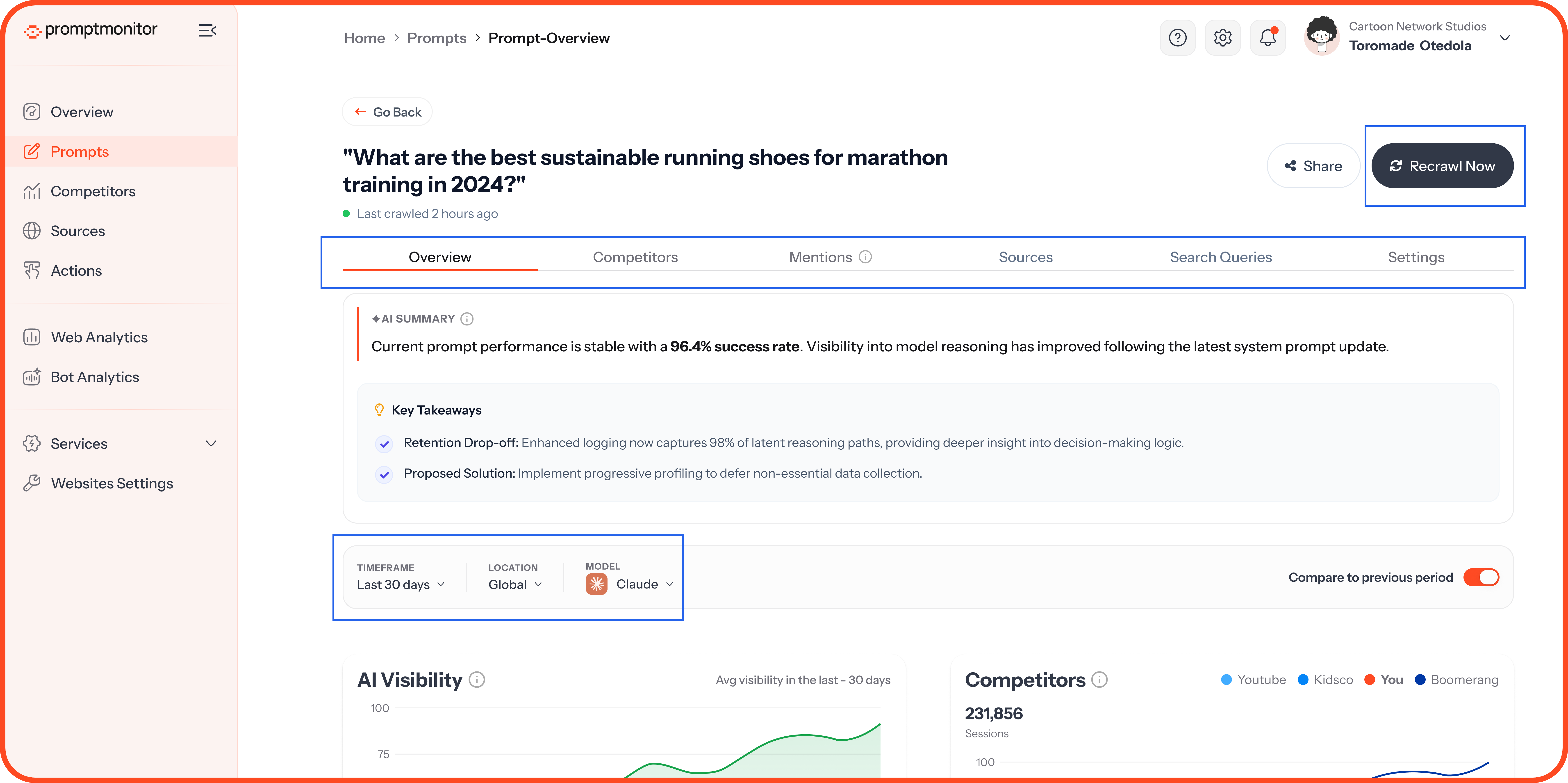
The top of the report shows the prompt, when it was last crawled, and six tabs: Overview, Competitors, Mentions, Sources, Search Queries, and Settings. To check the prompt again straight away, click Recrawl Now.
The Timeframe, Location and Model filters work the same way as on the Overview page, and they keep the settings from the page you came from.
AI Summary
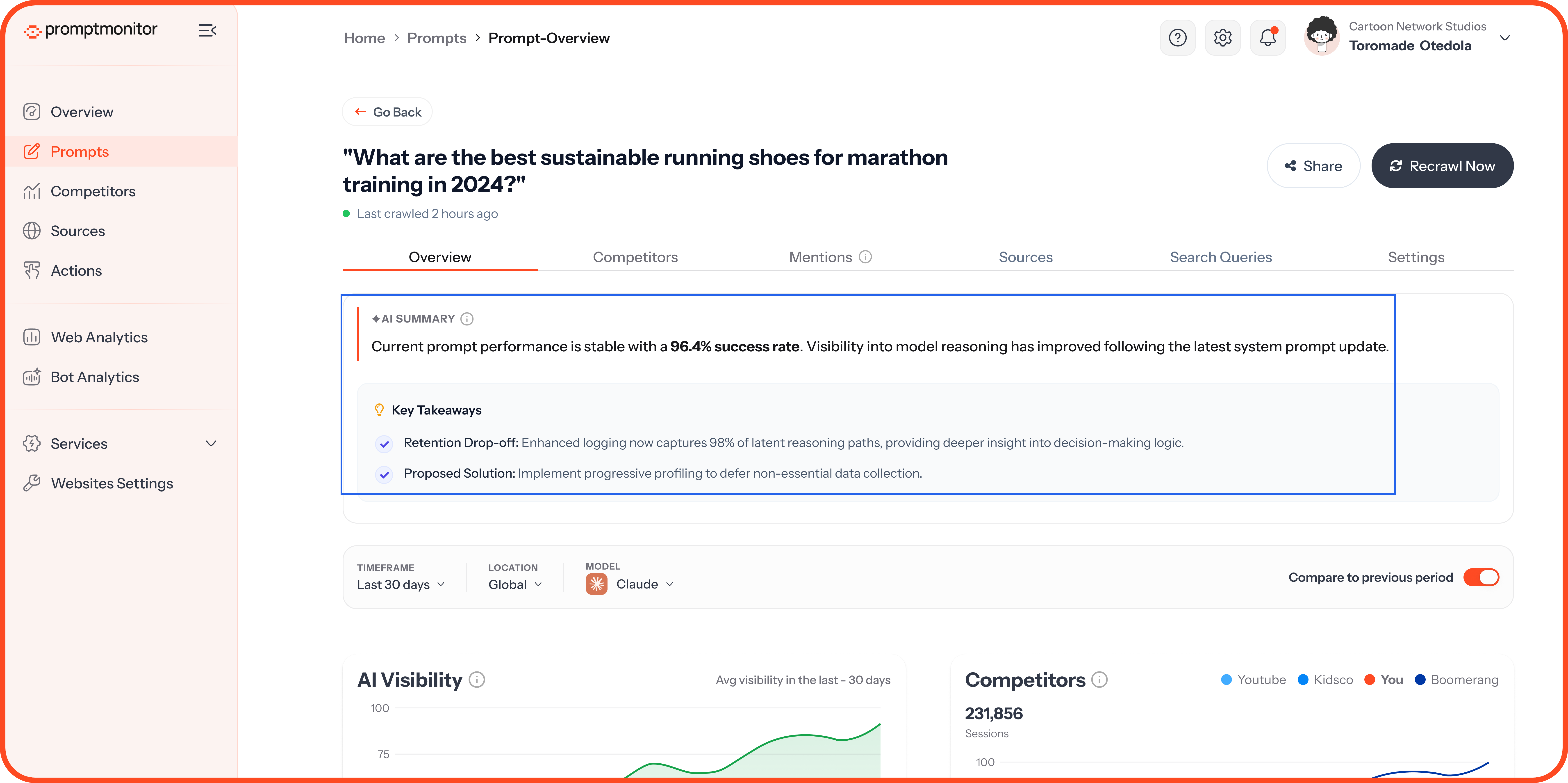
The AI Summary card at the top of the Overview tab reads your latest crawl for this prompt and explains it in plain language. It gives you:
A short summary: How you performed on this prompt, compared with your website's average and your previous crawl.
Key takeaways: The two or three points that matter most, such as a competitor leading the prompt or a model that doesn't mention you.
The summary sticks to your data. It describes what happened, without guessing at causes or giving advice. It doesn't use any credits.
The summary refreshes after each crawl. While it updates, you'll see "Updating AI summary…" with the previous summary still showing.
Overview Tab
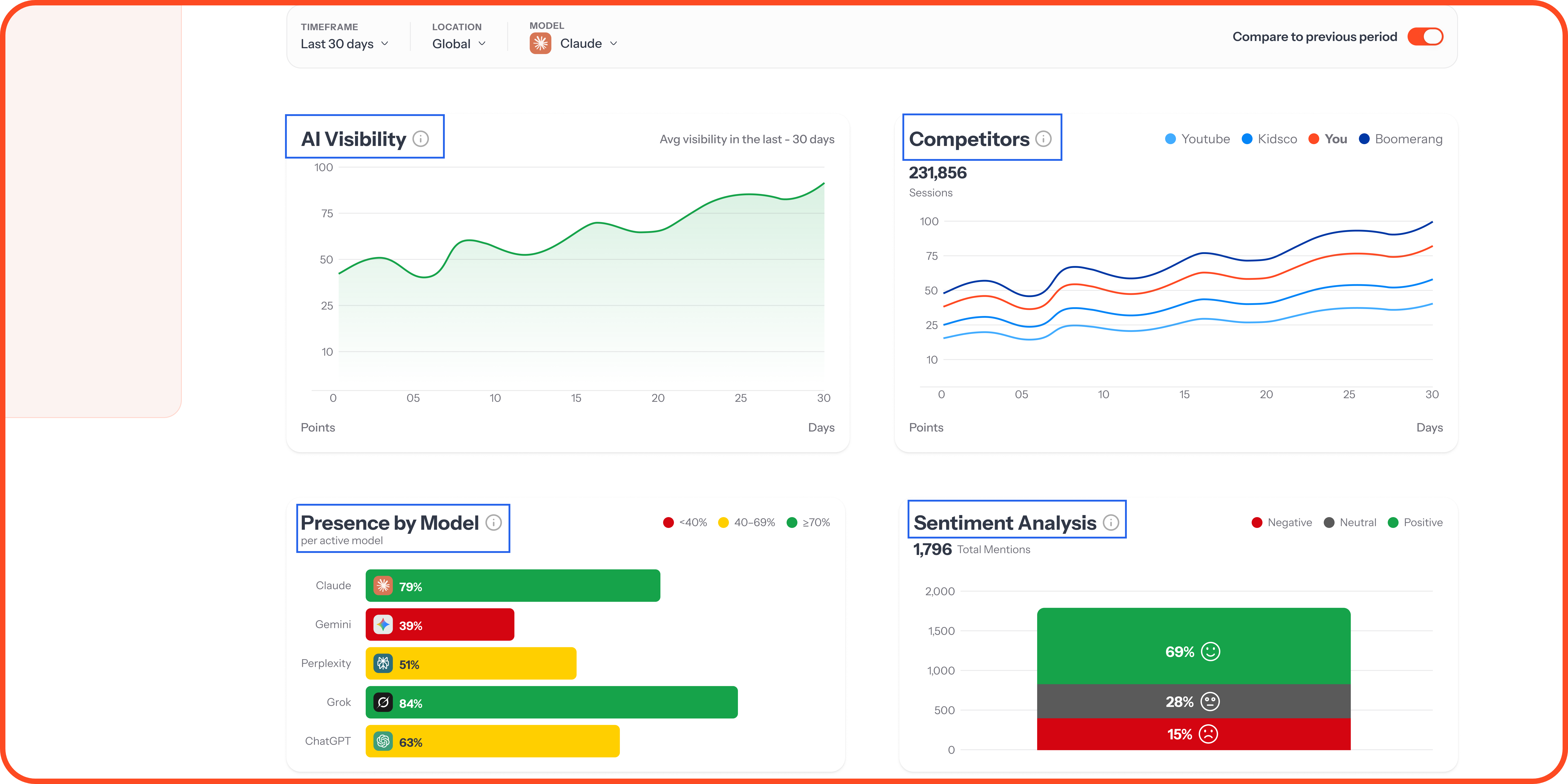
This tab shows the same four scores as your Overview page (Visibility Score, Presence Rate, Sentiment Score, and Model Coverage), measured for this prompt only. Below them, you'll find your visibility over time, your Presence Rate on each AI model, and your sentiment breakdown.
Competitors Tab
Every brand that AI models mentioned when they answered this prompt. The columns work the same way as on the Competitors page.
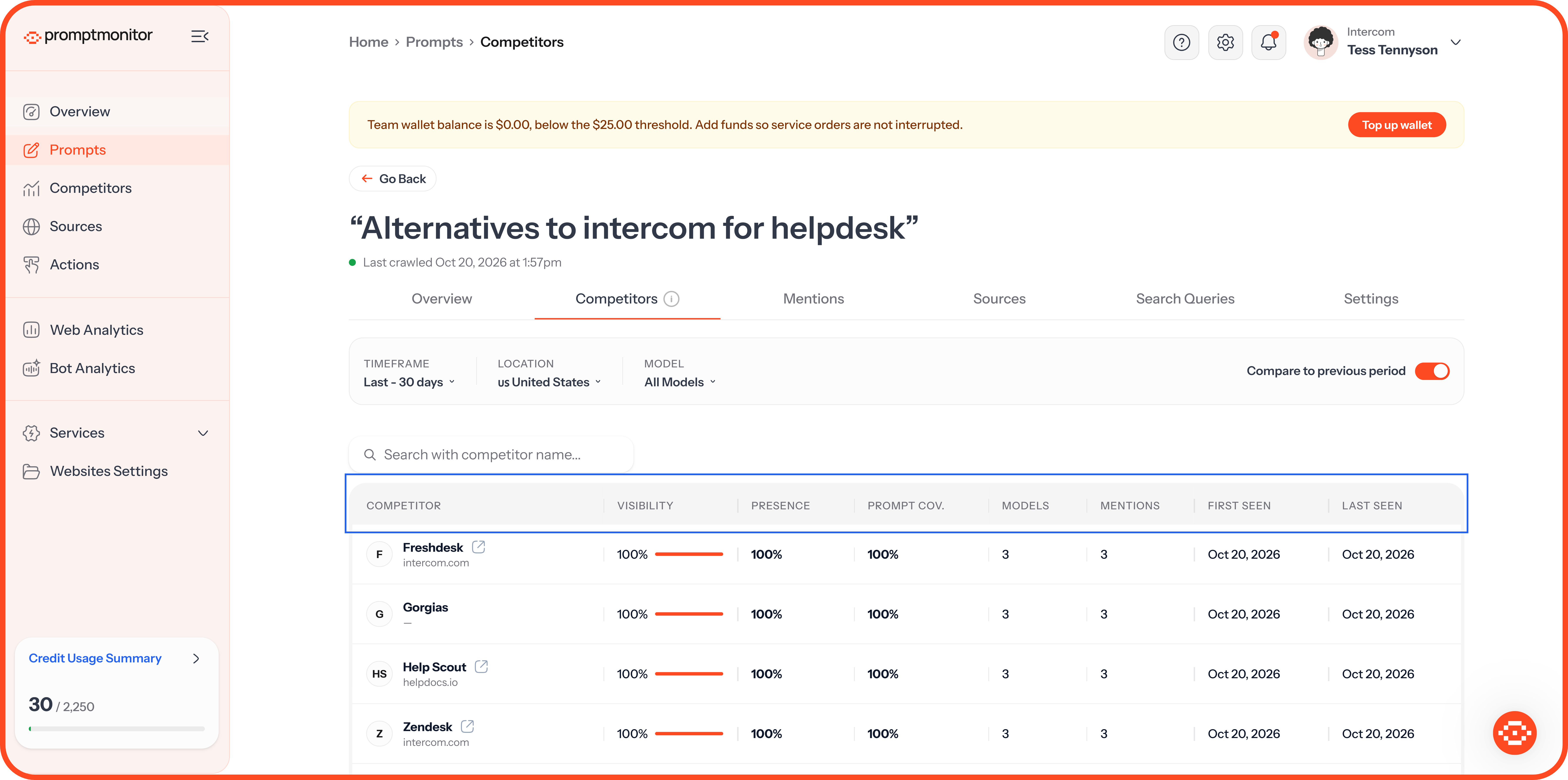
Use the search box to find a specific brand.
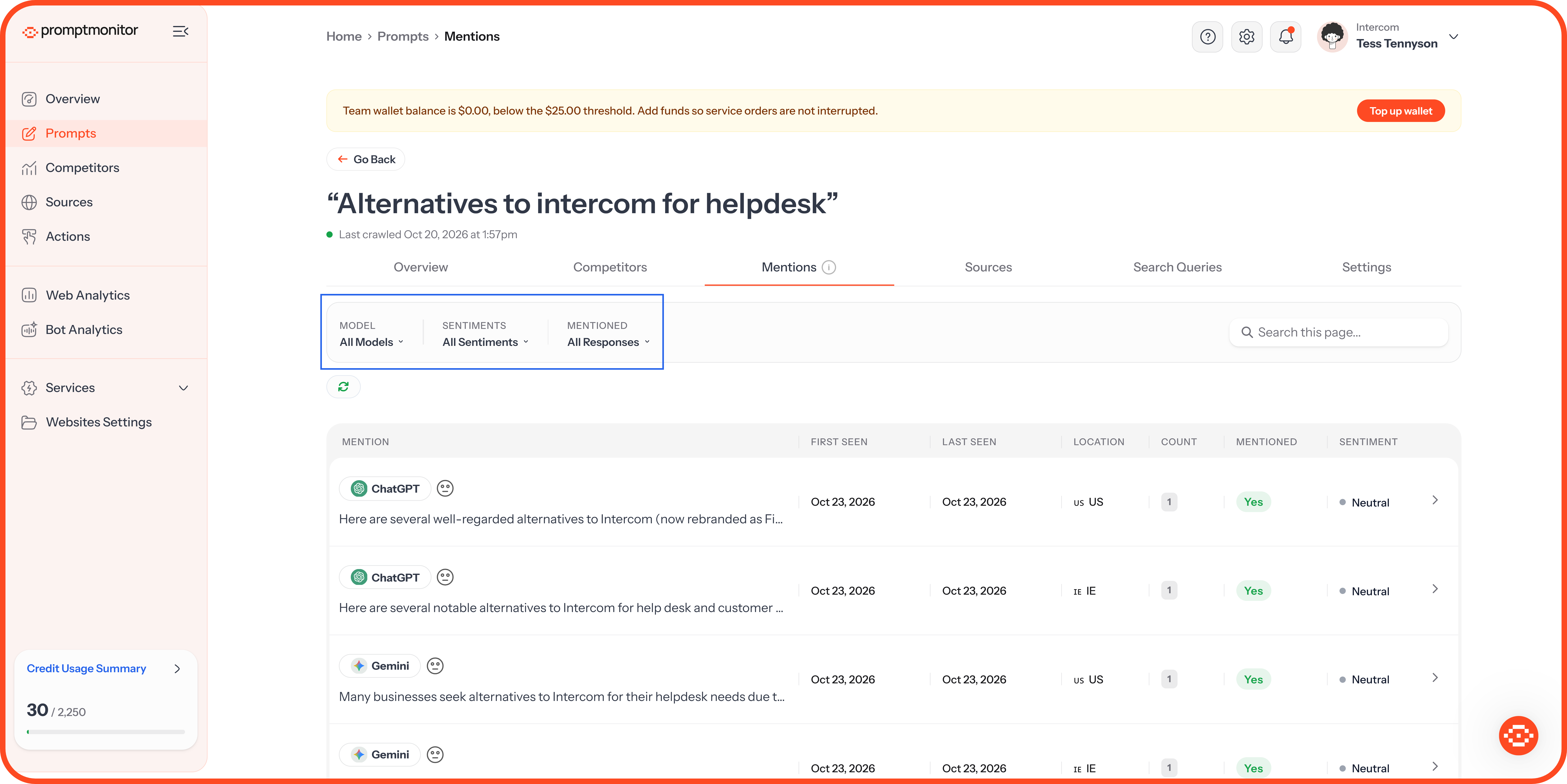
Mentions Tab
Every answer AI models gave to this prompt, so you can read exactly what they said.
Filter the list by Model, Sentiment, or Mentioned (whether the answer names your brand), or search within the answers. Each row shows the model, a preview of the answer, when we first and last saw it, the location, and whether it mentions you and its sentiment.
Read a Full Answer
Click any answer to open it the way it appeared in the AI model. The panel beside it shows:
Detected Entities: Every brand we found in the answer, and whether it was mentioned.
Search Queries (Fanout): The web searches the model ran before it answered.
Sources: The pages the model cited.
Sentiment: Whether the answer talks about you positively, neutrally, or negatively.
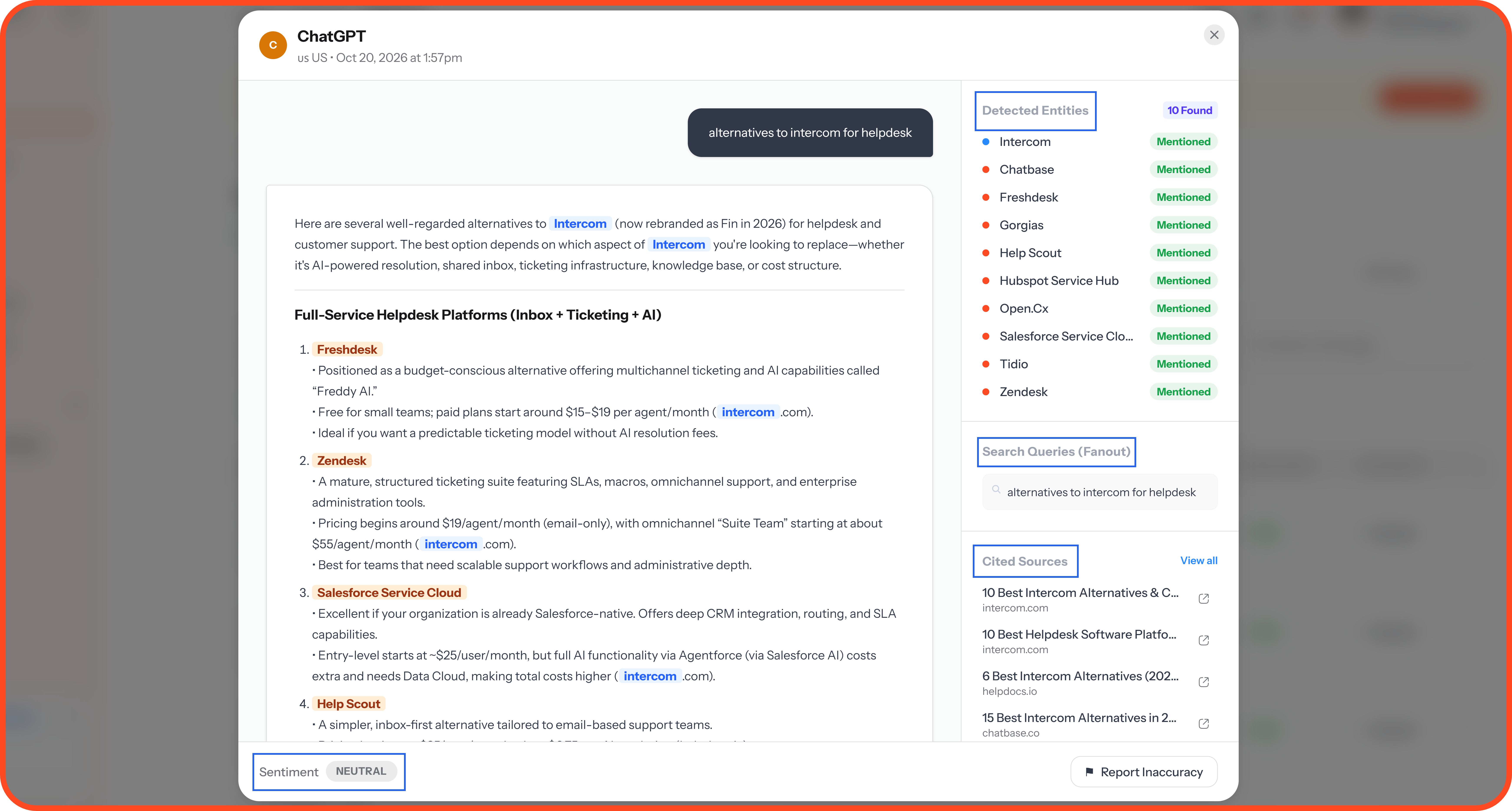
Spot a mistake? If we've missed a mention of your brand, or flagged one that isn't there, click Report Inaccuracy at the bottom of the answer so we can check it.
Sources Tab
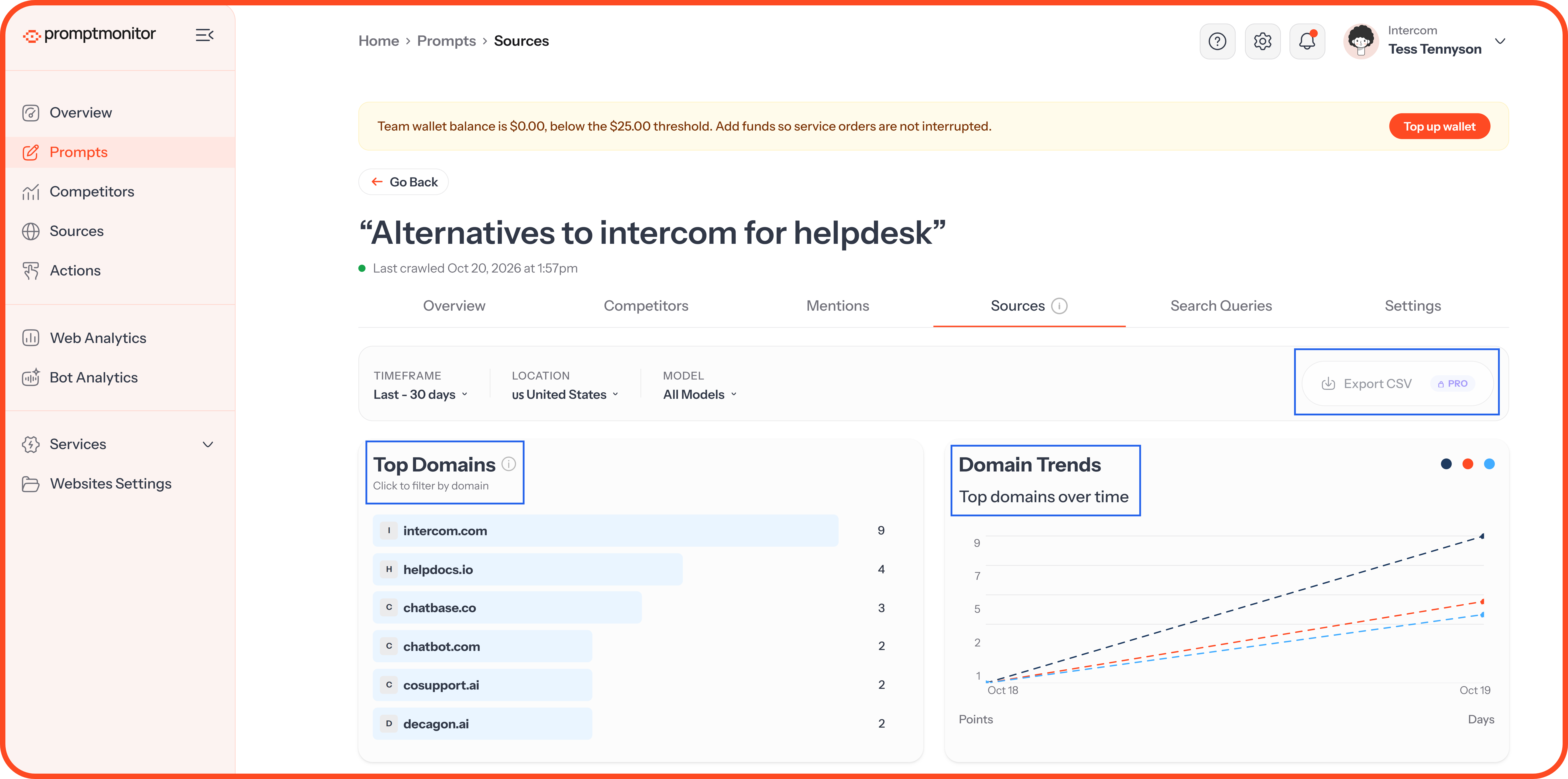
The websites AI models cited when they answered this prompt.
Top Domains: The domains cited most often. Click one to filter the list.
Domain Trends: How often the top domains were cited over time.
Sources table: Every cited page. You can export it as a CSV on Growth and Pro.
These are the sites shaping what AI says about your market. A page that cites your competitors but not you is a good place to get your brand mentioned.
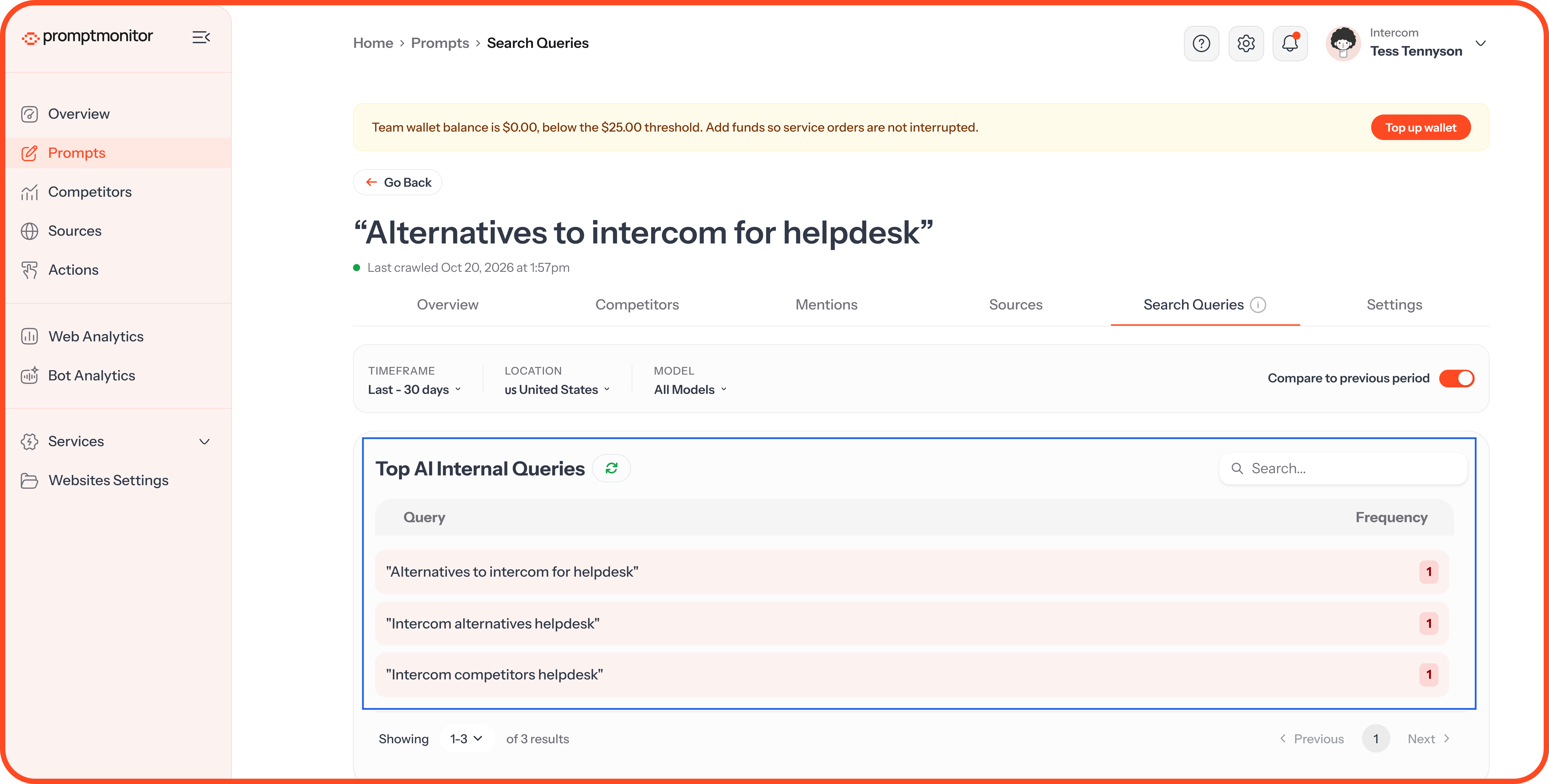
Search Queries Tab
The searches that AI models ran to answer this prompt, with how often each came up. Use them as content ideas, because they're the exact phrases AI looks for when it researches this question.
Settings Tab
Location Management: See the countries this prompt is tracked in, and add or remove locations.
Prompt Actions: Deactivate the prompt to stop crawling it, reactivate it, or delete it along with all its history.
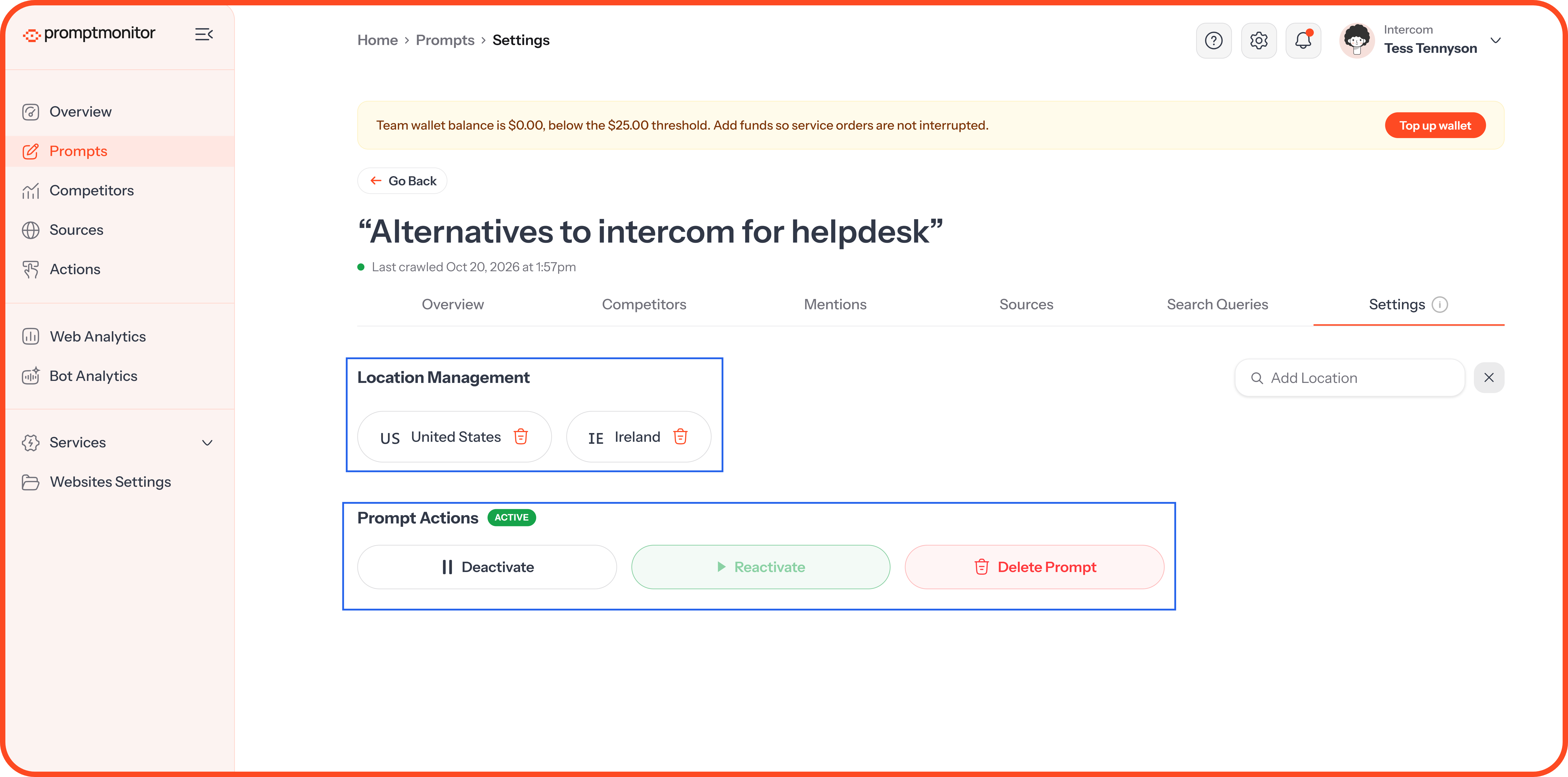
Deleting a prompt removes all of its history for good. If you might want the data later, deactivate it instead.
FAQs
Why does the AI Summary say "Generating AI summary…"?
We create the summary the first time someone opens the prompt after a crawl. Check back in a moment.
Why does an answer show sentiment as "Not analysed yet"?
We check sentiment after we collect each answer. If you see this, check back shortly.
Why do different models give such different answers?
Each AI model uses its own training data and web searches, and the answer can change with the location of the question. That's why we track every model on your plan separately.
💬 Questions about a prompt's report? Click the ? icon at the top of your dashboard and choose Contact us.
Was this helpful?
Still need help? Ask the team