Services, Wallet, and Orders
Order done-for-you link building, content and PR from your dashboard, manage your team wallet, and track every order until it's delivered.
Your Actions page tells you what to do to improve your AI visibility. Services lets our team do it for you. Order link building, content, and PR without leaving your dashboard, and track every order until it's delivered.
Browse Services
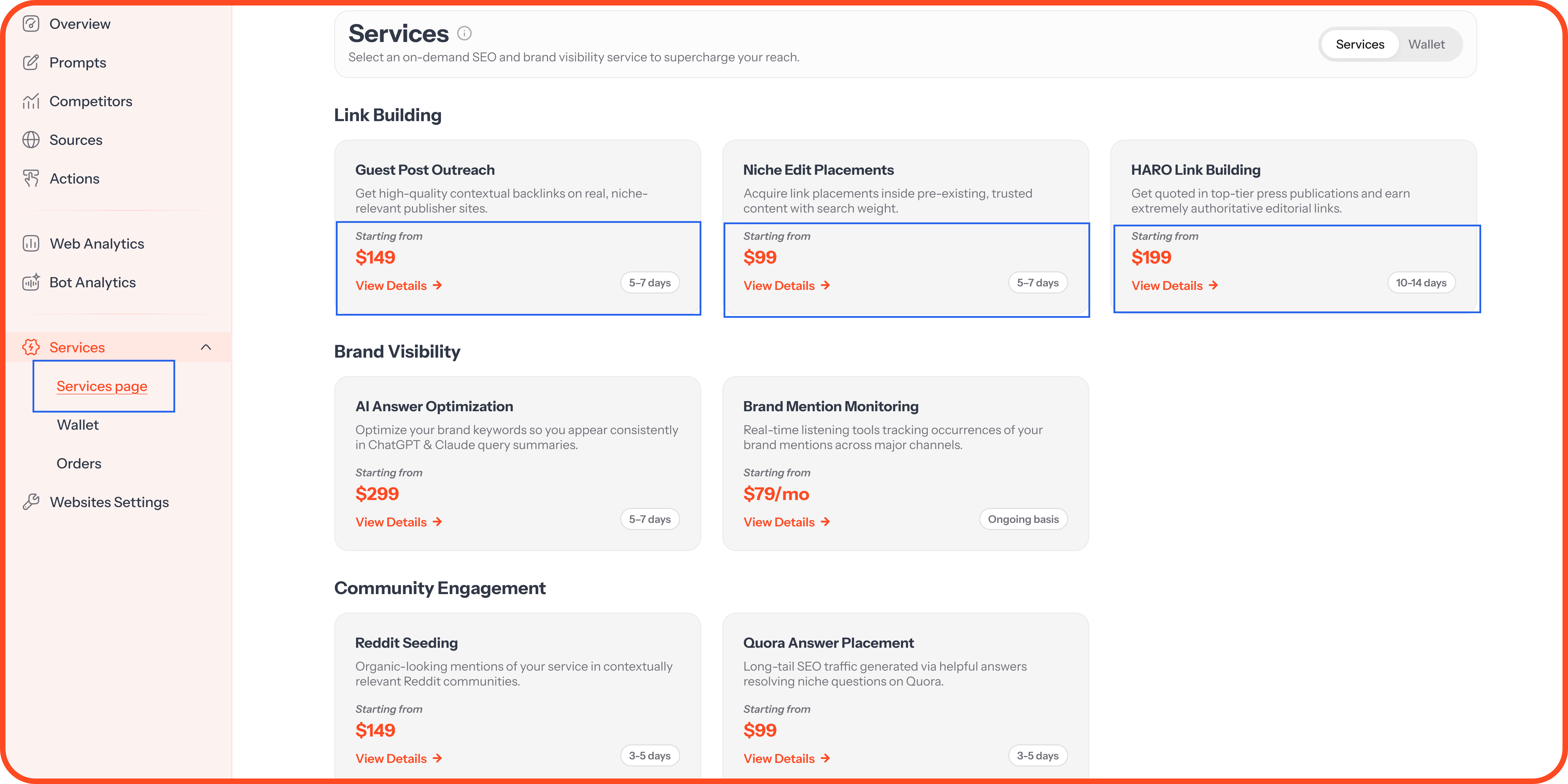
Click Services in the sidebar, then Services page. Services are grouped by type, and each card shows:
What the service does
The starting price
The estimated delivery time
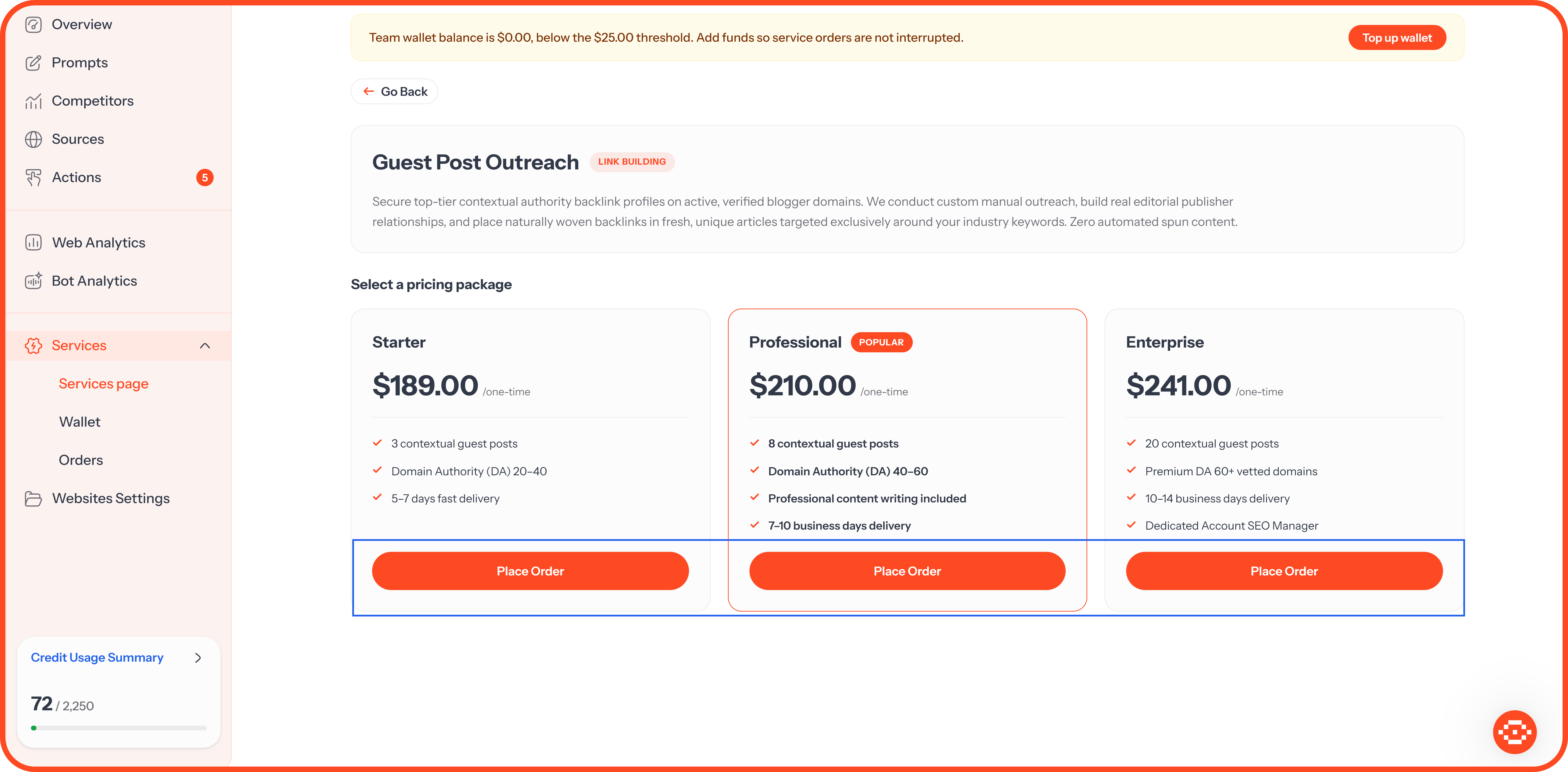
Click View Details to see every package for that service. Each package lists what you get, its price, and how long it takes.
Place an Order
Open a service and click Place Order on the package you want.
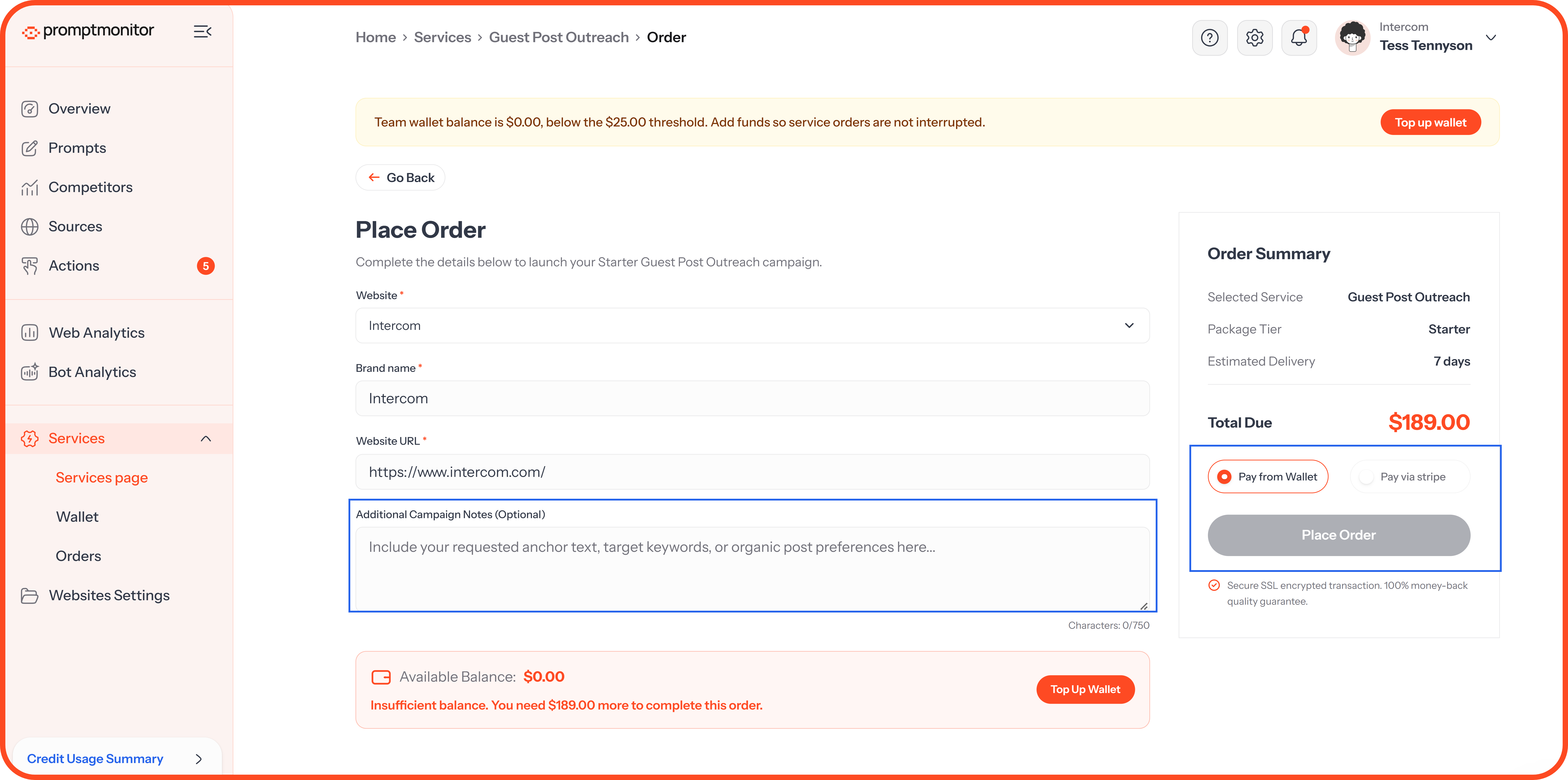
Choose the website the order is for. Your brand name and website address fill in automatically.
Add any notes that help us deliver better results, such as your brand's selling points, your target audience, or a spokesperson's name.
Choose how to pay: from your team wallet or by card.
Confirm your order.
We'll confirm your order, start work, and email you as it moves along.
Use your notes. The more context you give, the better the result. A clear line on what makes you different goes straight into pitches and content.
Your Team Wallet
Your wallet holds a balance your team can spend on services, and everyone on your team shares it. Open it from Services, then Wallet.
Top Up Your Wallet
Choose $50, $100, $250, $500, or $1,000, or enter any amount from $10 to $10,000.
Click Top Up via Stripe and pay by card.
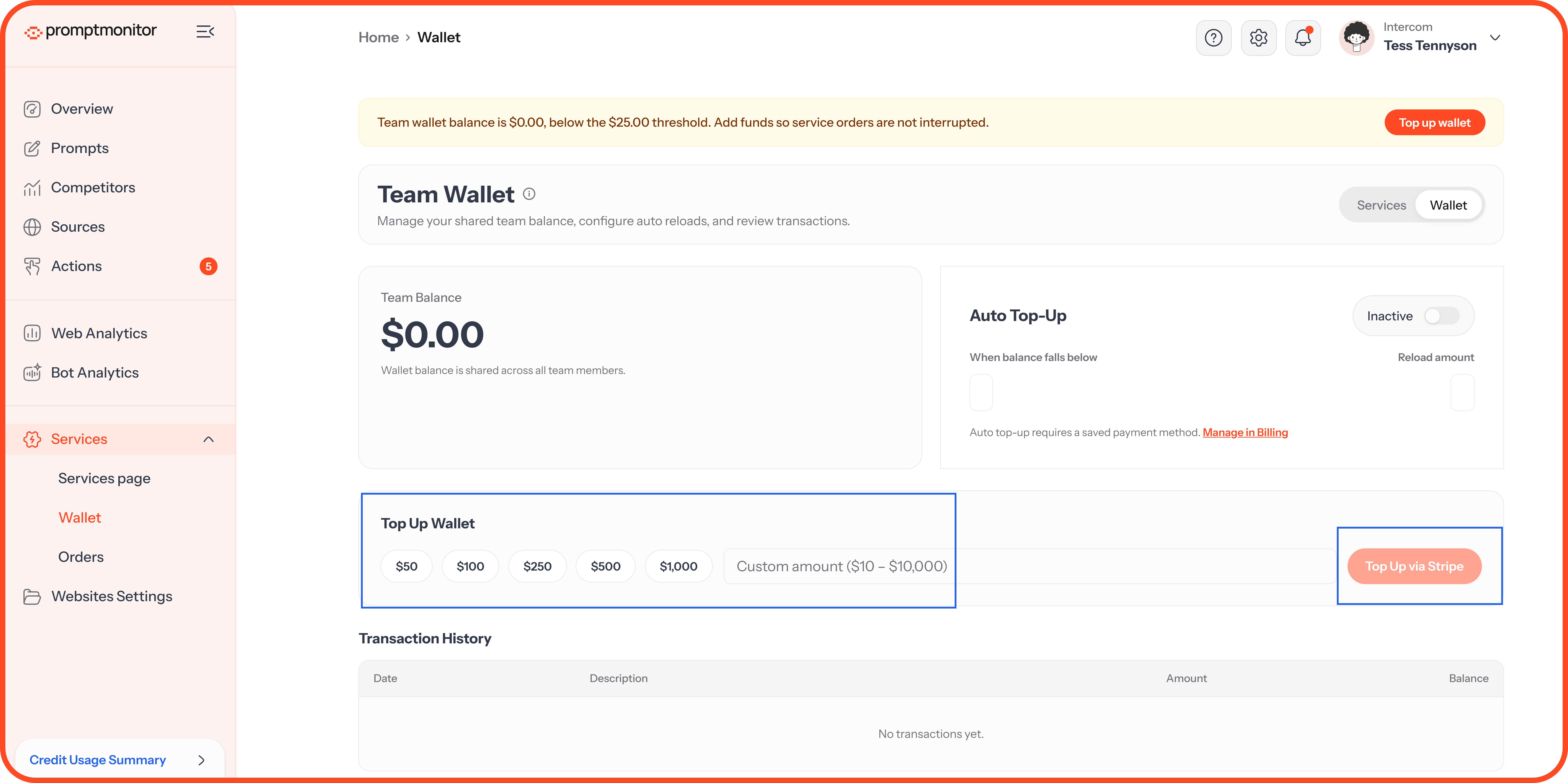
Your balance updates once the payment goes through.
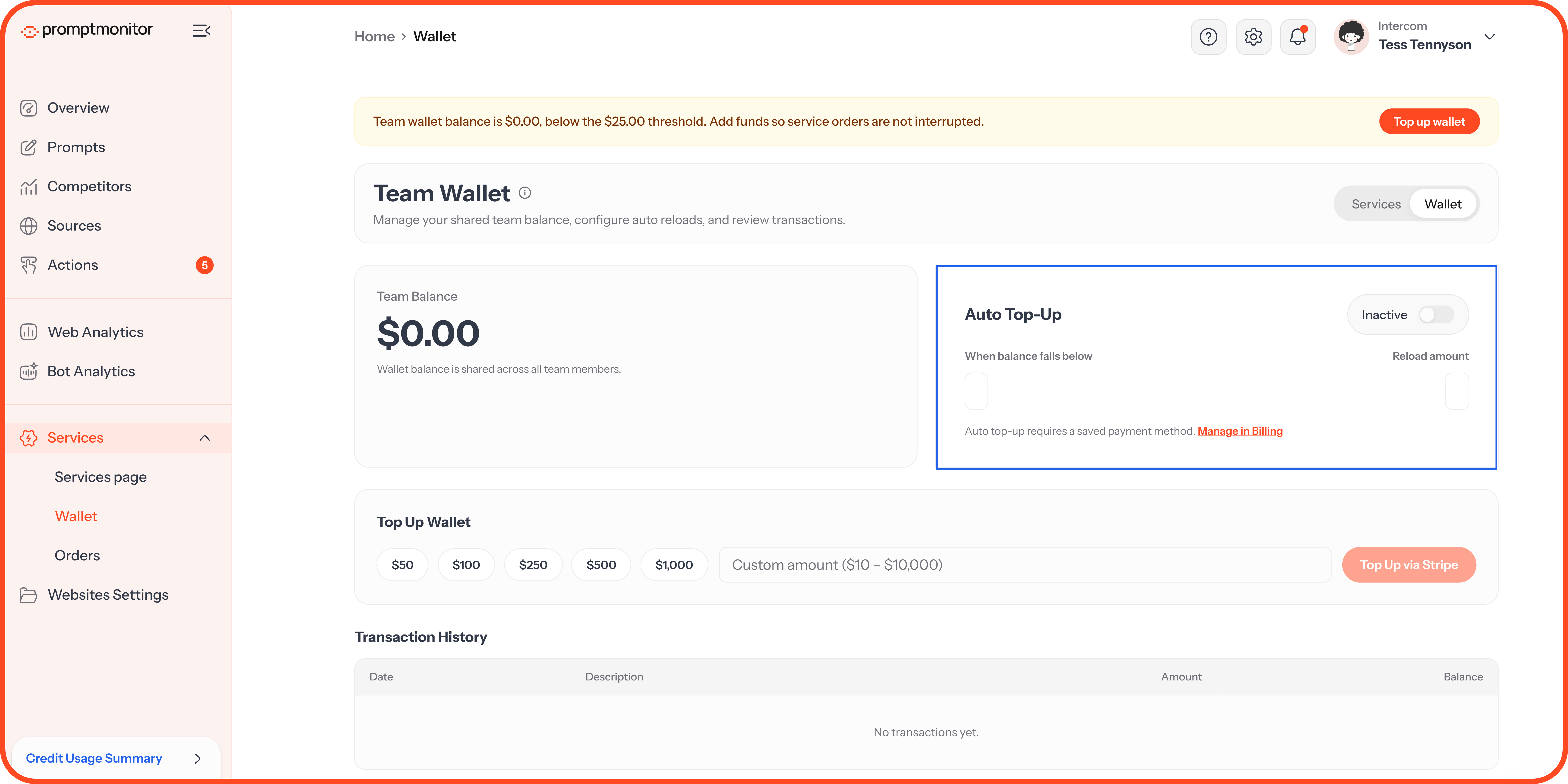
Turn On Auto Top-Up
Auto top-up adds funds when your balance gets low, so your orders aren't held up.
Turn on Auto Top-Up.
Set When balance falls below to the balance that should trigger a top-up.
Set Reload amount to how much to add each time.
Auto top-up needs a saved card. Click Manage in Billing to add one.
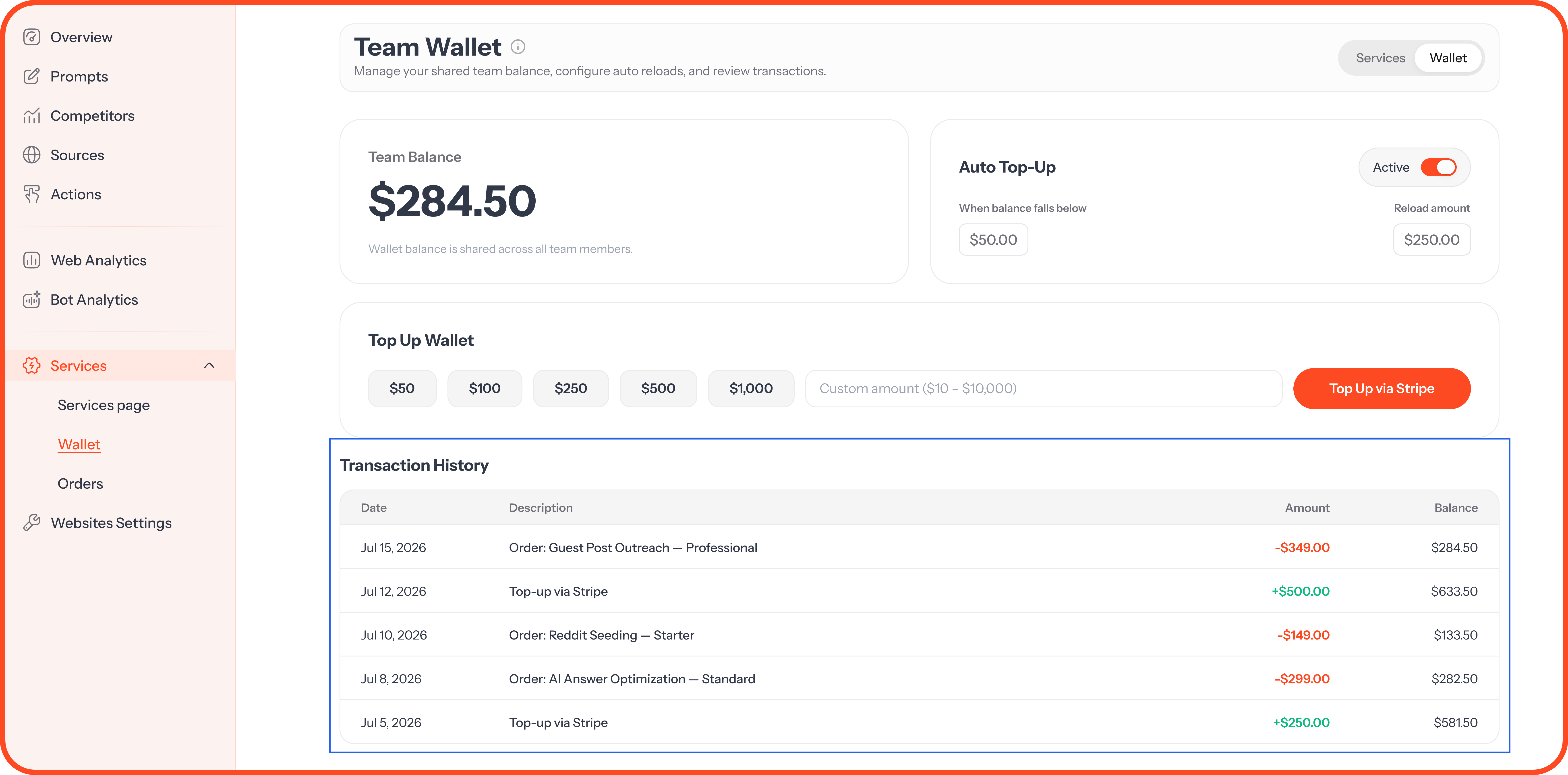
Transaction History
Every top-up, purchase, and refund appears in Transaction History, with the date, description, amount, and your balance afterward.
Low balance banner. When your wallet drops below $25, you'll see a banner at the top of your dashboard with a Top up wallet button.
Track Your Orders
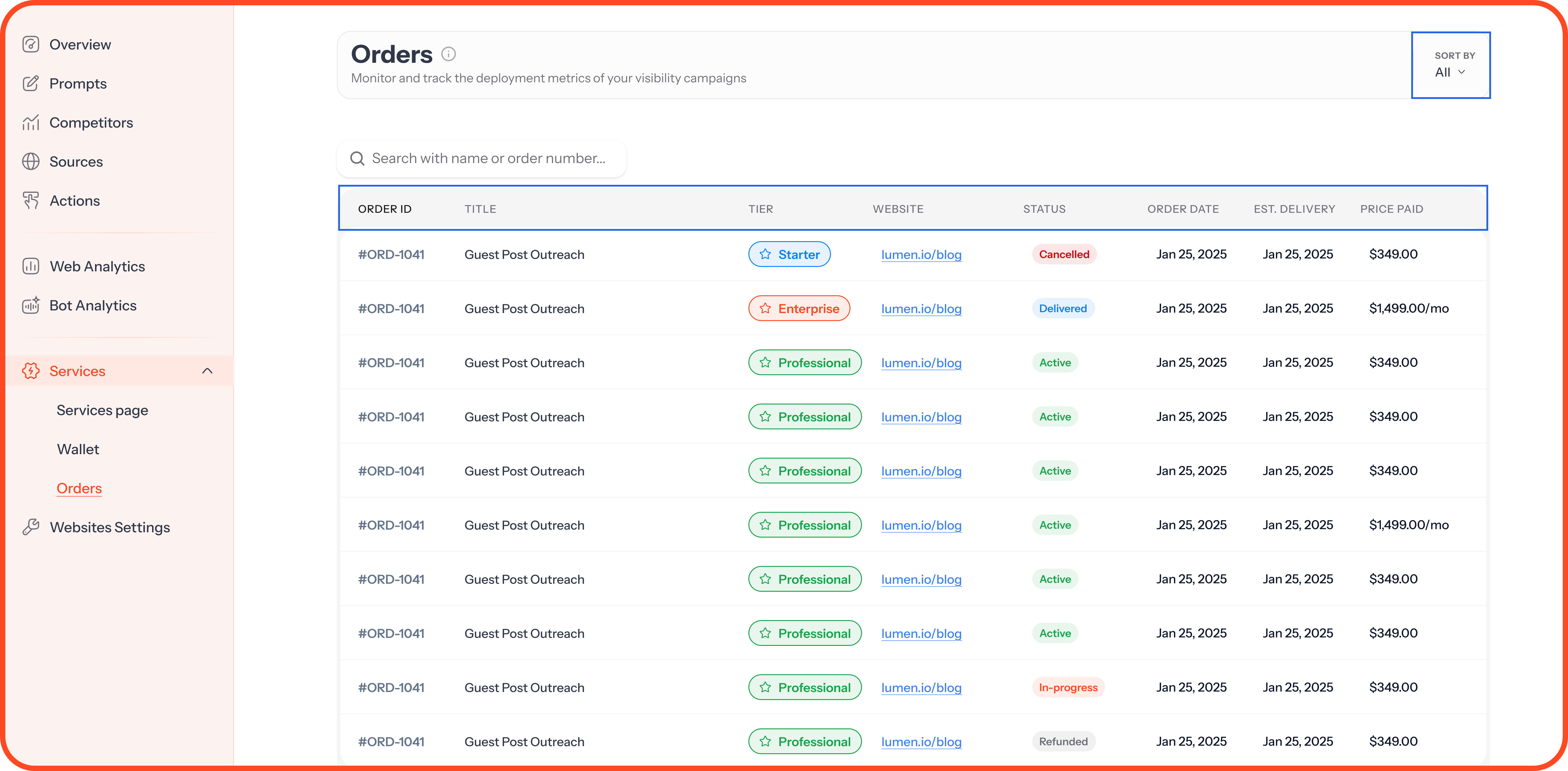
Open Services, then Orders, to see every order and its status. You can filter the list by status.
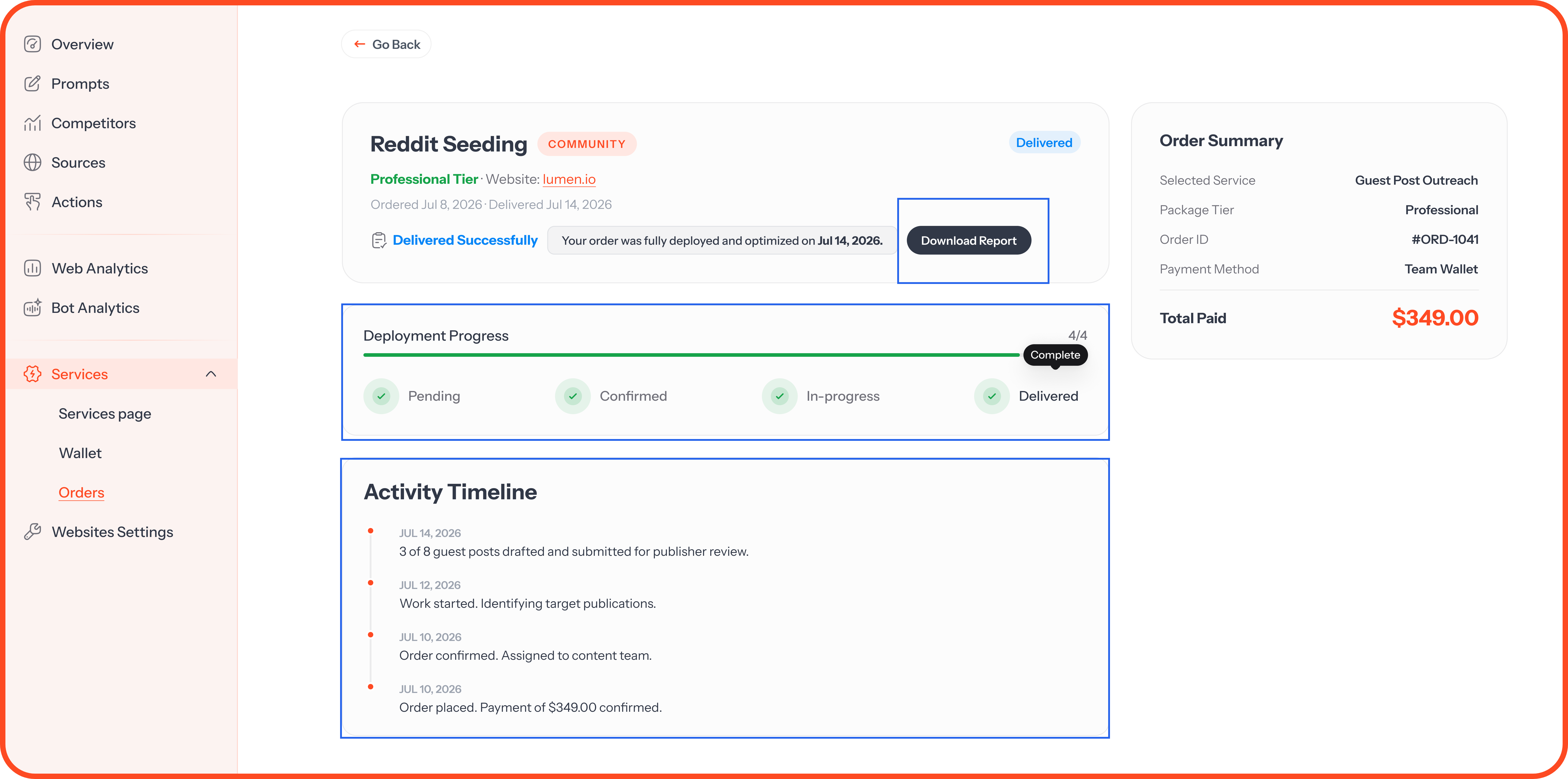
Click an order to see its progress, the estimated delivery date, and every update from our team. Once it's delivered, download your report from the same page.
FAQs
Can I cancel an order?
Contact us as soon as possible. Once work on an order has started, it can't be cancelled.
Where does a refund go?
Refunds go back to your team wallet and appear in your Transaction History.
My order is past its estimated delivery date. What now?
Some orders take longer, especially PR. You'll see "Delivery is taking longer than expected" on the order, and our team is already on it. Contact us if you need an update.
Do I need a paid plan to order services?
No. Services are available on every plan.
💬 Not sure which service fits? Click the ? icon at the top of your dashboard and choose Contact us.
Was this helpful?
Still need help? Ask the team