Team Settings
Manage your profile, your team and its roles, your billing, and the emails we send you.
Team Settings is where you manage your profile, the people on your team, your plan, and the emails we send you. To open it, click the gear icon at the top of your dashboard and choose Team Settings.
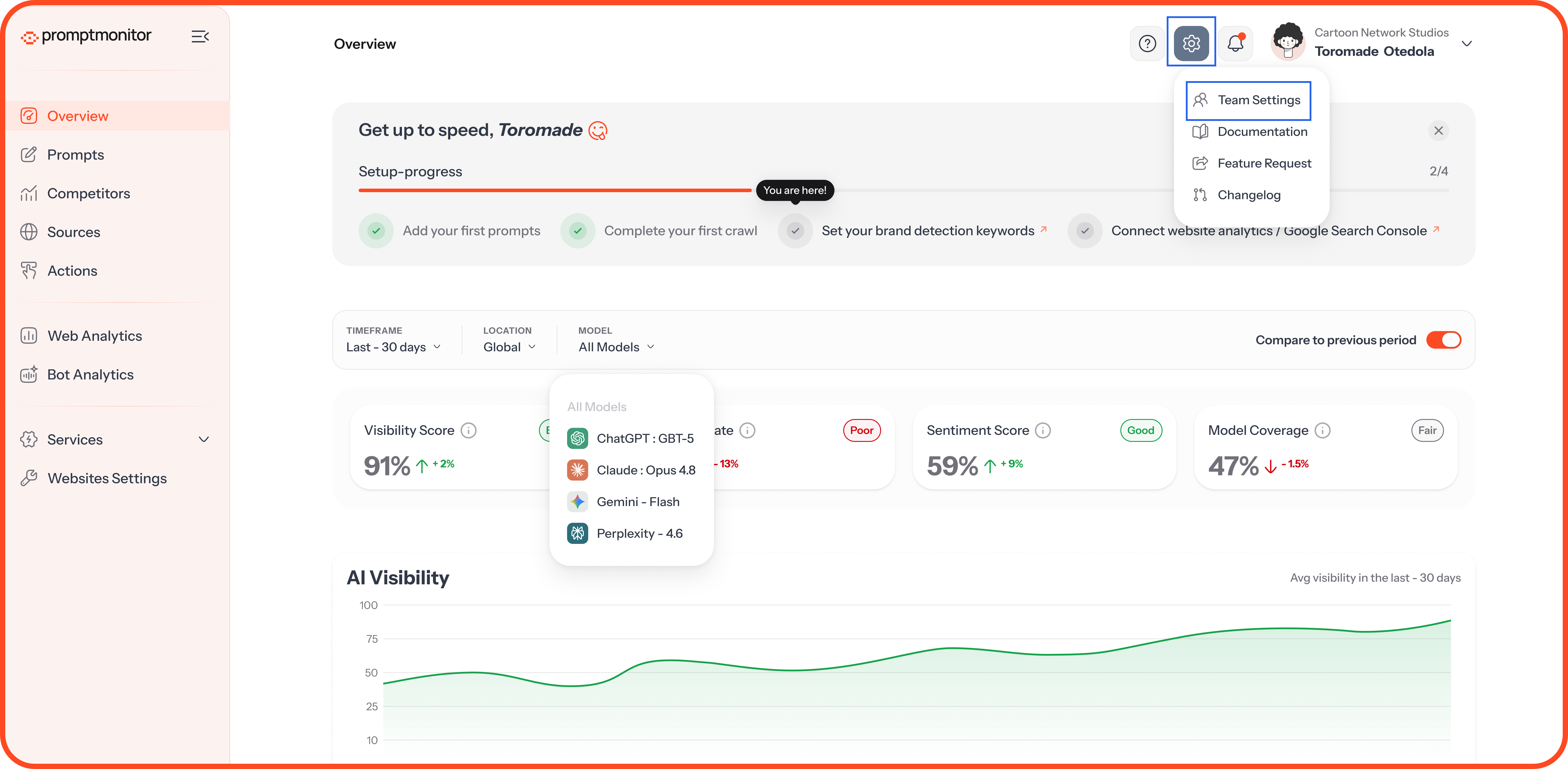
The Four Tabs
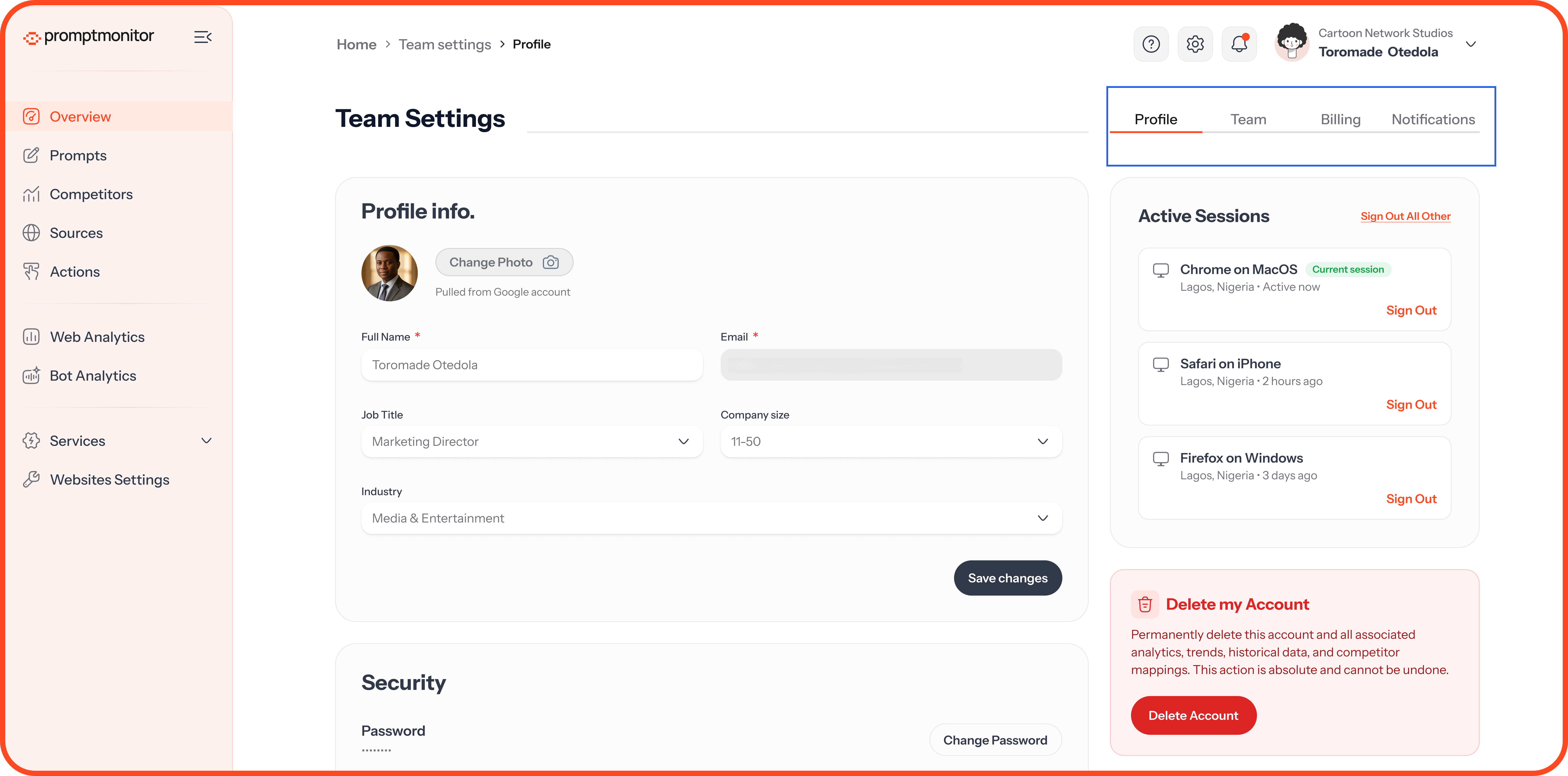
Profile
Update your photo, full name, job title, company size, and industry, then click Save changes. Your email address can't be changed because it's how you sign in.
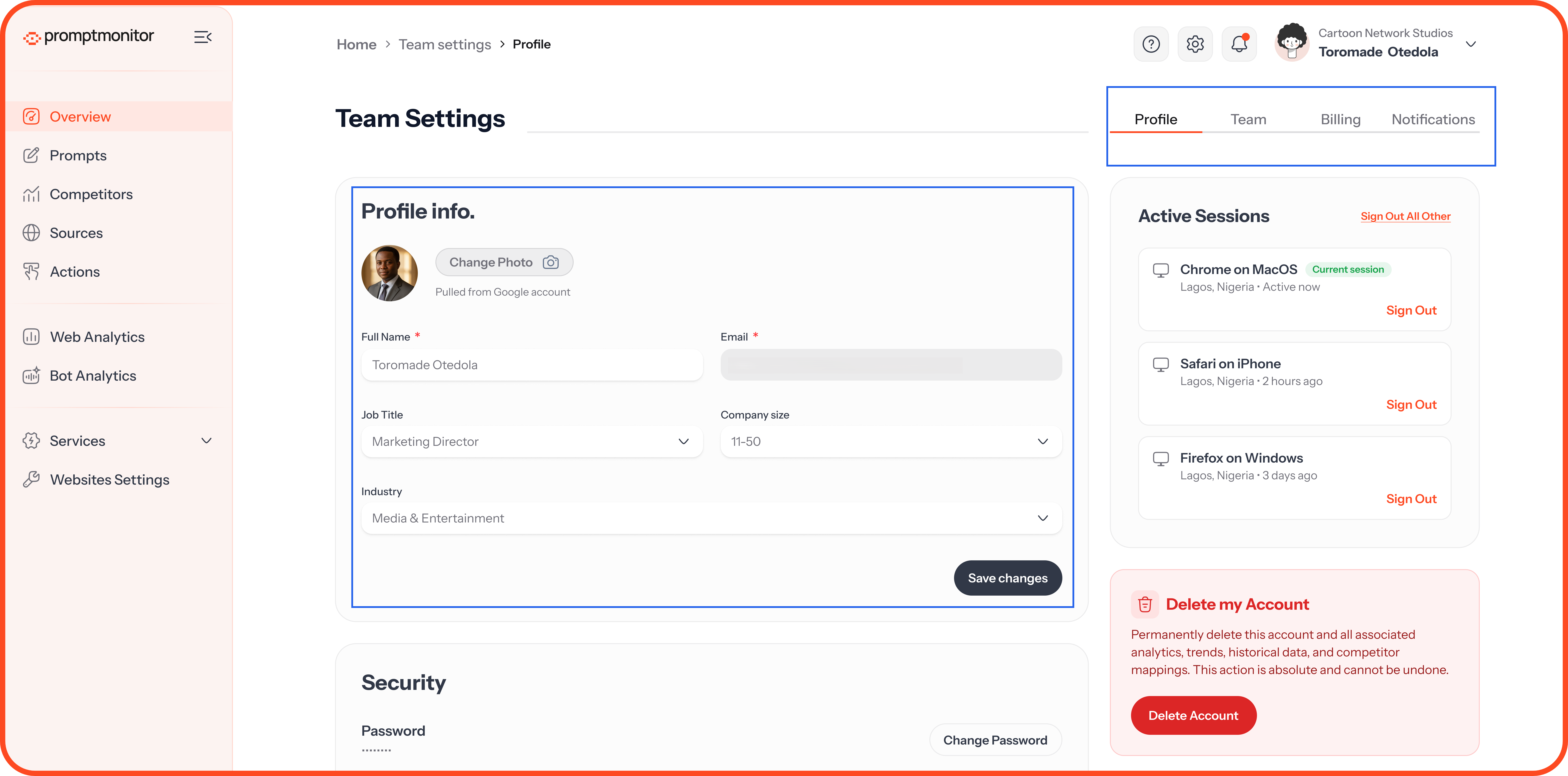
Security
Password: Click Change Password. You'll need your current password, and your new one must be at least 8 characters.
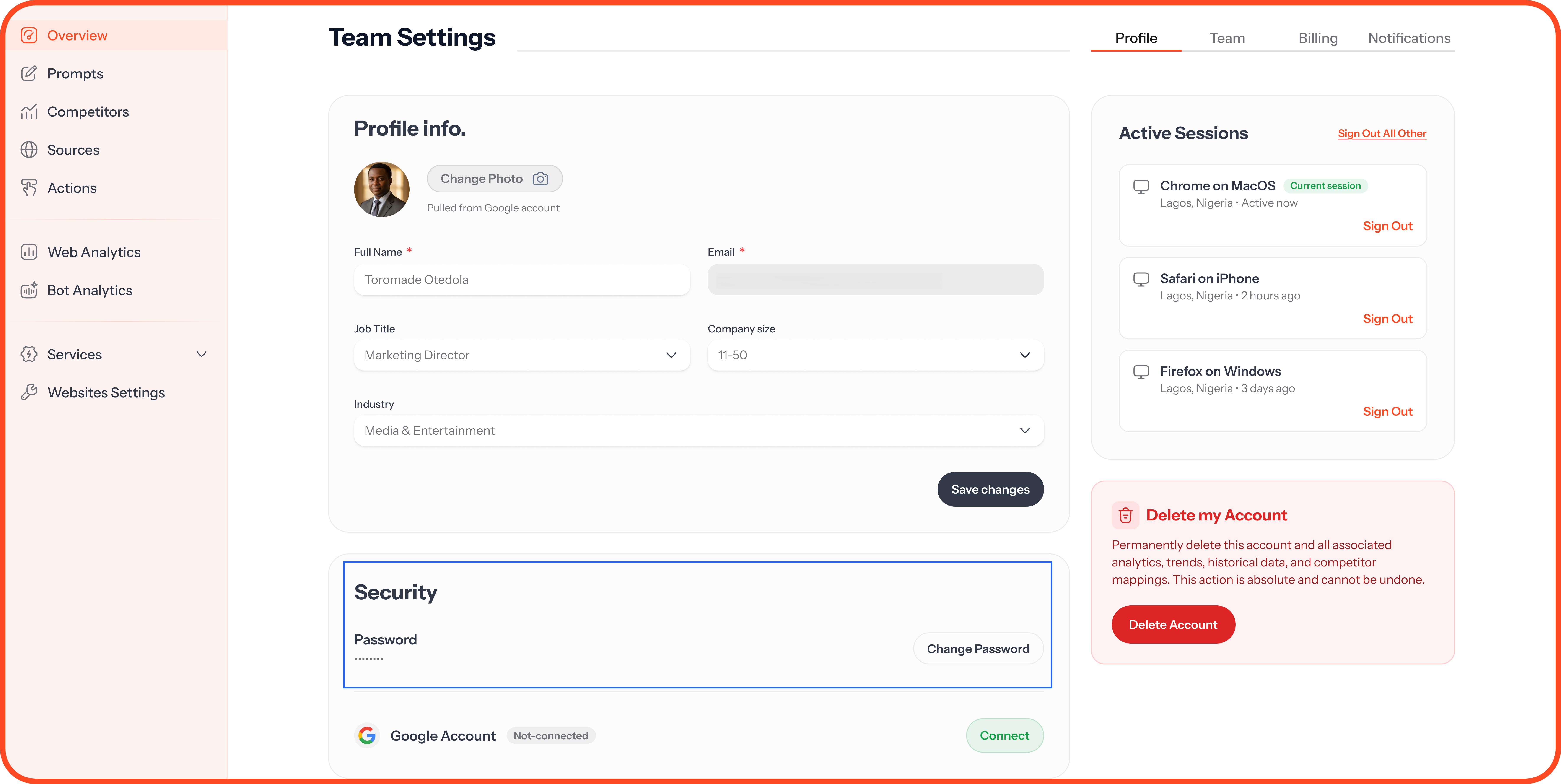
Google Account: Click Connect to sign in with Google as well as your password. Once connected, it can't be disconnected.
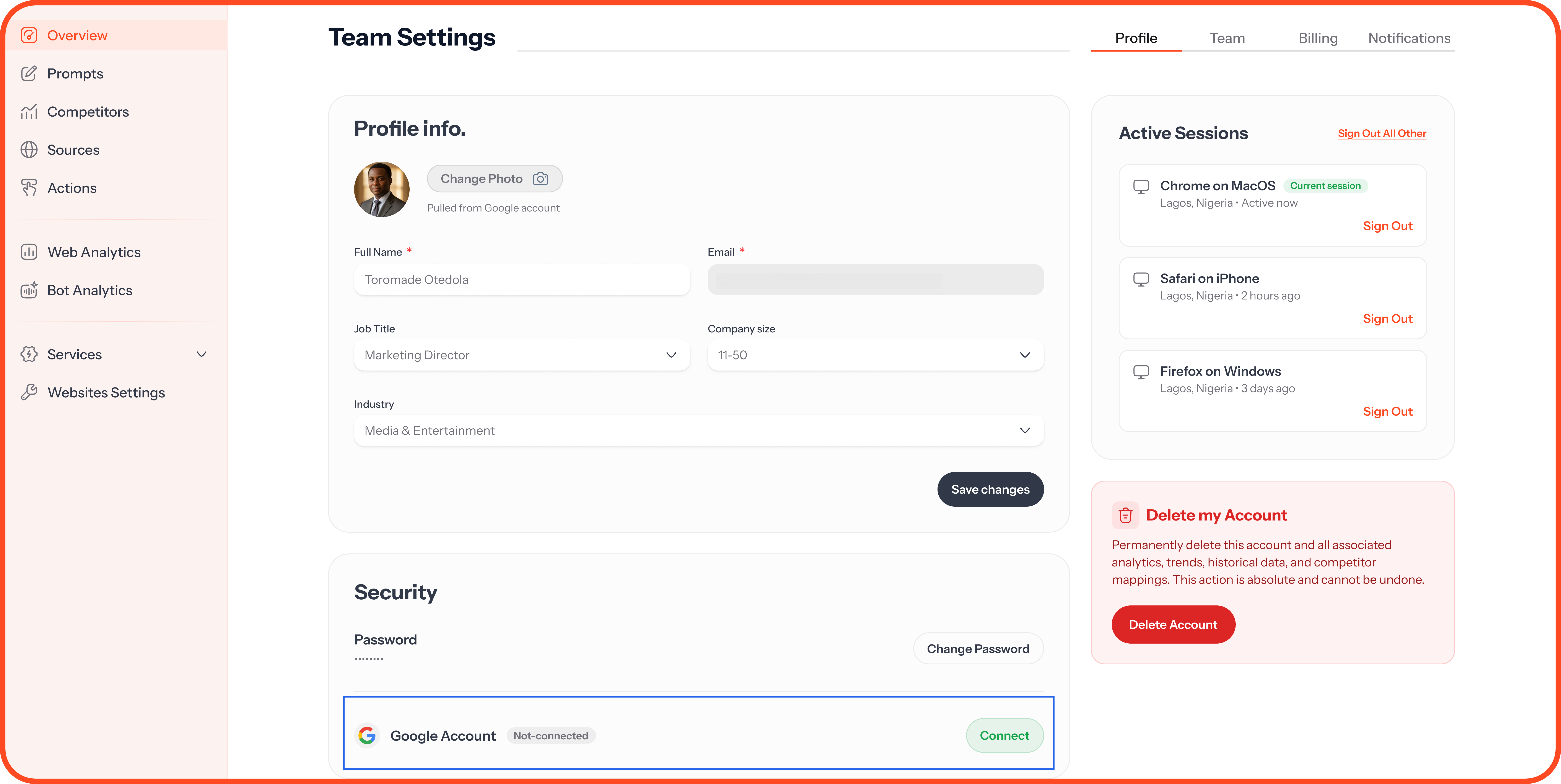
Active Sessions: See every device you're signed in on and when it was last used. Click Sign Out next to a session, or Sign Out All Other to sign out everywhere except this device.
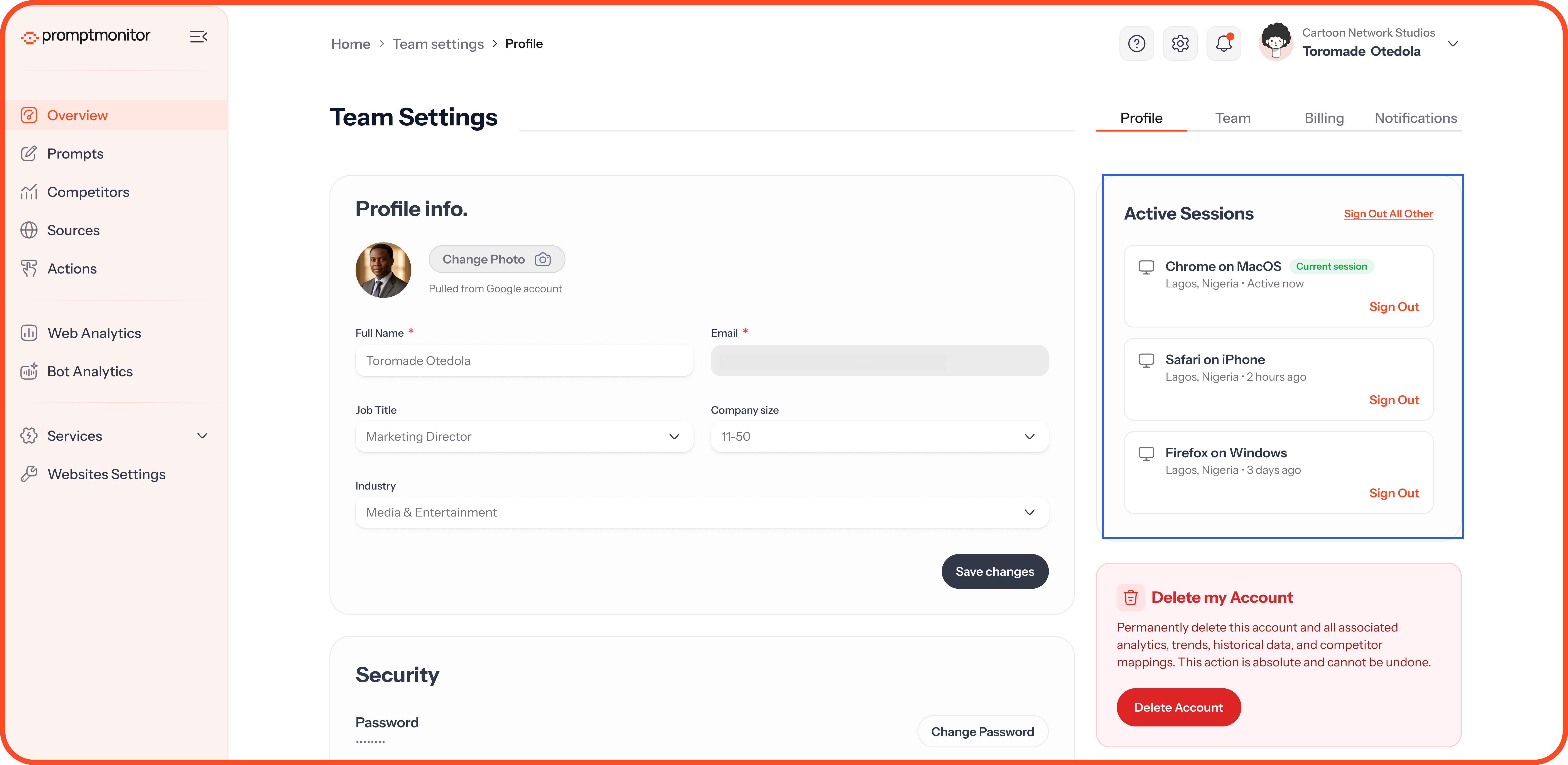
Delete Your Account
Delete Account deactivates your account straight away and removes it for good after 30 days. Until then, you can log back in and cancel the deletion.
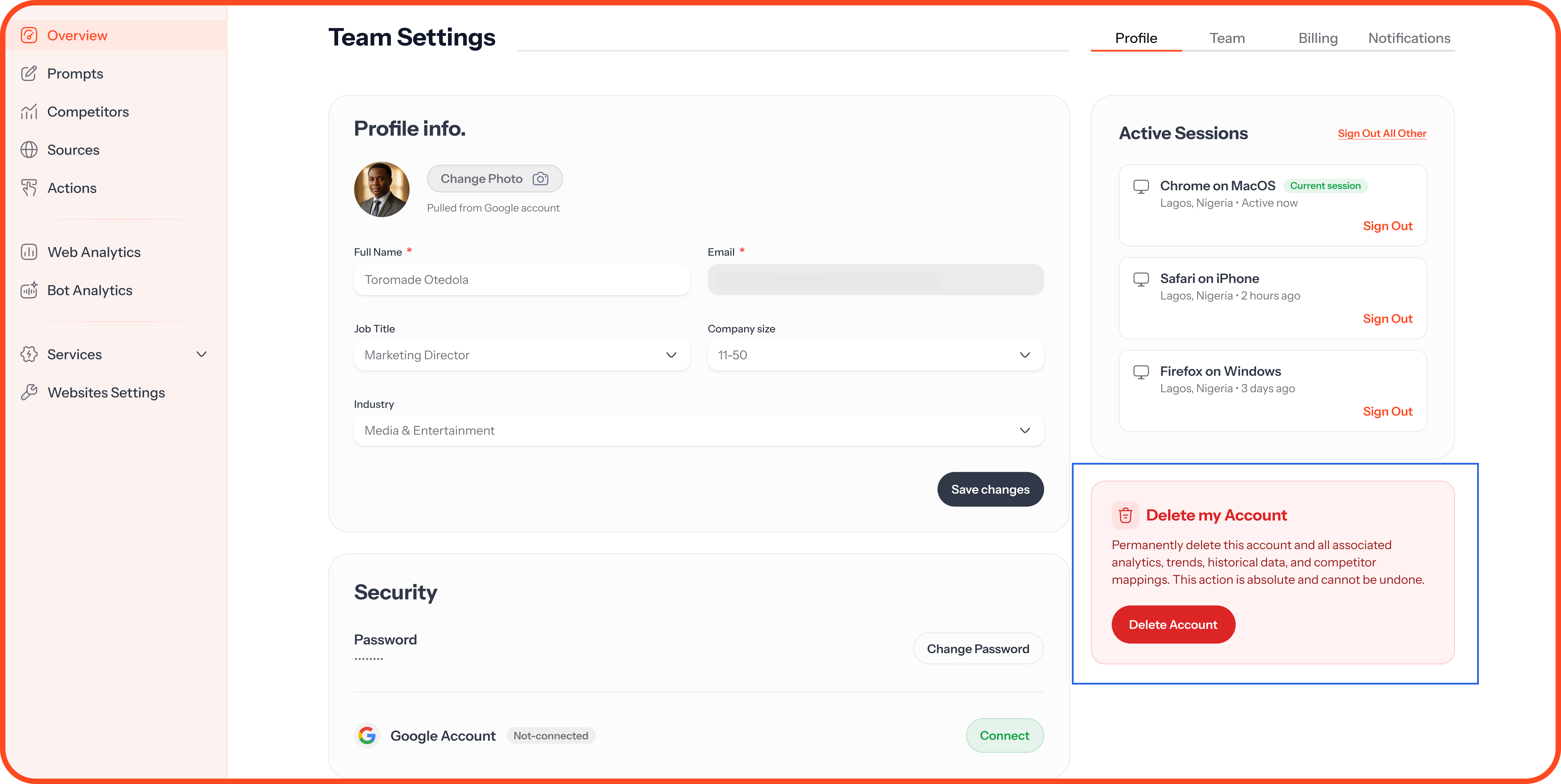
If you're the only admin on your team, make another member an admin before you delete your account. Every team needs at least one admin.
Team Roles
Members can see who's on the team but can't make changes to it.
Invite Someone
Click Invite Member.
Enter their email address.
Choose their role: Member or Admin.
Click Send Invite.
They'll get an email with a link to join. Until they accept, they appear in your members list as Pending, and you can resend or revoke the invite.
Seats are unlimited on every plan, so invite as many people as you need.
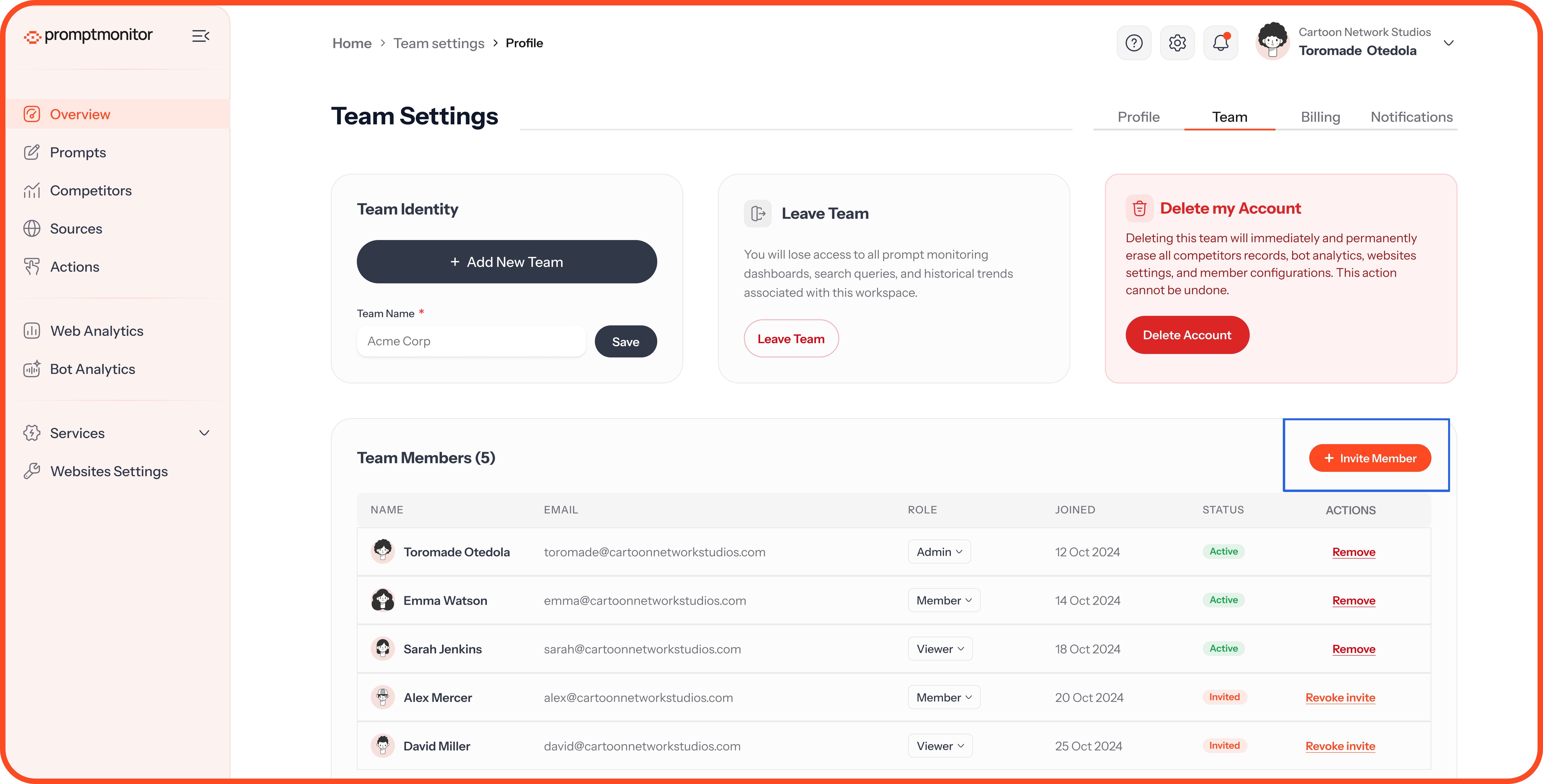
Manage Members
The members list shows each person's name, email, role, the date they joined, and their status.
Change a role: Switch someone between Admin and Member.
Remove someone: Click Remove. They lose access to the team straight away.
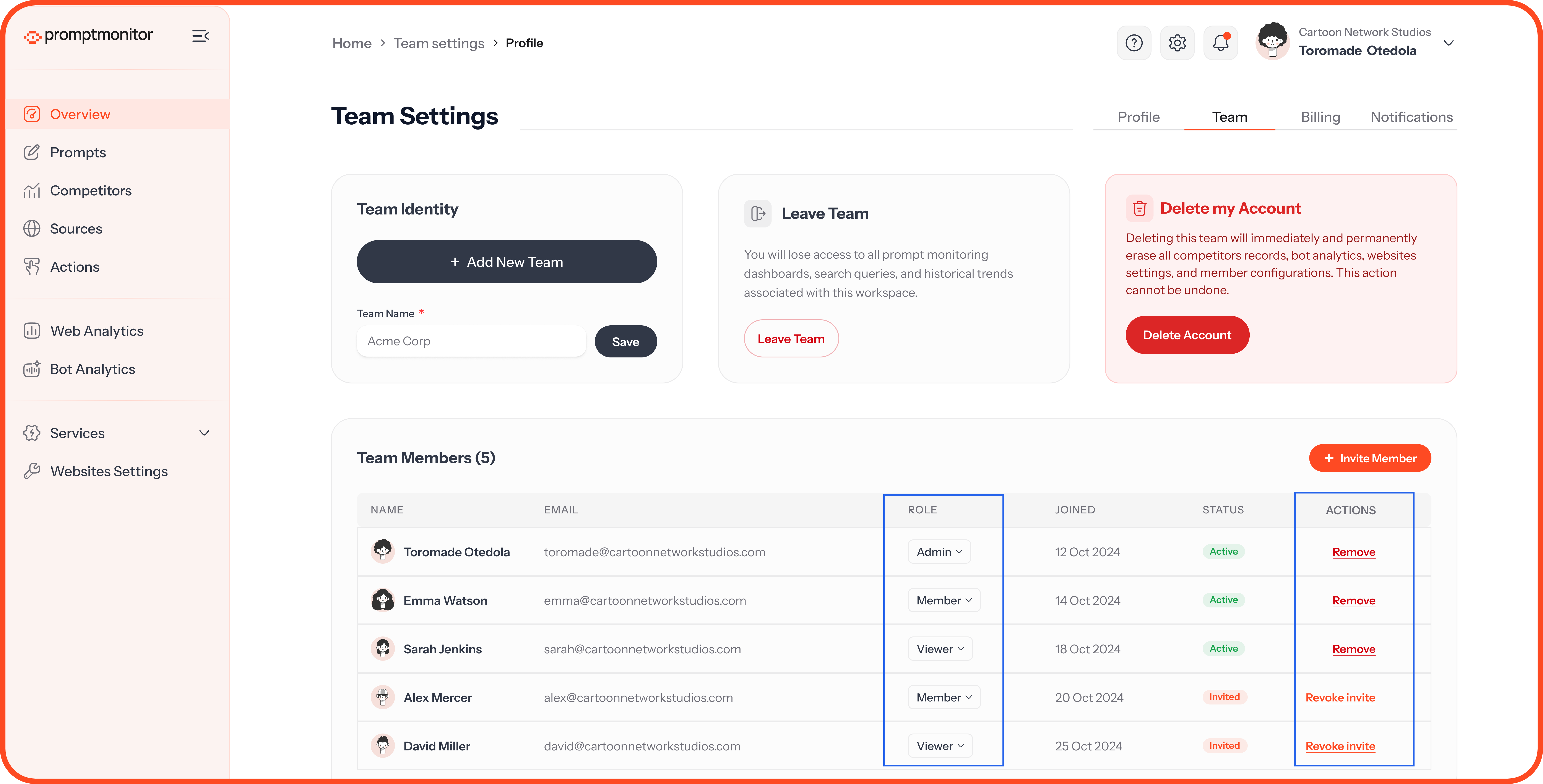
If you're the only admin, you can't make yourself a member or remove yourself. Make someone else an admin first.
Your Teams
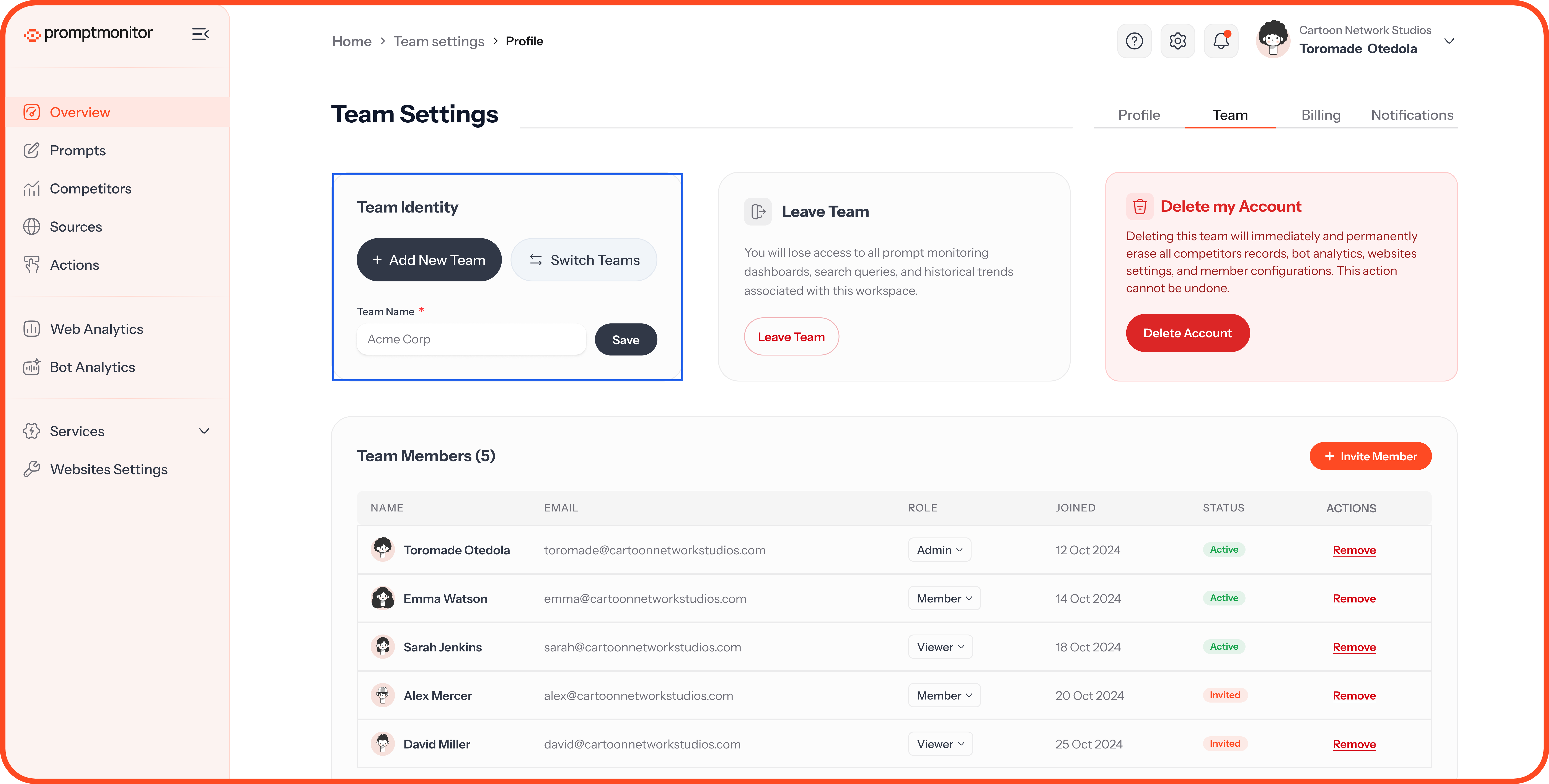
Rename your team: Edit Team Name and click Save.
Create another team: Click Add New Team. Each team has its own plan, websites, members, and wallet.
Move between teams: Click Switch Teams.
Leave or Delete a Team
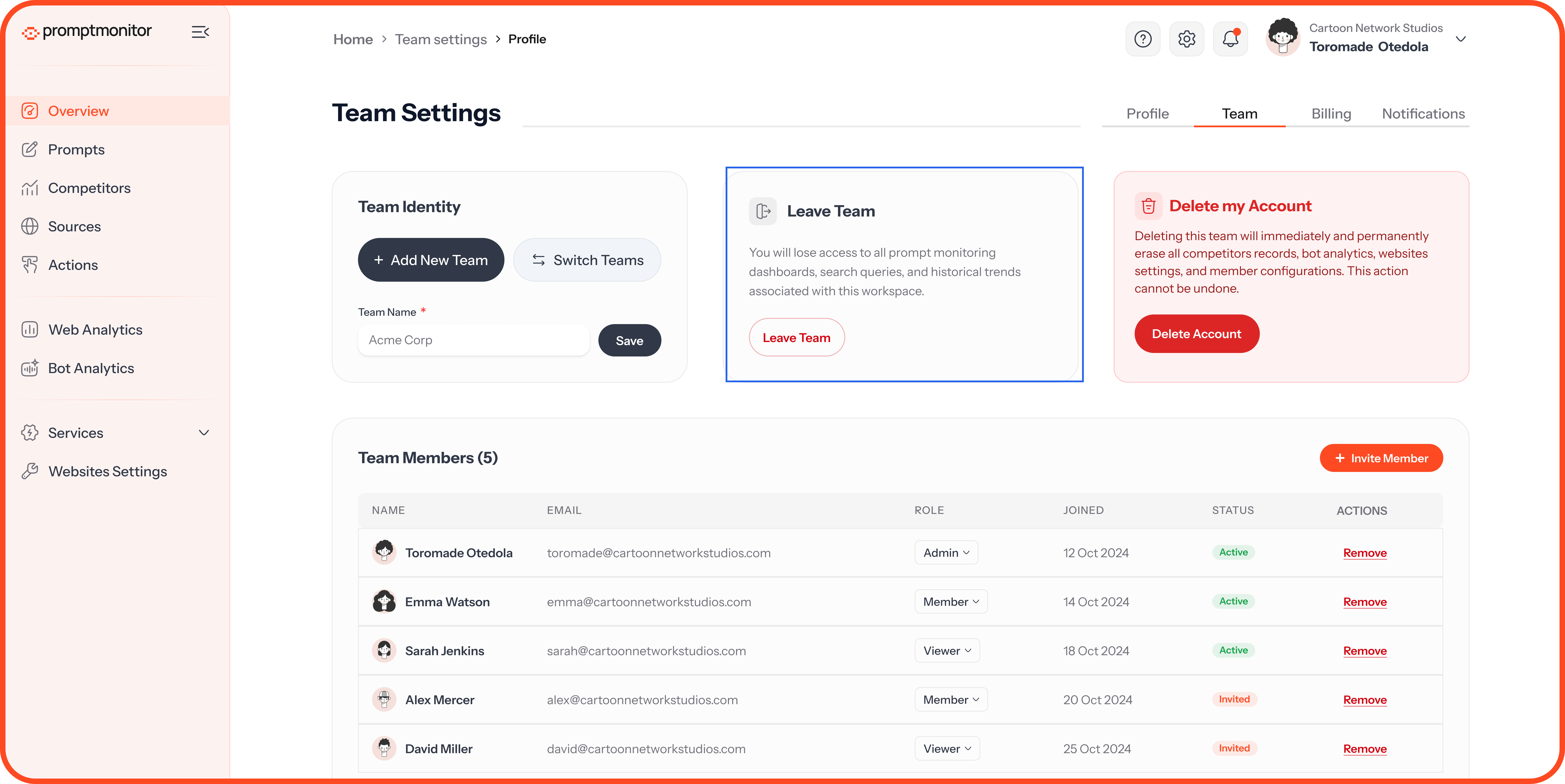
Members can leave a team at any time. Admins can leave once there's another admin.
Delete Team permanently removes the team, every website in it, and all their data, and then cancels the team's subscription. You'll type the team name to confirm.
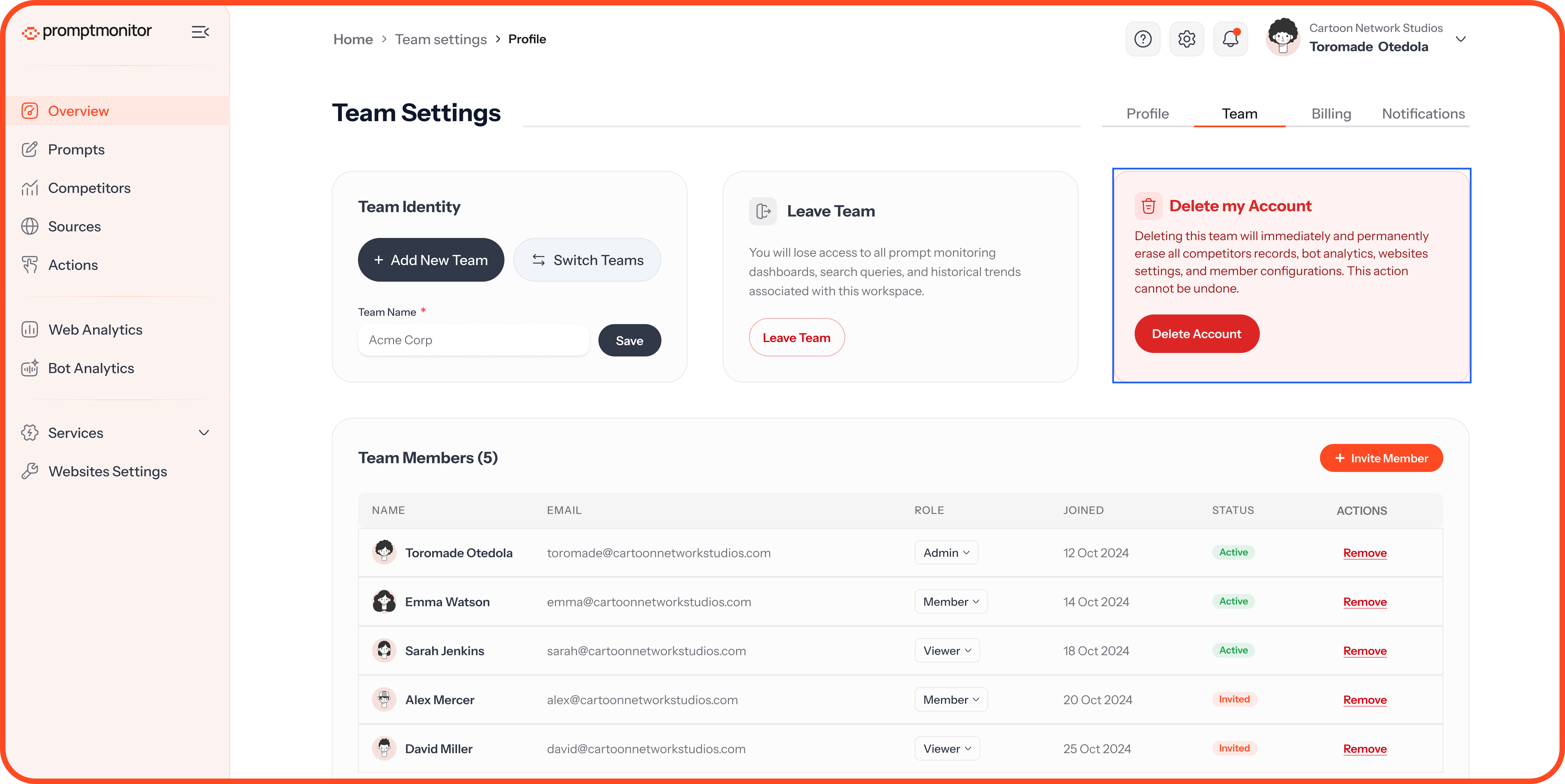
Deleting a team can't be undone. You can only delete a team if you belong to at least one other.
Billing
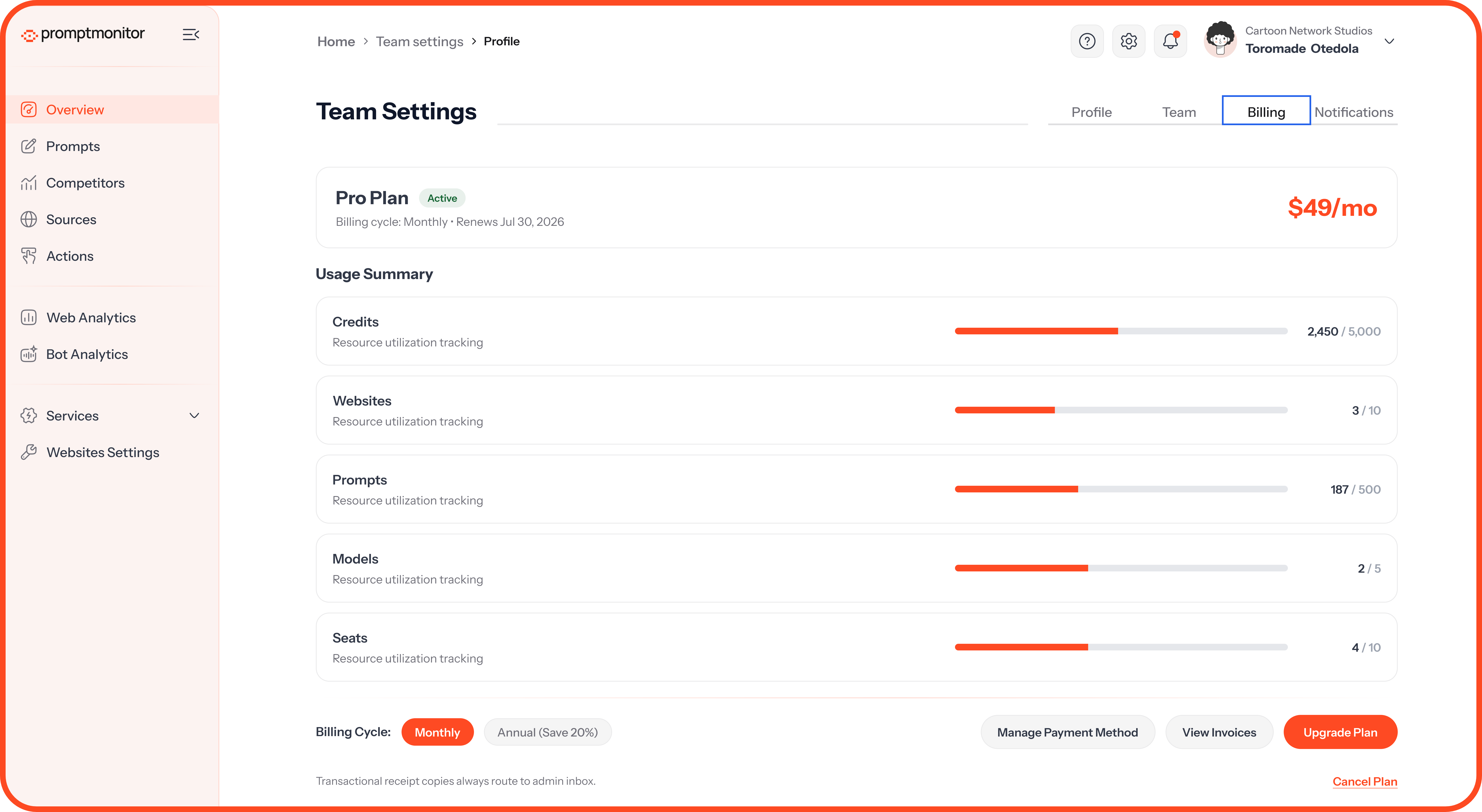
See your plan, renewal date, and usage; update your card, download invoices, and change your plan. Only admins can change the plan or payment method. For details, read Credits, Plans, and Usage.
Cancel Your Subscription
Go to Team Settings, then Billing.
Click Manage Subscription. This opens your subscription in Stripe.
Click Cancel subscription and confirm.
Your plan stays active until the end of your current billing period. After that, your account becomes read-only: you can still see all your data, but crawls stop and you can't make changes until you subscribe again.
To avoid being charged after your free trial, cancel before day 8.
Notifications
Turn each email on or off. Changes save straight away.
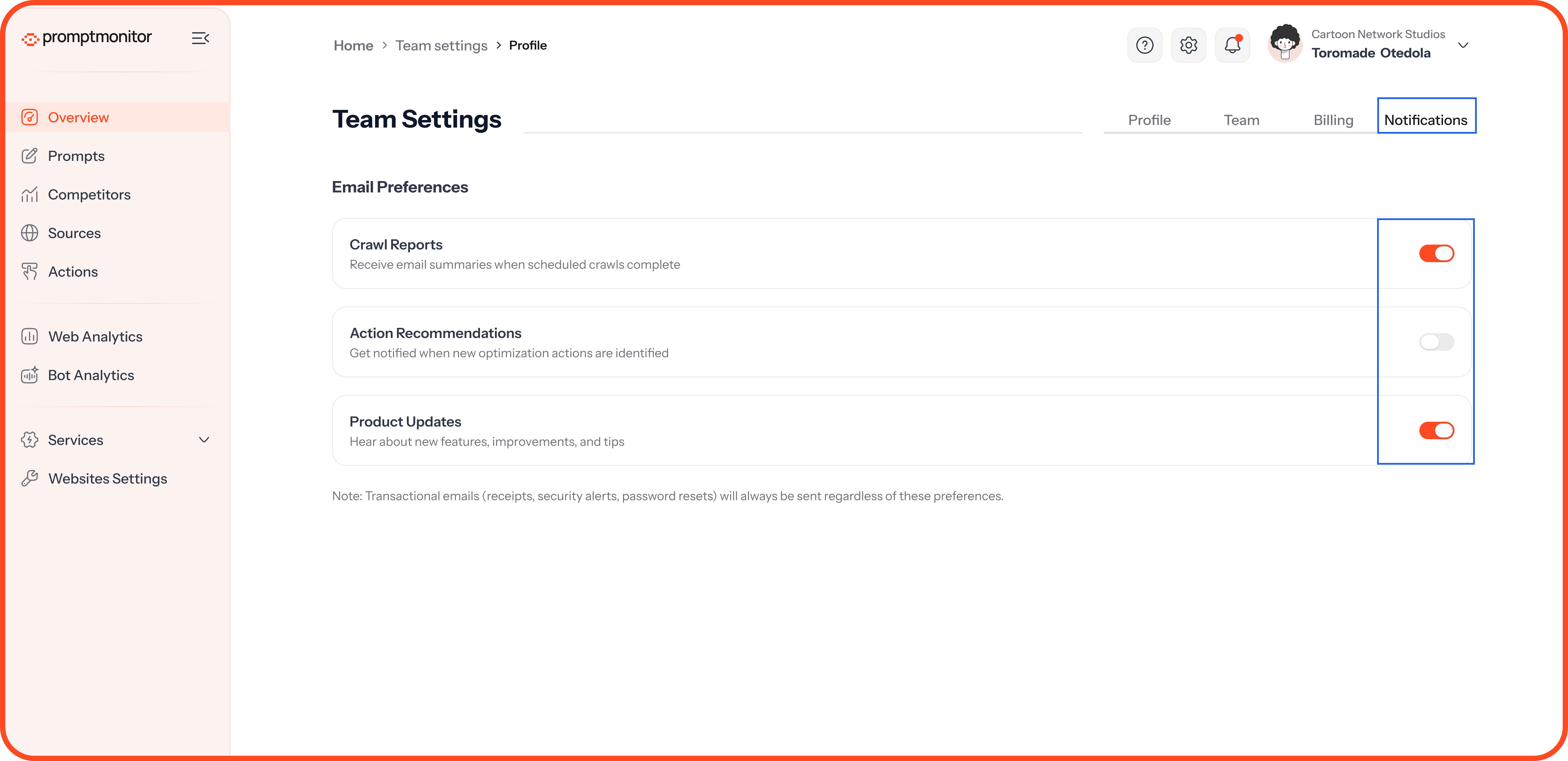
These settings apply only to you, so each person on your team chooses their own. We always send receipts, security alerts, password resets, invites, and order updates, whatever you choose here.
FAQs
My teammate didn't get their invite. What should I do?
Ask them to check their spam folder. If it's not there, find them in your members list and resend the invite.
The invite says it has expired.
Ask an admin on the team to send a new one.
Can someone belong to more than one team?
Yes. Click your name at the top of the dashboard and choose Switch Workspace, or click Switch Teams on the Team tab.
💬 Need help with your team? Click the ? icon at the top of your dashboard and choose Contact us.
Was this helpful?
Still need help? Ask the team