How to Get Started with Promptmonitor
A complete guide to signing up, setting up your first project, and launching AI visibility tracking
Promptmonitor is designed to help you understand how your brand appears across AI platforms such as ChatGPT, Perplexity, Gemini, Claude, DeepSeek, Grok, and others. This guide walks you through the full onboarding process, from the landing page to your first live analytics dashboard.
Step 1: Visit the Promptmonitor Website
Start by navigating to the official Promptmonitor website.
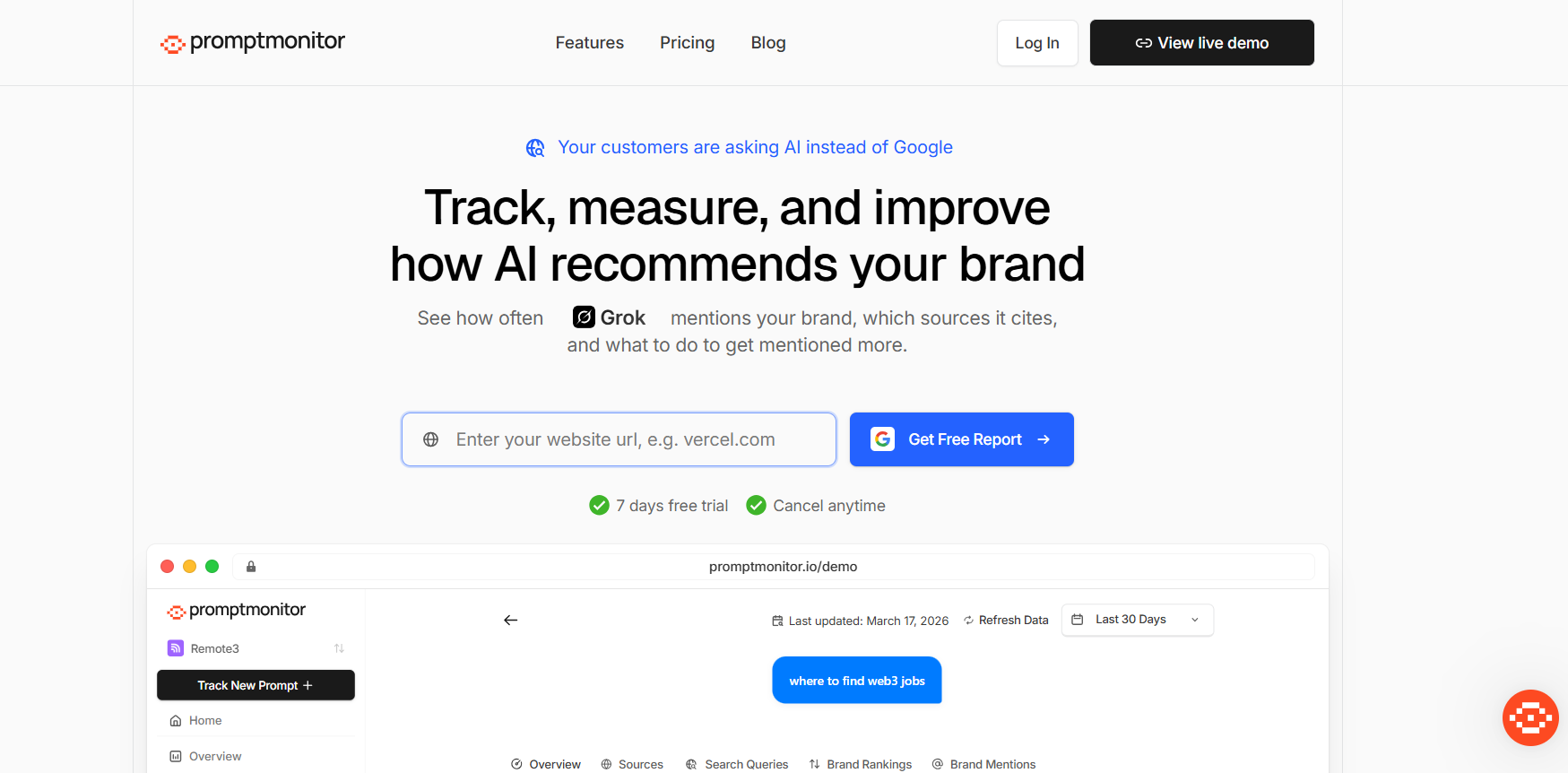
On the landing page, you’ll find an overview of the platform, key features, pricing, and a clear “Log In” button.
To get started:
Click the Login button.
On the login page, select “Sign up” located below.
Complete your registration to create your account
Step 2: Complete the Onboarding Flow
After logging in for the first time, Promptmonitor will guide you through a short onboarding process.
During onboarding, you will:
Create Your First Project
A project represents the brand, product, or website you want to track.
You’ll typically enter your brand name or domain.
Complete Your Profile Setup
After creating your project, a quick onboarding form will appear to help personalize your experience. You’ll be asked to provide:
Where you found PromptMonitor (e.g., Google, LinkedIn, ChatGPT, etc.)
Your job title
Your company size
Your industry
Simply fill in the required details and continue. Once completed, you’ll gain full access to your dashboard.
Step 3: Start Tracking Prompts
After completing the onboarding process, you’ll be taken to your dashboard where you can begin tracking your visibility.
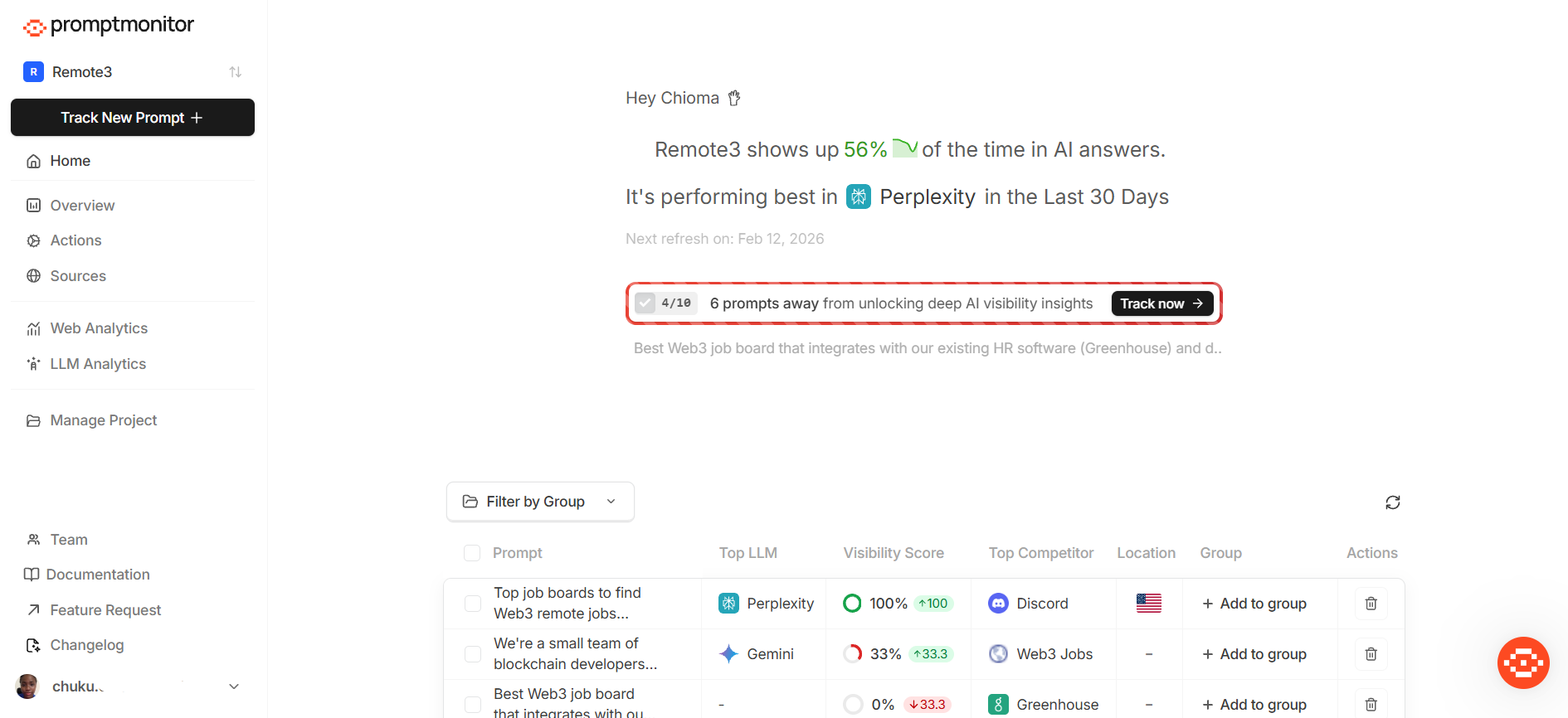
You can get started in two ways:
Click “Track New Prompt” to add your own custom queries
Or review the automatically generated prompts already added to your project
To add a new prompt:
Click “Track New Prompt”
Enter a relevant query your audience might ask
Select your desired AI models and location
Save the prompt
PromptMonitor will begin analyzing how your brand appears across AI models for each prompt.
Step 4: Explore the Dashboard
Once your prompts are set up, you can explore your overview on the dashboard to view:
Visibility Score – How often your brand appears in AI responses
Prompt Performance – Results for each tracked query
Model Breakdown – Performance across different AI platforms
Cited Sources – Where AI models are pulling information from
Step 5: Review Mentions and Sources
Promptmonitor analyzes each AI response and identifies whether your brand was mentioned.
You can view:
Whether your brand was mentioned or not
Which competitors were referenced
Source links (when web search is performed)
Sentiment insights
This allows you to understand not only if you’re visible, but also how you’re positioned.
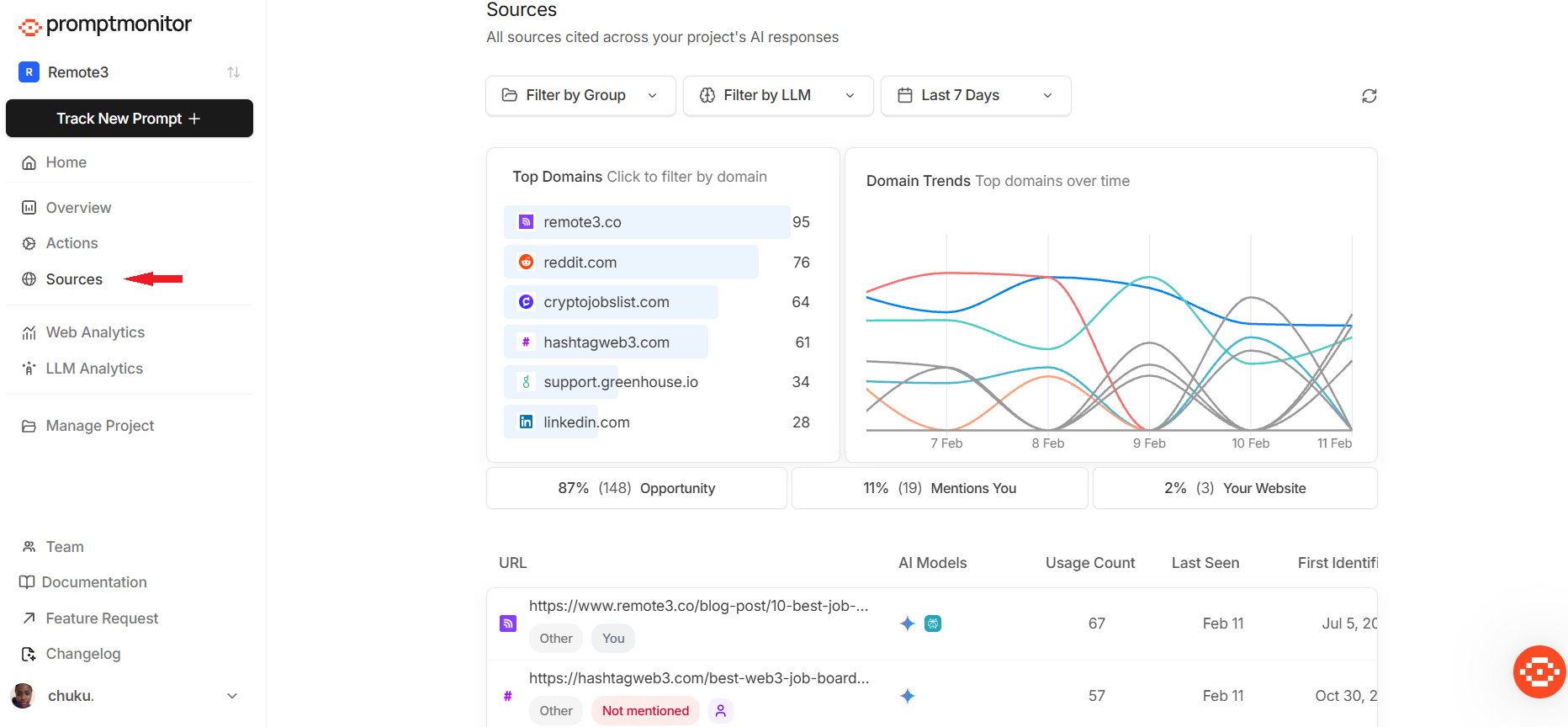
Step 6: Monitor Trends Over Time
As data refreshes (typically daily for active prompts), you’ll begin to see trends emerge.
Over time, you can:
Track improvements in visibility
Identify consistent gaps
Compare performance across regions
Measure the impact of content or SEO efforts
Promptmonitor recalculates metrics automatically whenever new responses are collected.
Step 7: Invite Your Team (Optional)
If you’re working with a marketing or growth team, you can invite members from the Teams section.
Team members can collaborate on projects and review analytics together.
Next Steps
Learn How to Track a Prompt
Learn about Understanding Prompt Analytics
Learn about the Dashboard Overview
Need Help?
If you require assistance at any point during onboarding, kindly:
Send us a message via our live chat support channel
Email us at support@promptmonitor.io
Was this helpful?
Still need help? Ask the team