How to Add Locations
Track how AI responses and brand mentions vary by geographic location
Locations allow you to track how AI responses vary by geography. This helps you understand regional differences in brand mentions and optimize your AI visibility strategy for specific markets.
Method 1: From Manage Project Page
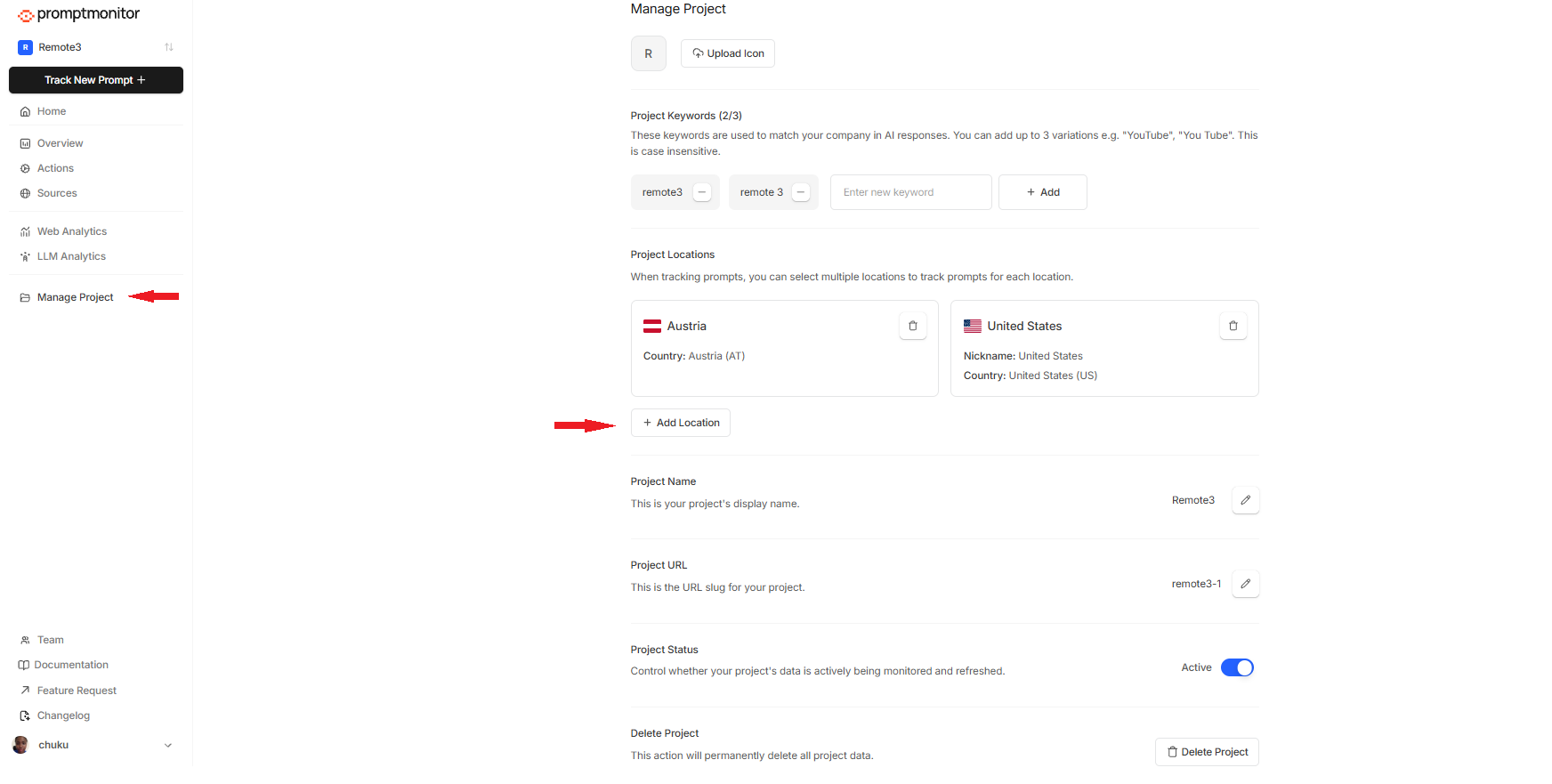
1. Navigate to Manage Project
From the sidebar, click "Manage Project."
2. Click Add Location
On the Manage Project page, click "Add Location."
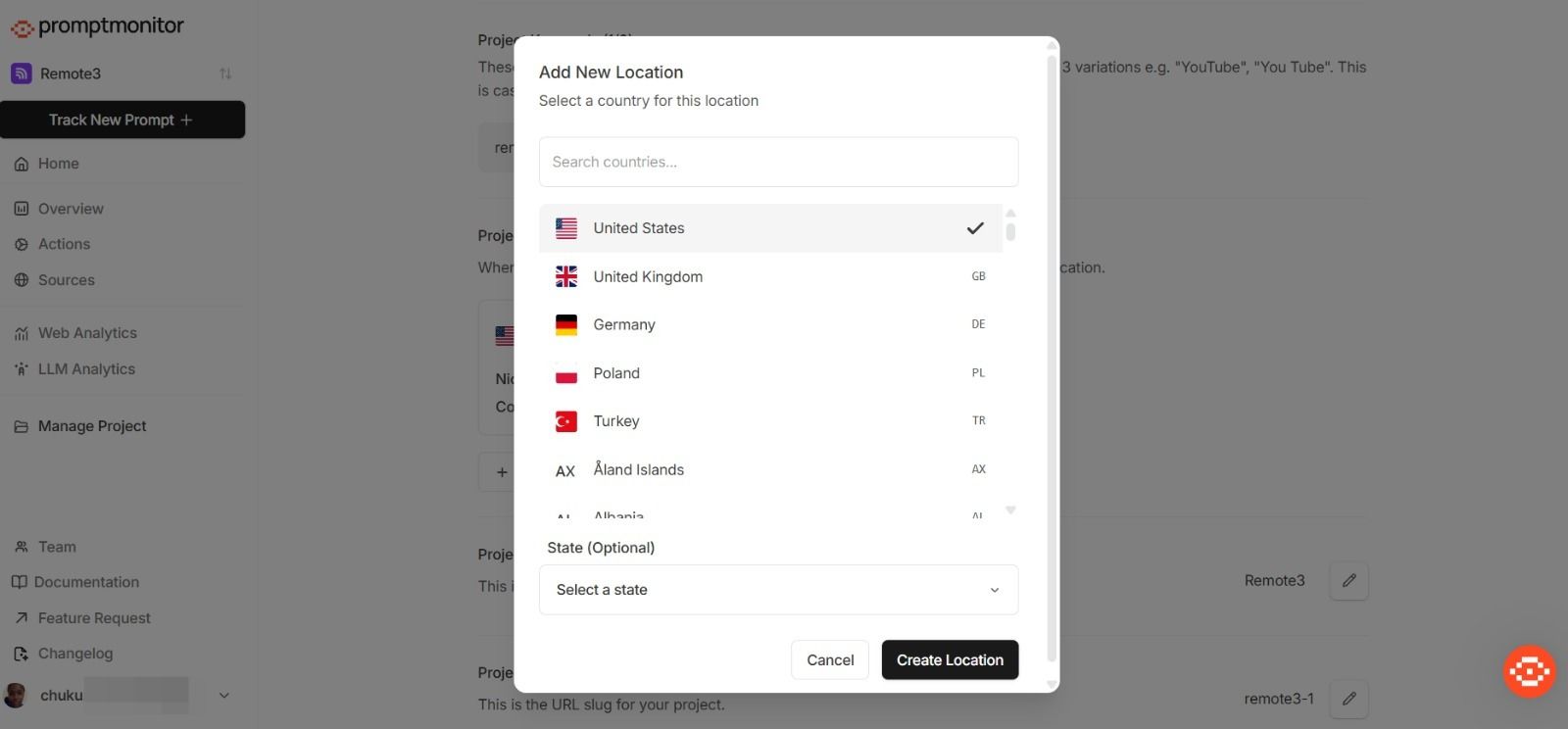
3. Select Country and State
Choose your desired country from the dropdown list.
If you select United States, an additional State dropdown will appear.
4. Create Location
Click the "Create Location" button to save your new location.
Method 2: From Prompt Tracking Page
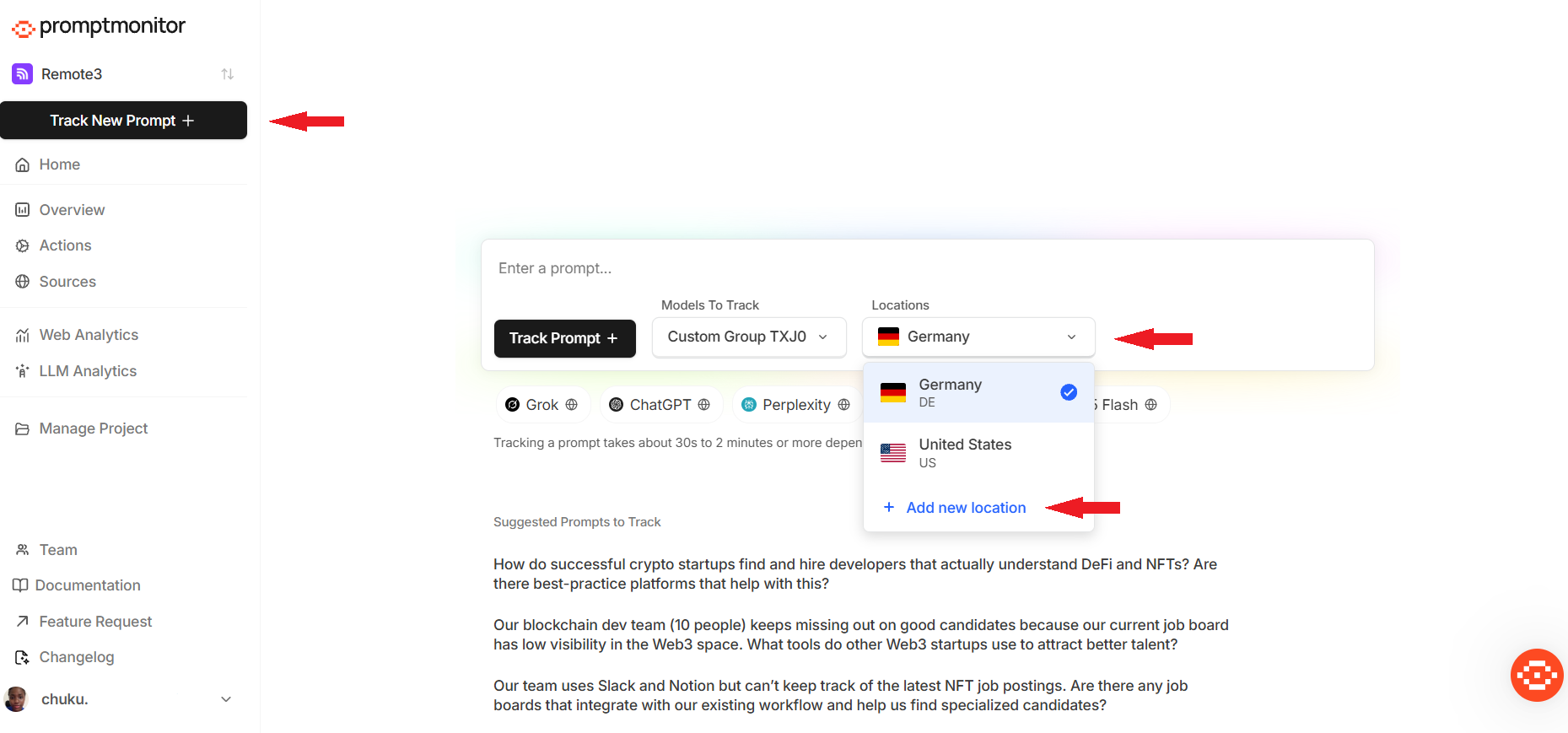
1. Go to Track New Prompt
Click "Track New Prompt" from the sidebar.
2. Open Location Dropdown
In the prompt tracking form, click the "Select Location" dropdown.
3. Choose Add New Location
Select "Add new location" from the dropdown menu.
4. Complete the Form
The same location creation popup will appear. Select your country (and State, if in the United States), then click "Create Location.”
Important Notes
US States: State selection is only available when United States is selected as the country
Multiple Locations: You can add multiple locations to track regional differences
Next Steps
Learn how to Track a Prompt using your new locations
See the full list of Supported Countries
Need Help?
If you have any questions or concerns, kindly check our other documentation guides, or:
Send us a message via our live chat support channel
Email us at support@promptmonitor.io