Connect Google Search Console
Link your Search Console property to see your Google search data next to your AI visibility.
Connect Google Search Console to see your Google search data next to your AI visibility. Once it's connected, your Overview shows the searches that bring people to your website, so you can compare how you show up on Google with how you show up in AI answers.
Before You Start
You'll need:
A Growth or Pro plan
Your website verified in Google Search Console
Access to that Search Console property through your Google account
If your website isn't in Search Console yet, add and verify it at search.google.com/search-console first.
Connect Search Console
Go to Websites Settings and open Integrations.
Click Connect next to Google Search Console.
Sign in with the Google account that has access to your property.
Allow Promptmonitor to view your Search Console data.
Choose the property for this website.
We'll start syncing your data straight away.
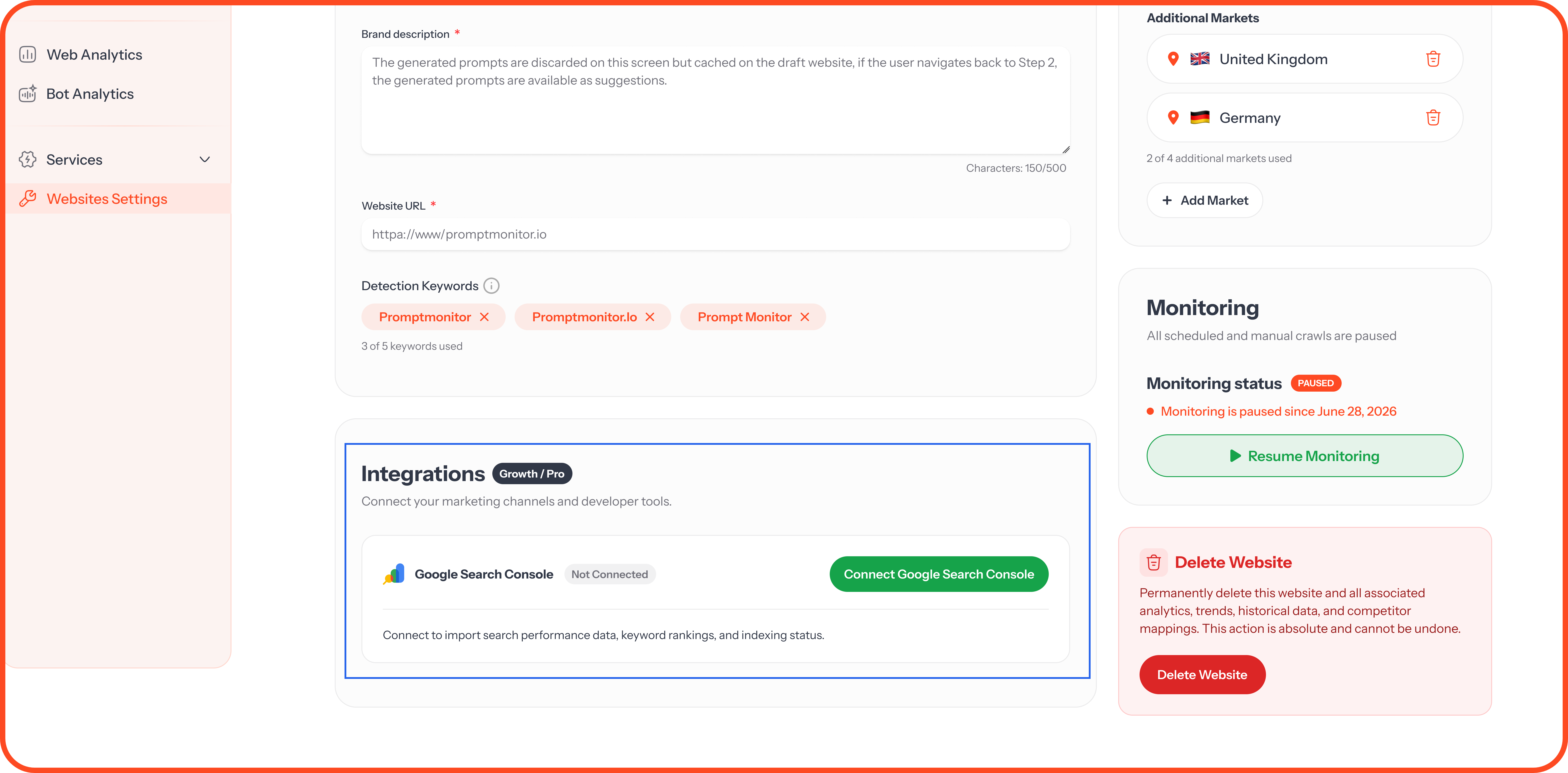
We only read your data. We can view your Search Console reports, but we can't change anything in your account.
What You'll See
Your Overview shows your top 20 Google search queries, with the following:
Turn your best searches into prompts. If people find you on Google with a search, they're likely to ask AI the same question. Add your top queries as prompts to see whether AI names you too.
Check Your Connection
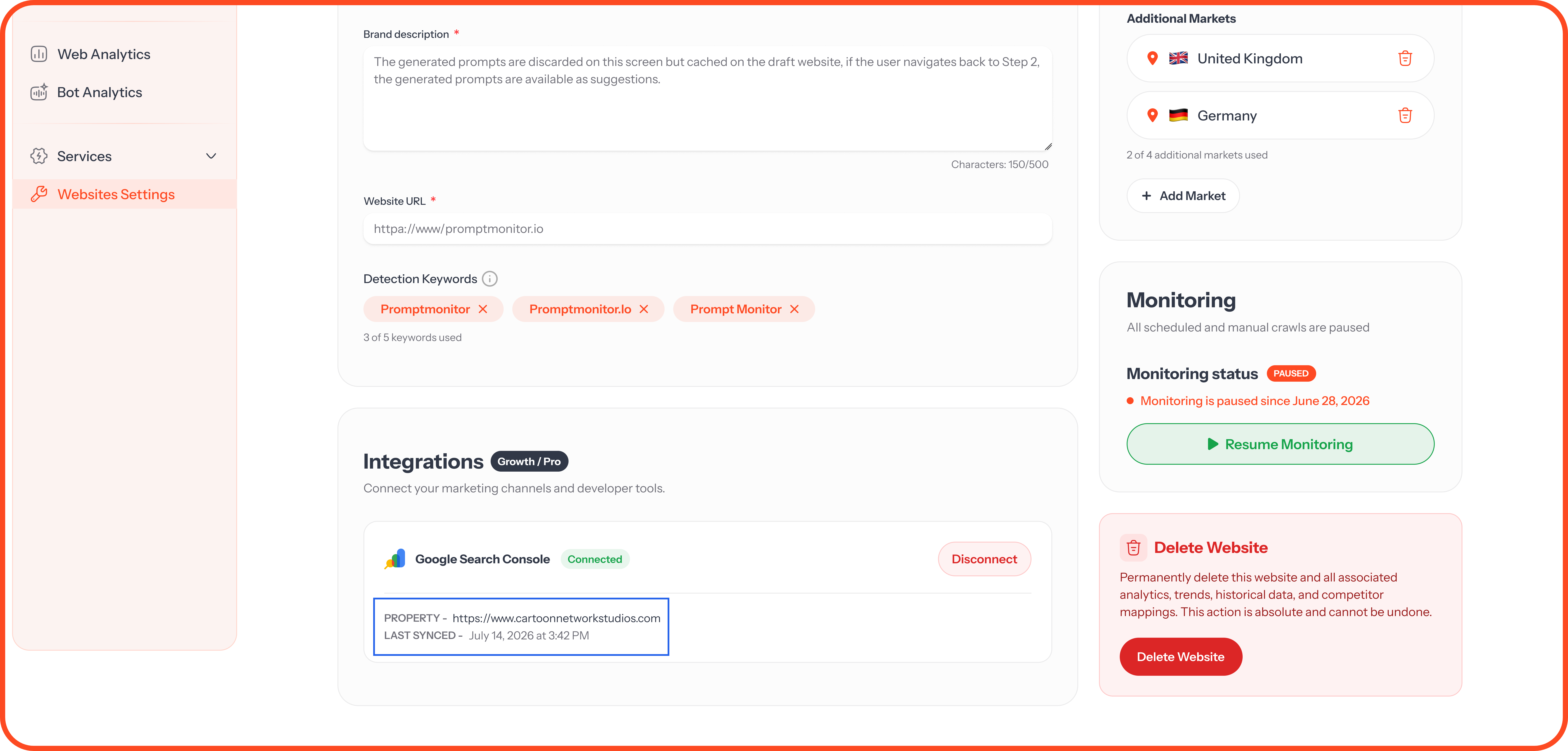
Integrations in Websites Settings show:
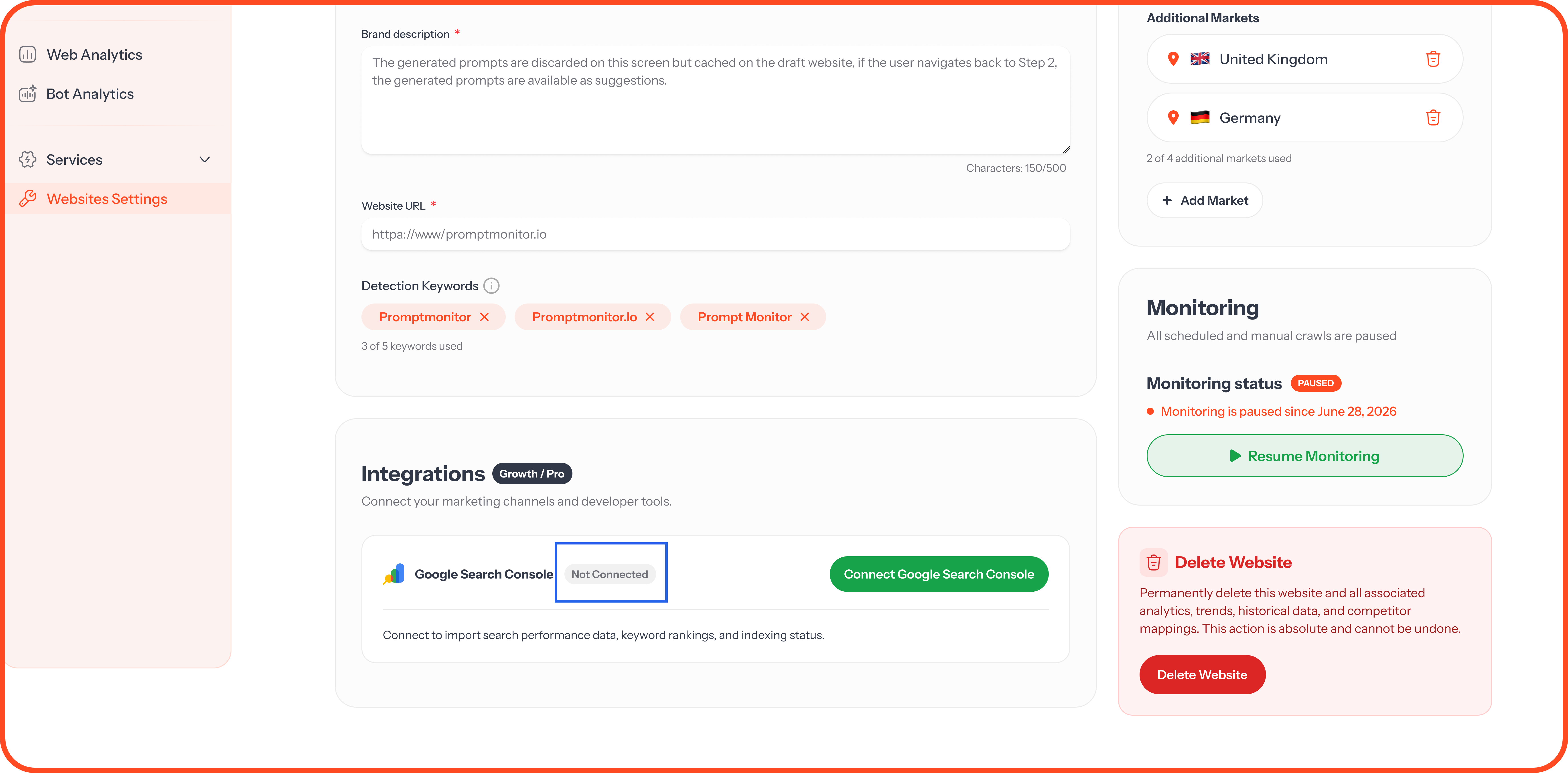
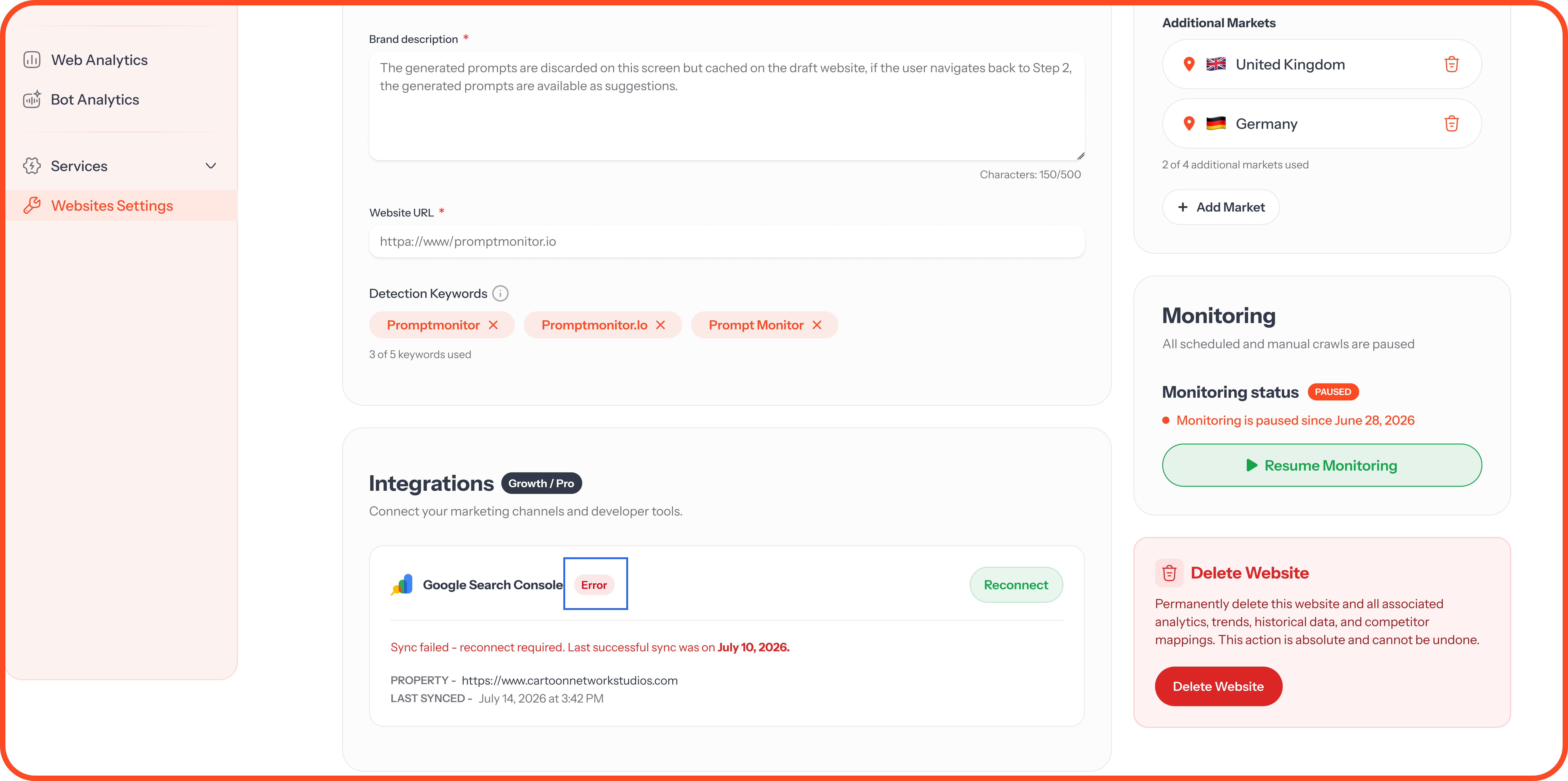
Status: Not connected, Connected, or Error
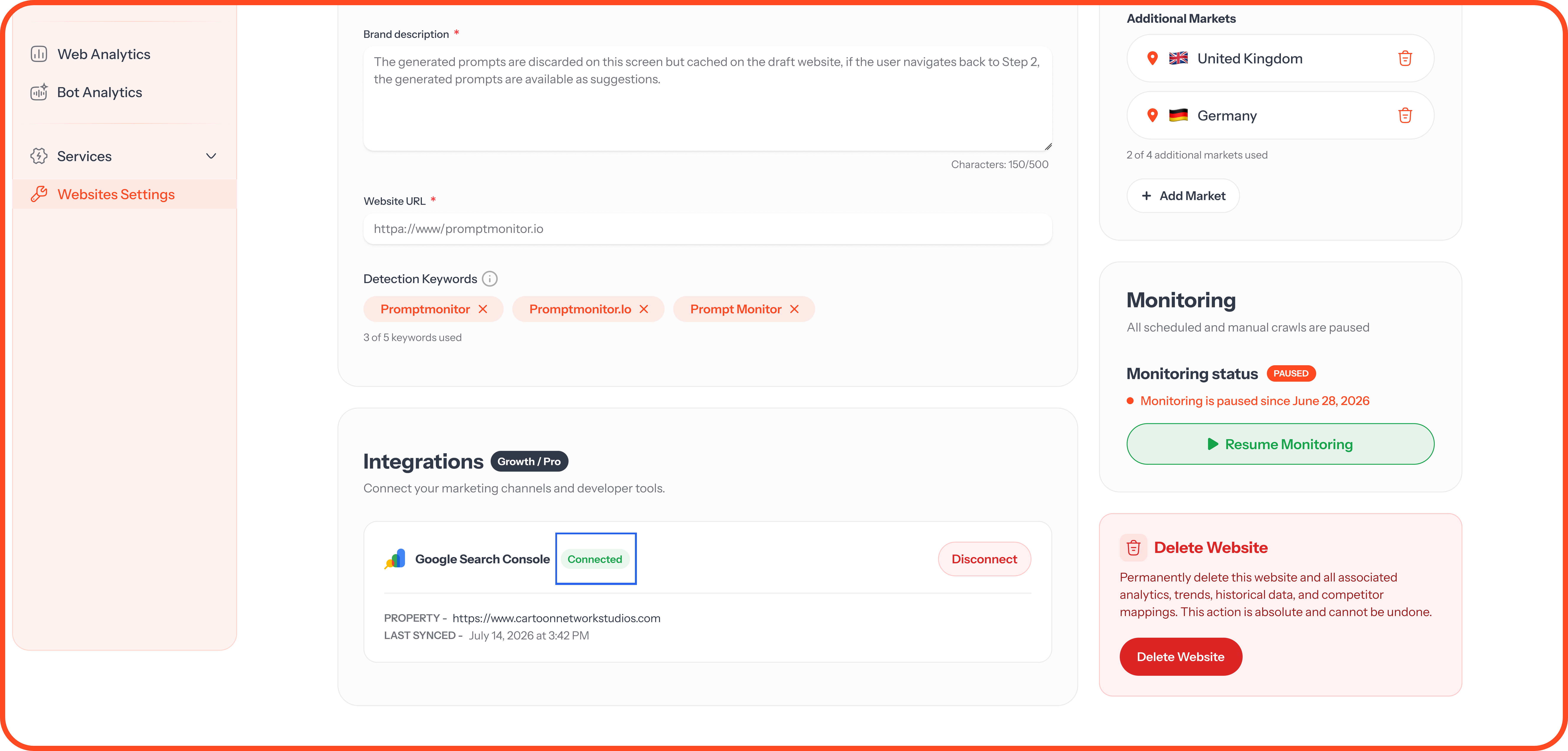
Property: The Search Console property you chose
Last sync: When we last pulled in your data
Change Property or Disconnect
Use a different property: Choose a new one from Integrations.
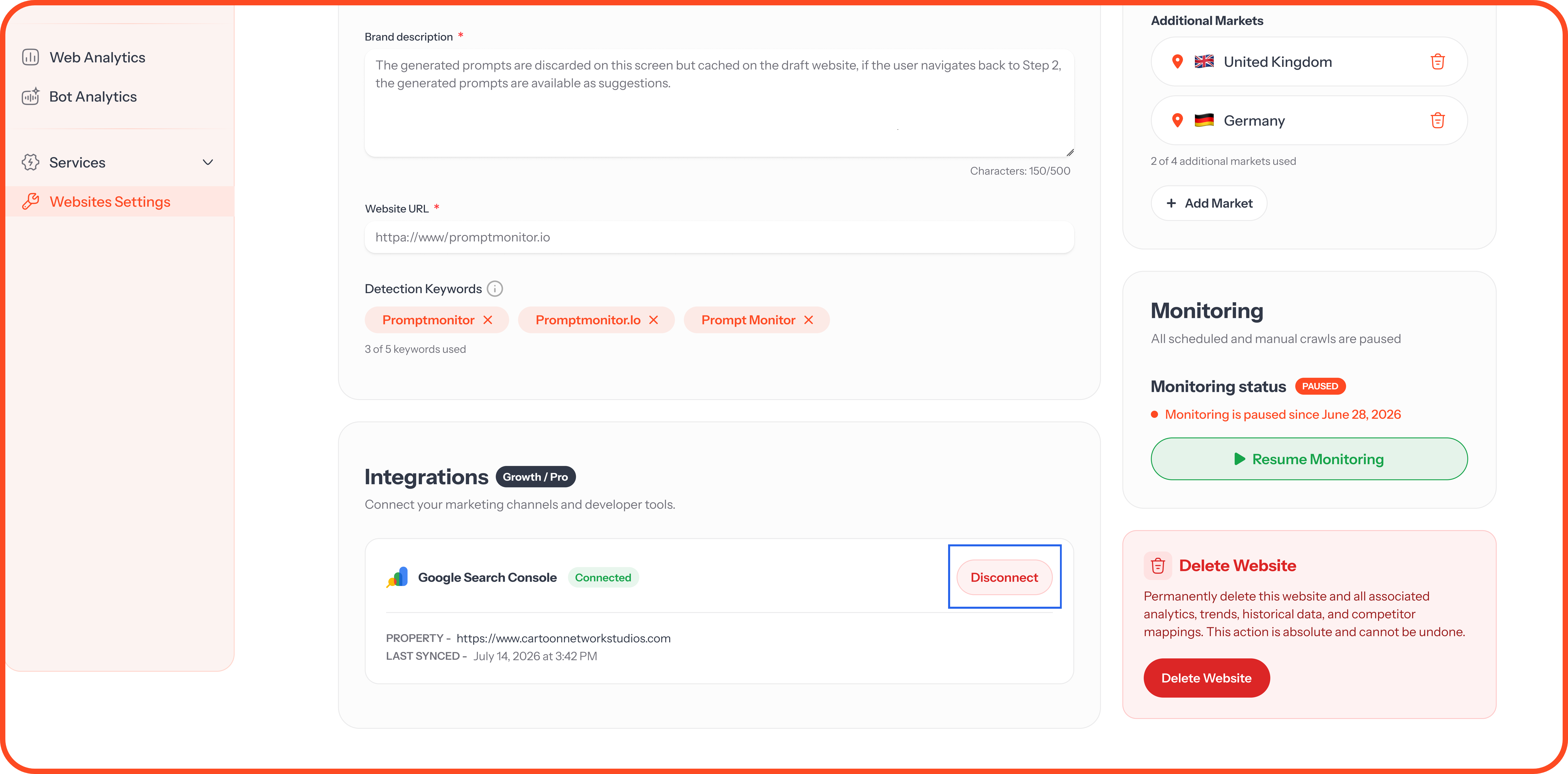
Disconnect: Click Disconnect in Integrations. Your search data stops updating, and you can connect again at any time.
FAQs
I don't see my website in the property list.
The Google account you signed in with doesn't have access to it. Ask the property's owner to add you to Search Console, or connect with the account that owns it.
The status says Error.
Your access may have expired or been removed in Google. Disconnect, then connect again. If that doesn't fix it, contact us.
Why is some of my data missing?
Google takes a few days to process search data, so the most recent days fill in over time. Google also hides some rare searches to protect people's privacy.
Does each website need its own connection?
Yes. Connect Search Console separately for each website you track.
💬 Having trouble connecting? Click the ? icon at the top of your dashboard and choose Contact us.
Was this helpful?
Still need help? Ask the team