How to Track Prompts
Add the questions you want to track, choose their locations, and manage, deactivate, or delete prompts as your needs change.
Prompts are the questions we track for you. Every score in Promptmonitor starts here, so the prompts you choose decide what your data tells you.
What a Prompt Is
A prompt is a question your customers ask AI models when they're looking for a product or service like yours, such as "best property management companies in Dubai."
During each crawl, we ask each of your active prompts to every AI model on your plan, once for every location the prompt is tracked in. Then we check each answer for your brand, your competitors, and the sources AI cites.
Track prompts the way people search. Short, direct questions work best, especially ones with "best," a location, or a specific need. "Best Airbnb management Dubai" will tell you more than "property management."
How Prompts Use Your AI Answers
Each answer from one AI model, for one prompt in one location, uses 1 AI answer from your monthly allowance.
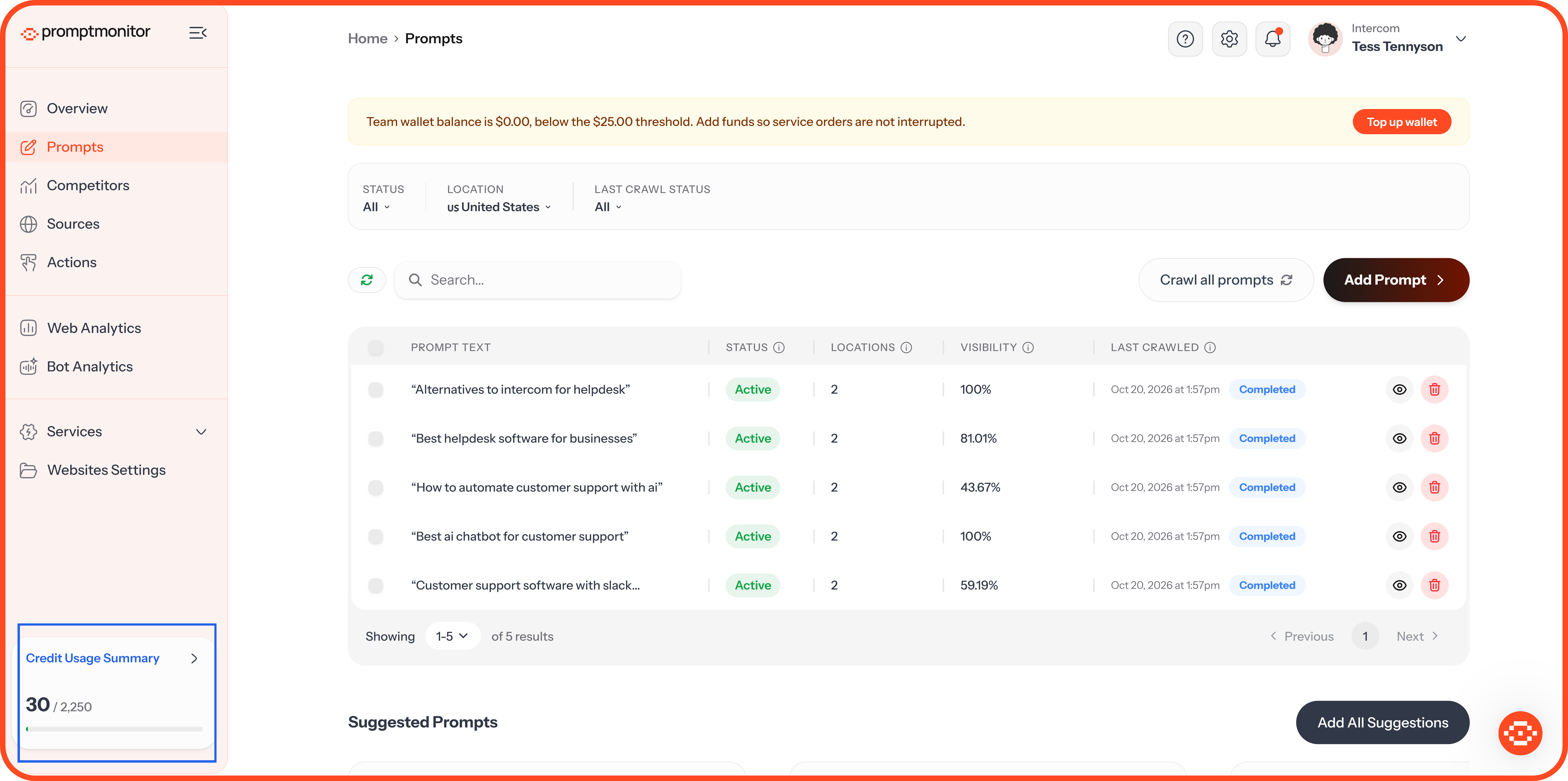
Adding prompts or locations increases what each crawl uses. You can see how much you've used in the Credit Usage Summary at the bottom of the sidebar.
Your Prompts Page
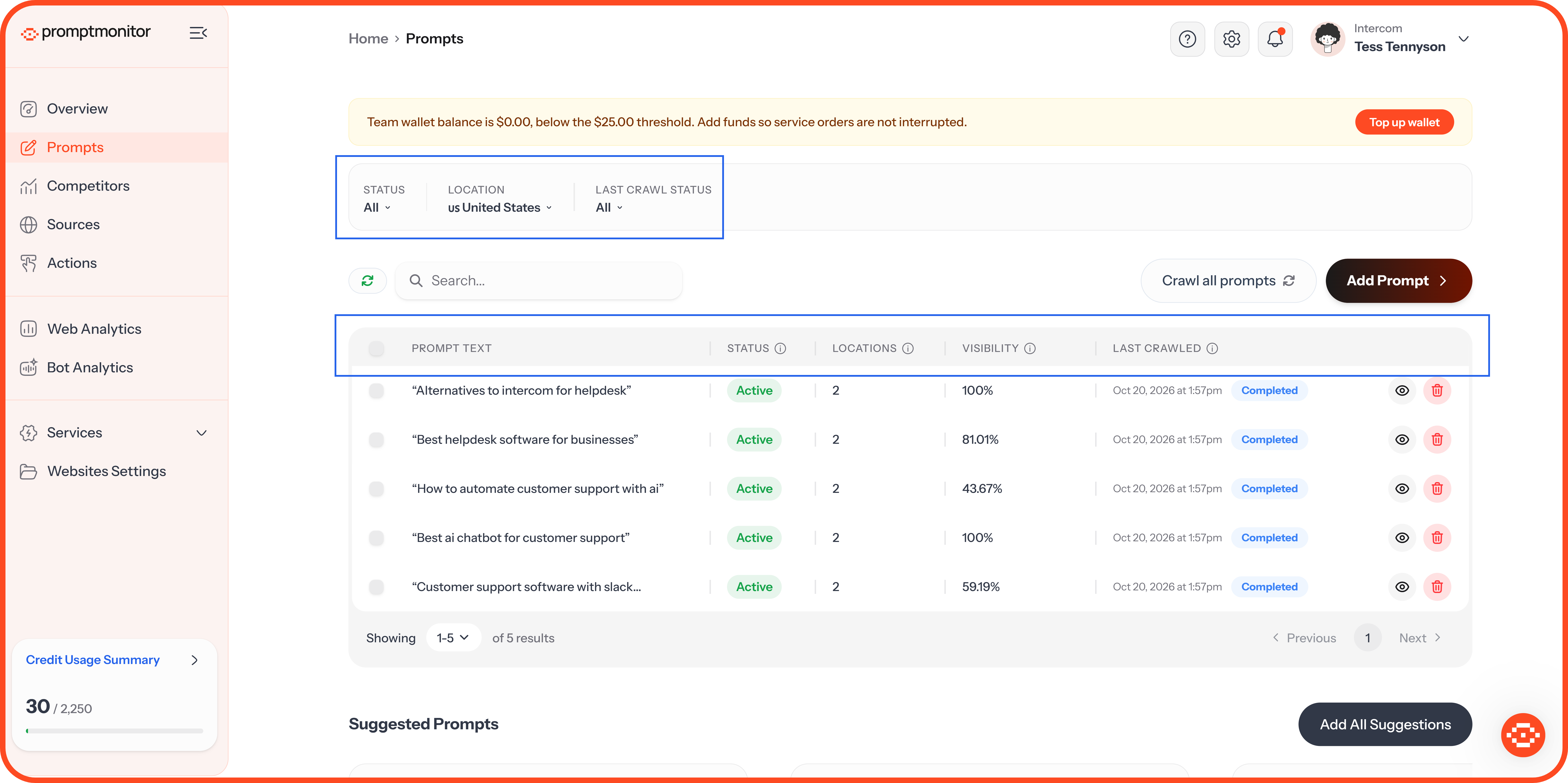
The table lists every prompt for the website you're viewing.
Use the filters above the table to narrow the list by Status, Location, or Last Crawl Status, or search for a prompt by its text. Click a prompt to open its full report.
Add Prompts
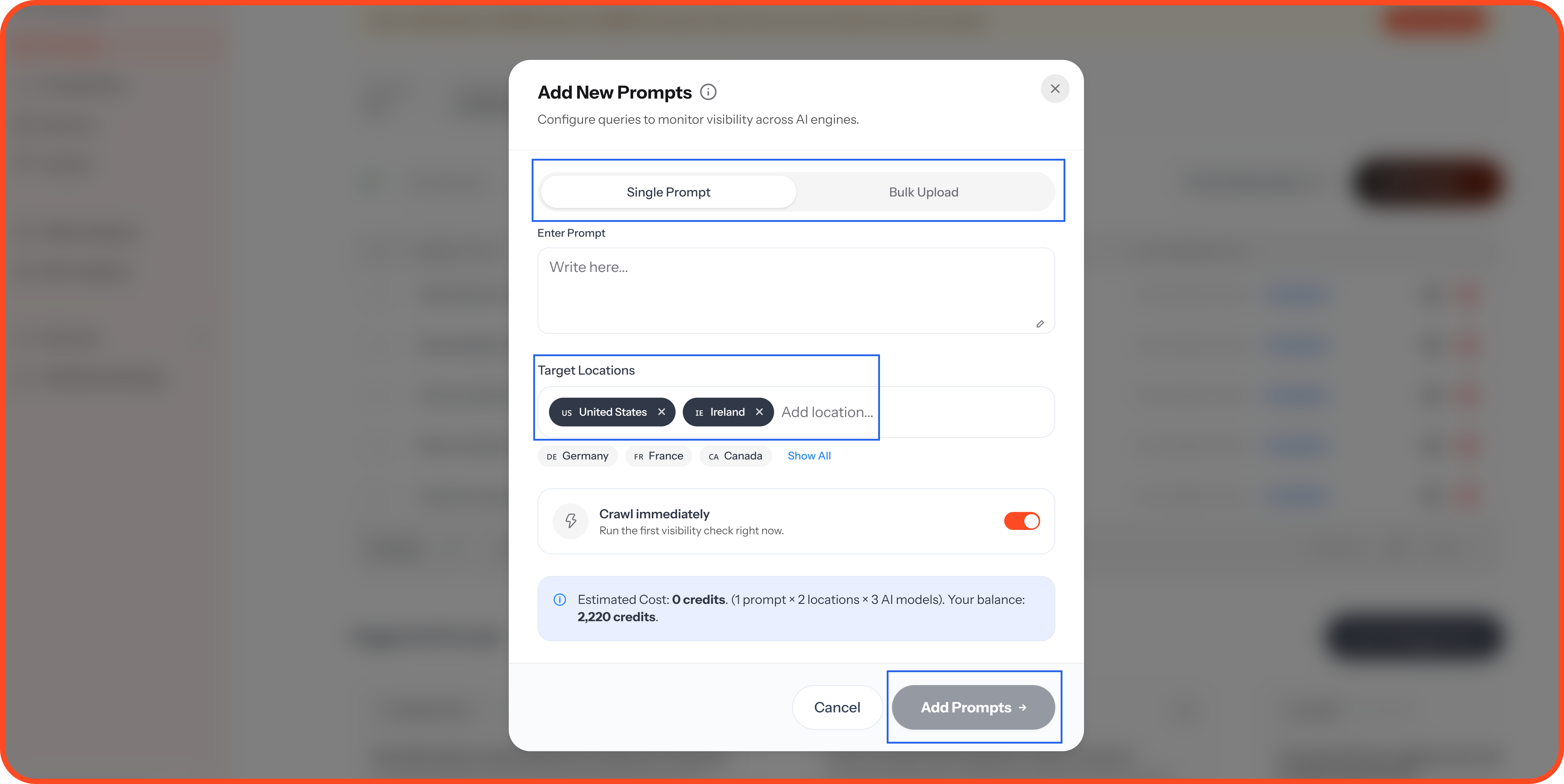
Click Add Prompt.
Choose Single Prompt to add one, or Bulk Upload to add several at once.
Enter your prompt.
Check your Target Locations. Your website's markets are selected automatically. Remove any you don't need, or add more.
Leave Crawl immediately on to check the prompt right away, or turn it off to wait for the next scheduled crawl.
Click Add Prompts.
Check your wording before the first crawl. Once a prompt has been crawled, its text can't be changed. This keeps its history accurate. To track a different question, add a new prompt.
Prompt Rules
Each prompt must be between 5 and 200 characters.
You can't add the same prompt twice to one website.
Each prompt needs at least 1 location and can have up to 5. To track without a specific country, choose Global.
Run a Crawl Now
Your prompts are crawled automatically on your plan's schedule. To check them sooner:
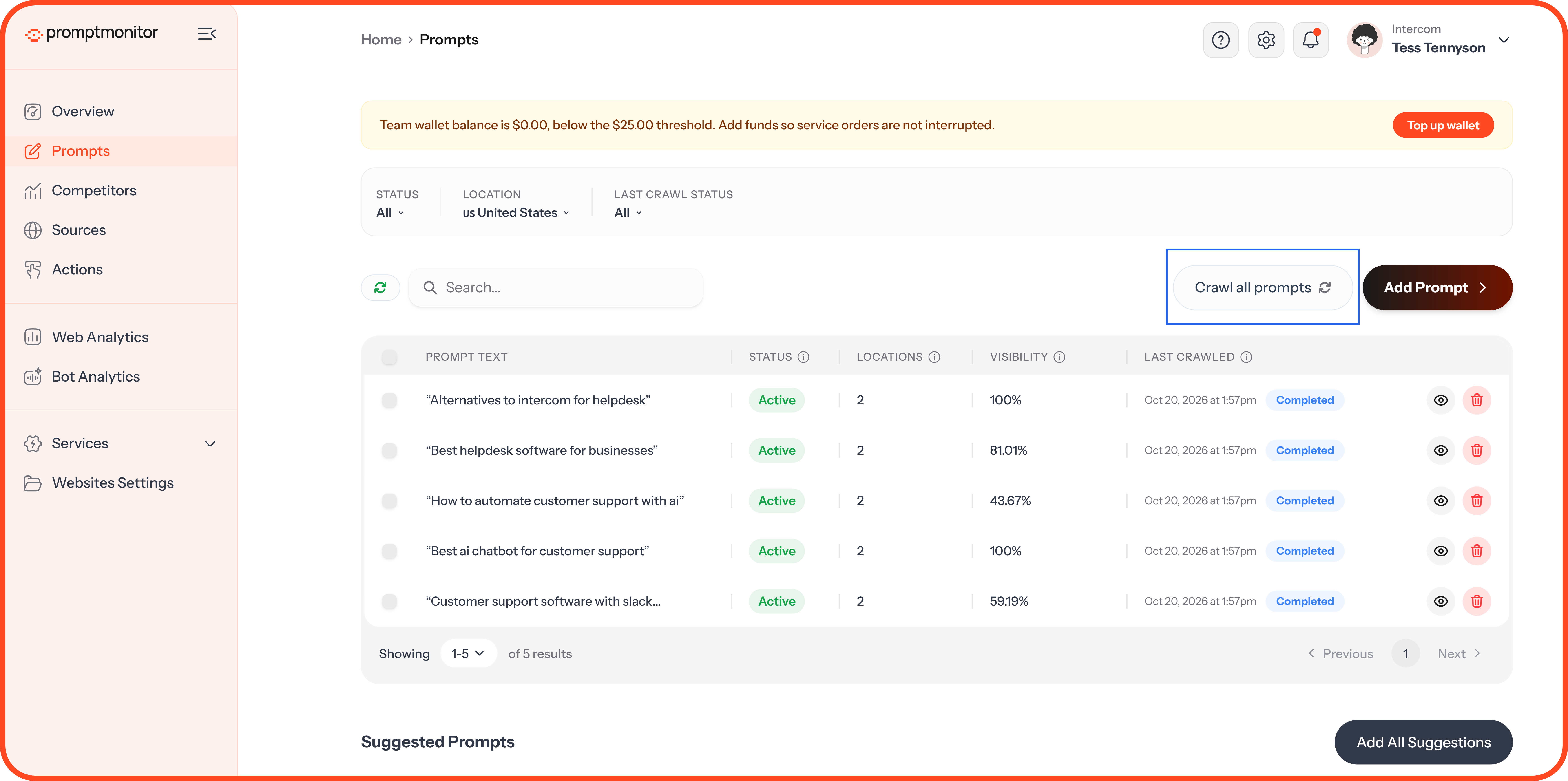
All prompts: Click Crawl all prompts to crawl every active prompt straight away.
One prompt: Open the prompt and click Recrawl Now.
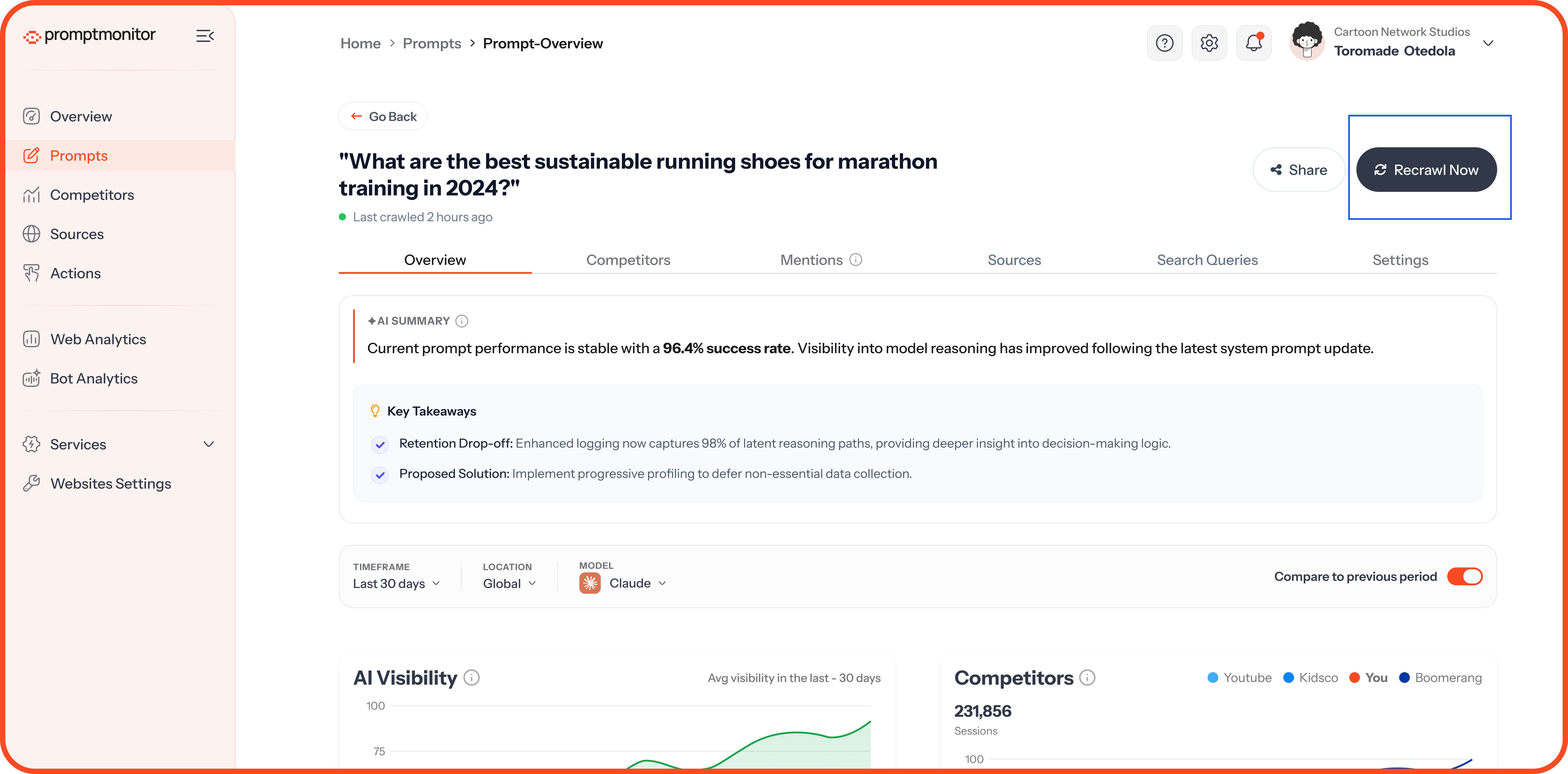
A manual crawl uses AI answers from your monthly allowance, the same as a scheduled one.
Deactivate or Delete Prompts
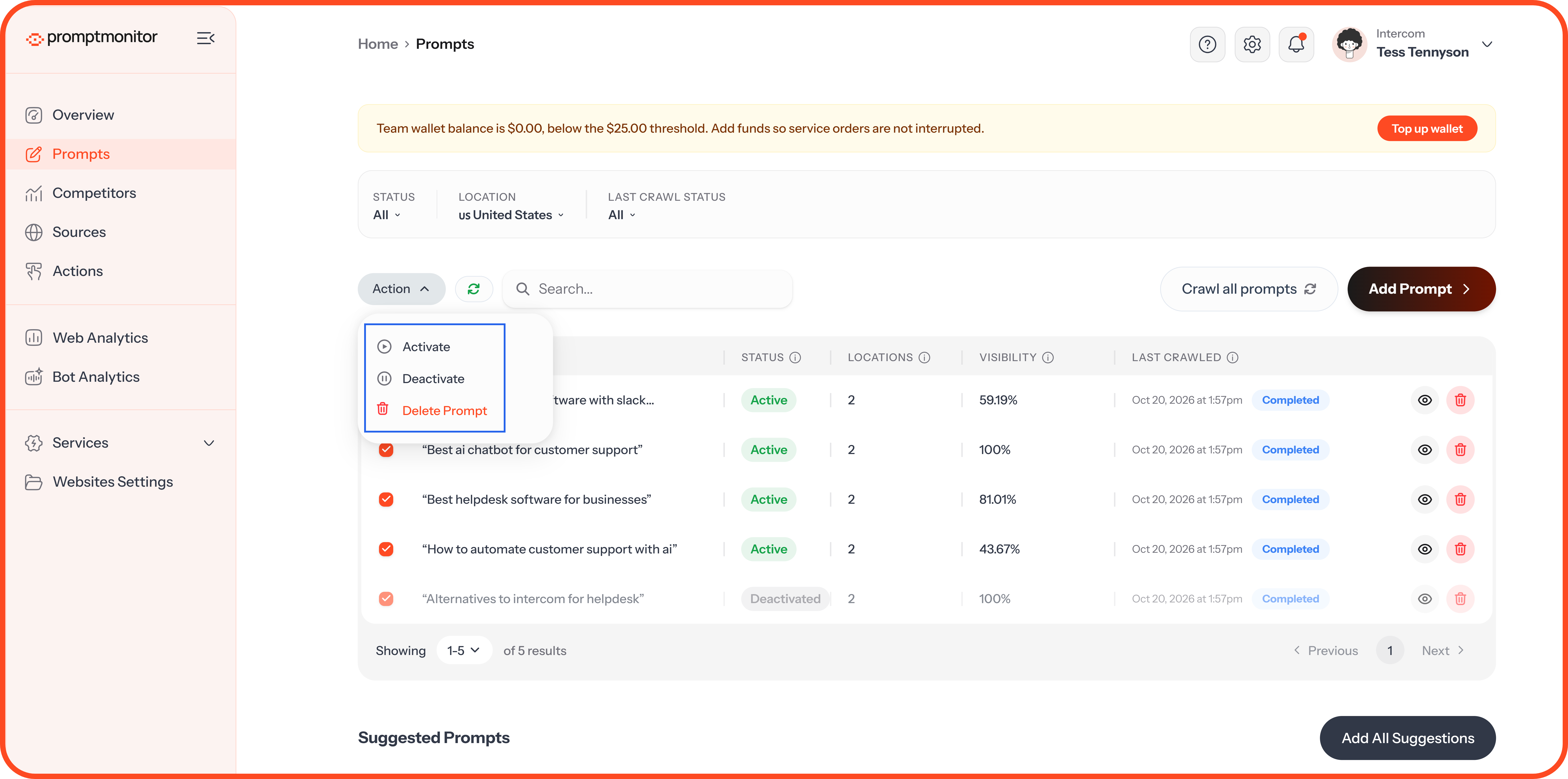
To act on one prompt, open it and go to its Settings tab, or click the delete icon on its row. To act on several, select them in the table, then choose Deactivate or Delete Prompt from the Action menu.
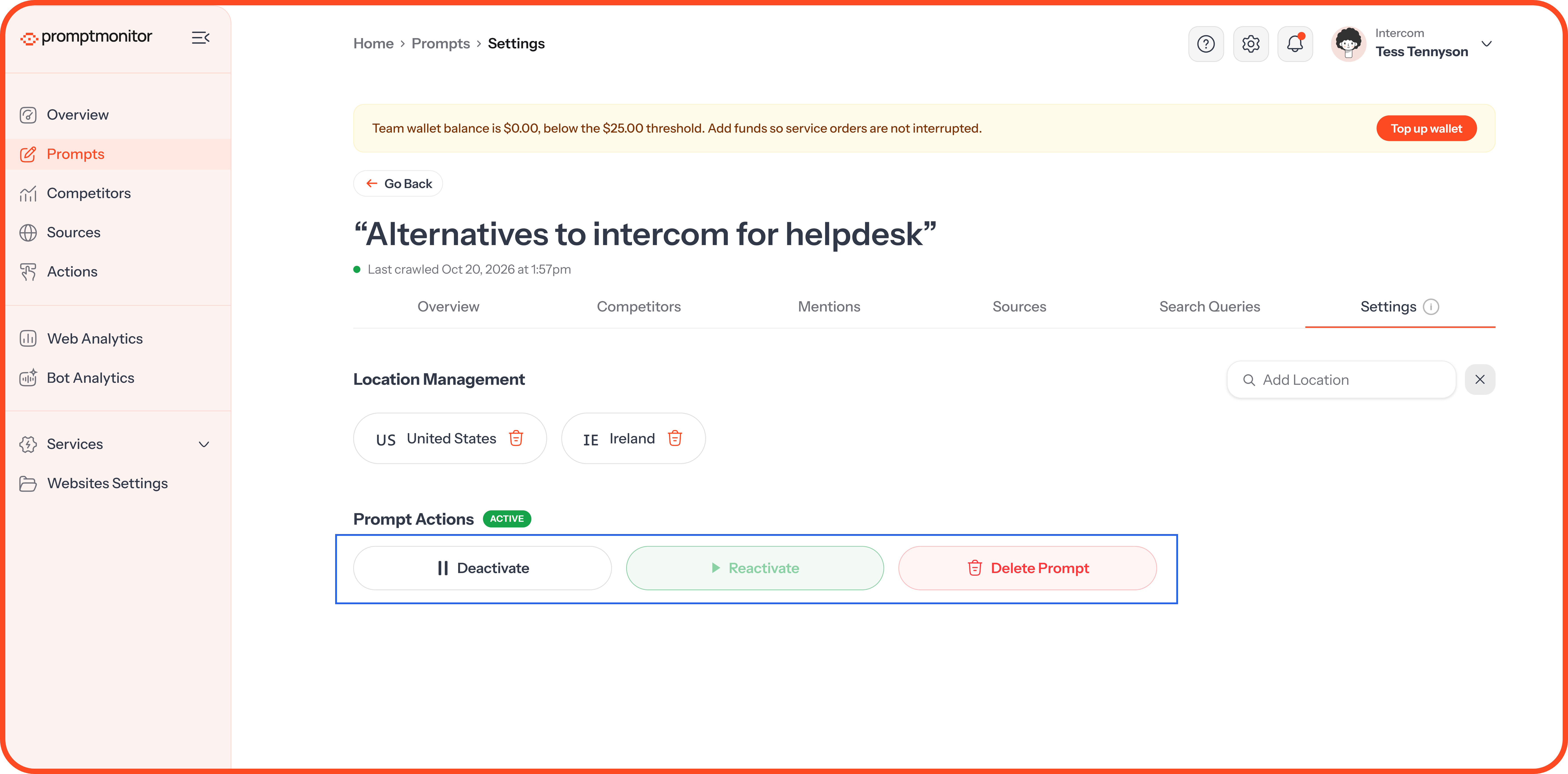
Deleting a prompt can't be undone. If you might want the data later, deactivate it instead.
Suggested Prompts
After your first crawl, we look at your results and suggest prompts worth tracking. You'll find them below your prompts table, each with a short explanation of why we picked it.
For each suggestion, you can:
Click Add Prompt to start tracking it
Click Edit to change the wording before you add it
Dismiss it, and we won't suggest it again
Click Add All Suggestions to add every suggestion at once, as long as they fit within your plan's prompt limit.
Prompt Limits
Your plan sets how many prompts your team can track across all your websites. Active and deactivated prompts both count toward the limit, and only deleting a prompt frees up a space.
FAQs
Why can't I edit a prompt?
Prompts can't be edited after their first crawl, because a changed question would make the earlier results meaningless. Add a new prompt with the wording you want, and deactivate or delete the old one.
A prompt says its last crawl failed. What do I do?
In most cases, nothing. We retry failed prompts automatically on the next scheduled crawl. If you want results sooner, run a crawl yourself.
Should I add more locations to a prompt?
Add a location when you sell there. AI models answer differently by country, so each location gives you a separate view. Each one also multiplies the AI answers the prompt uses.
Can I change a prompt's locations after it's been crawled?
Yes. Open the prompt and go to its Settings tab. Only the prompt's text is locked.
Why don't I see any suggested prompts?
Suggestions appear after your first crawl, and only while you have space left on your plan.
💬 Not sure which prompts to track? Click the ? icon at the top of your dashboard and choose Contact us.
Was this helpful?
Still need help? Ask the team